> ## Documentation Index
> Fetch the complete documentation index at: https://docs.kubestacks.com/llms.txt
> Use this file to discover all available pages before exploring further.
# Actions by kind
> Everything KubeStacks can do to each kind of object, where to find it, and the options each action has.
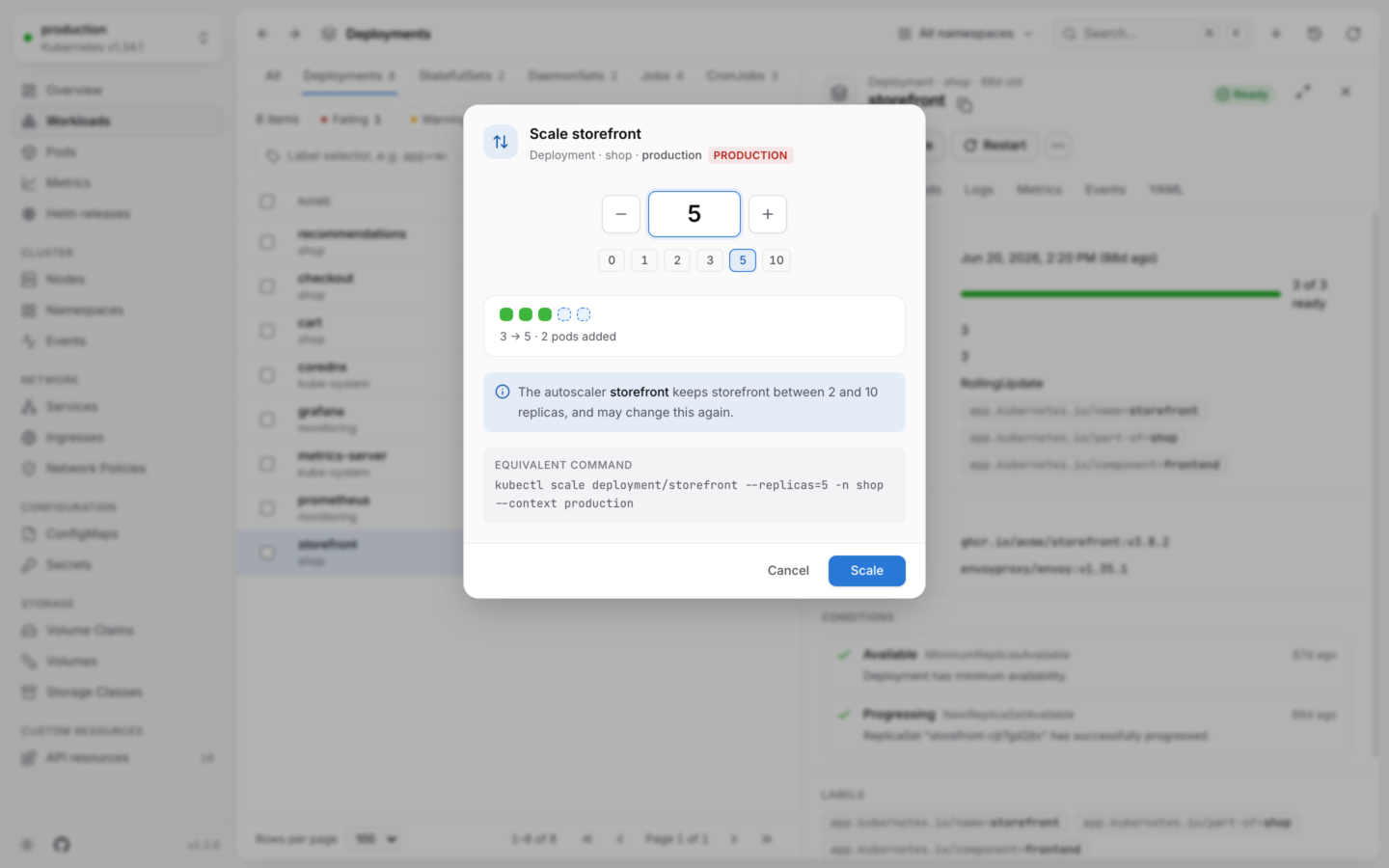
Open an object and its actions are right there. Each one checks your permissions first, names the cluster, and shows the equivalent `kubectl` command before it does anything. See [Changing things safely](/changes/safely).
## Where actions are
The common actions are buttons at the top of the panel. The rest are under **More actions** (**⋯**), or press .
Right-click any row for its actions, plus **Copy name**, **Copy kubectl describe** and, for pods, **Copy kubectl logs**.
With an object open, ⌘K lists its actions first. Type a few letters of the action and press ↵.
⌘⌫ deletes the open object. ⌘S reviews a YAML edit.
On Windows and Linux, use Ctrl wherever this page shows ⌘.
An action you can't take stays in the menu, disabled, with the reason: your account isn't allowed to (say, "Your account can't delete pods in shop."), or the cluster is [read-only](/changes/read-only).
## At a glance
| Kind | Actions |
| - | - |
| Deployments | Scale, Restart, Change image, Roll back, Pause or resume rollout |
| StatefulSets | Scale, Restart, Change image, Roll back |
| DaemonSets | Restart, Change image, Roll back |
| ReplicaSets | Scale |
| Pods | Shell, Debug, Forward a port (desktop app), Restart, Evict, Delete (or force-delete) |
| Jobs | Suspend, Resume |
| CronJobs | Run now, Suspend, Resume, Change image |
| Nodes | Cordon, Uncordon, Drain |
| Autoscalers | Edit replica range |
| Volume claims | Expand volume |
| Services | Forward a port (desktop app) |
| Custom resources | Scale (with the scale subresource), and their [view's](/custom-resources/built-in-views) actions |
| Everything but events | Edit labels, Edit YAML, Delete |
Actions only show when they apply: **Uncordon** on a cordoned node, **Resume rollout** on a paused deployment, **Shell** on a running pod.
## Workloads
For Deployments, StatefulSets and ReplicaSets, and custom kinds that serve the scale subresource (Argo Rollouts, say).
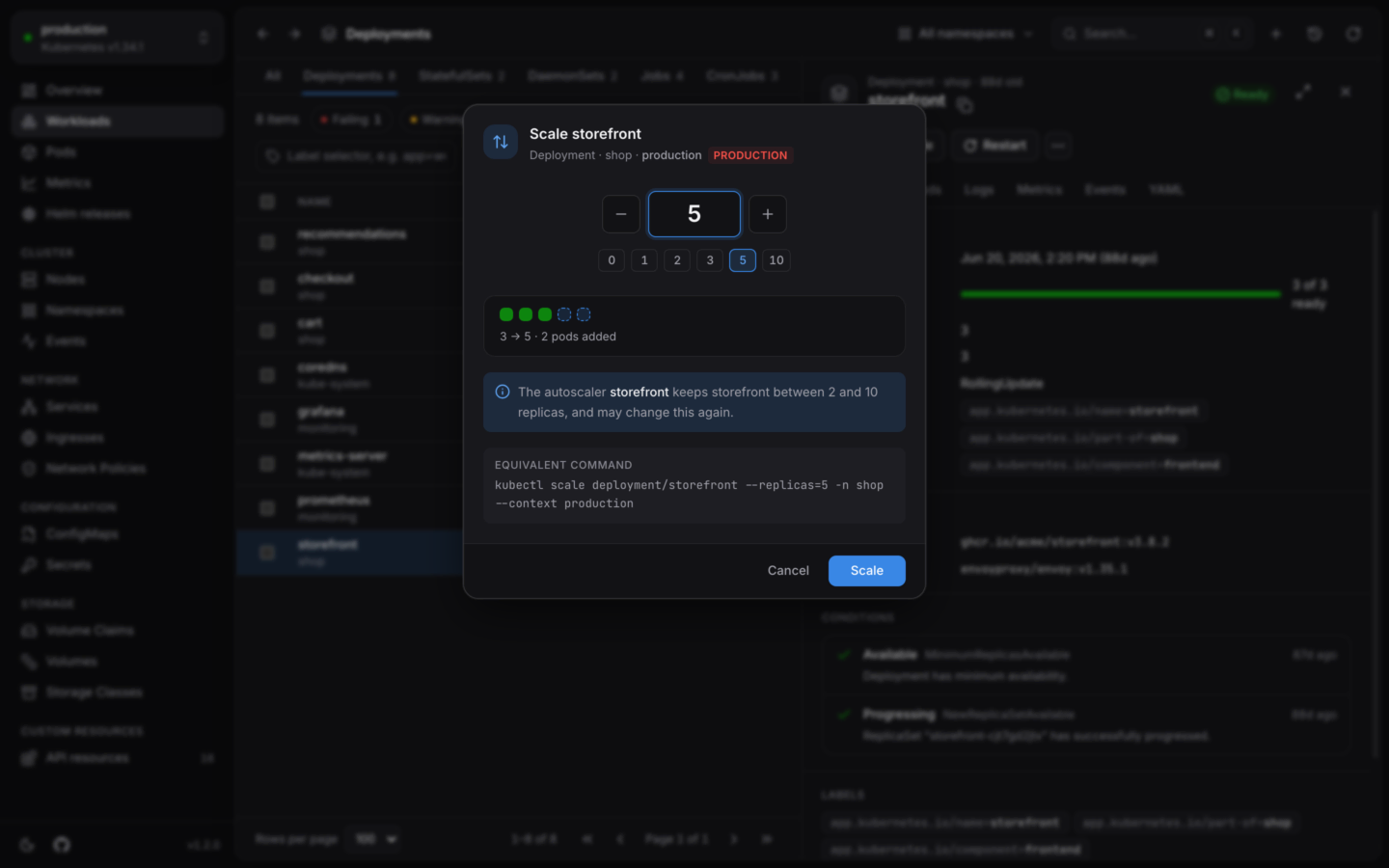
Set the replicas with the stepper, or pick a preset: **0**, **1**, **2**, **3**, **5** or **10**. A preview shows which pods are added or removed. If an autoscaler manages the workload, the dialog says it keeps the workload within its range, and may change your number again.
Undo from the notification scales it back.
 For Deployments, StatefulSets and DaemonSets, like `kubectl rollout restart`: new pods with the same spec. The dialog explains how the pods are replaced:
* **Deployments** replace pods a few at a time, following the rollout strategy, so a healthy app stays available. With the `Recreate` strategy, every pod stops before new ones start, and the dialog warns you to expect downtime.
* **StatefulSets** replace pods one at a time, from the highest ordinal down, each once the one before it is ready.
* **DaemonSets** replace pods node by node.
For Deployments, StatefulSets, DaemonSets and CronJobs. Each container has its own field, init containers included. For a Deployment, images it ran before are offered as suggestions.
Pods are replaced with the new images, following the rollout strategy. For a CronJob, jobs it starts from then on use the new images.
Undo restores the previous images.
For Deployments, StatefulSets and DaemonSets, like `kubectl rollout undo`. The dialog lists the earlier revisions, newest first, each with its age, its change cause when it has one, and the image of each container. Images that differ from what's running now are highlighted, and **Running now** says which revision is current.
Pick one and choose **Roll back**. KubeStacks puts that revision's pod template back, and the workload rolls out as usual.
For Deployments, like `kubectl rollout pause` and `resume`. These run at once, without a dialog, and can be undone from the notification.
## Pods
Opens a terminal in a running container, in the pod's **Shell** tab. See [Shells and debug containers](/debug/shell).
Adds a debug container with tools to a running pod, like `kubectl debug`, and opens a shell in it. Works for distroless images too. See [Shells and debug containers](/debug/shell#debug-containers).
Forwards a port on your computer to a running pod, or to a service's pod. See [Port forwarding](/debug/port-forwarding).
**Desktop app only:** a browser has no computer of yours to forward a port to.
For pods that a controller manages. KubeStacks deletes the pod: it shuts down gracefully, and its controller starts a new one to replace it. The button reads **Restart pod**.
Evicts the pod through the Eviction API. Unlike a delete, evictions respect PodDisruptionBudgets: if the eviction would leave too few pods running, the cluster refuses, and nothing changes. The dialog says whether a controller will start a replacement.
Deleting a pod says whether its controller replaces it. Tick **Force: skip graceful shutdown** to remove it from the API at once, without waiting for its containers to stop (`--grace-period=0 --force`). The button changes to **Force delete**.
For a pod that's already stuck terminating, the option starts ticked. Its containers may keep running if their node is unreachable.
## Jobs and CronJobs
Starts a job from a CronJob's template right away, outside its schedule, like `kubectl create job --from=cronjob/…`. The job is named after the CronJob, with `-manual-` and five random characters, and carries the `cronjob.kubernetes.io/instantiate: manual` annotation. If the schedule is suspended, it stays suspended.
The notification has an **Open** button that takes you to the new job.
For CronJobs and Jobs, by setting `spec.suspend`. A suspended CronJob starts no new runs; a suspended Job stops its pods until you resume it. They run at once, and can be undone from the notification. **Suspend** isn't offered for a Job that has completed.
## Nodes
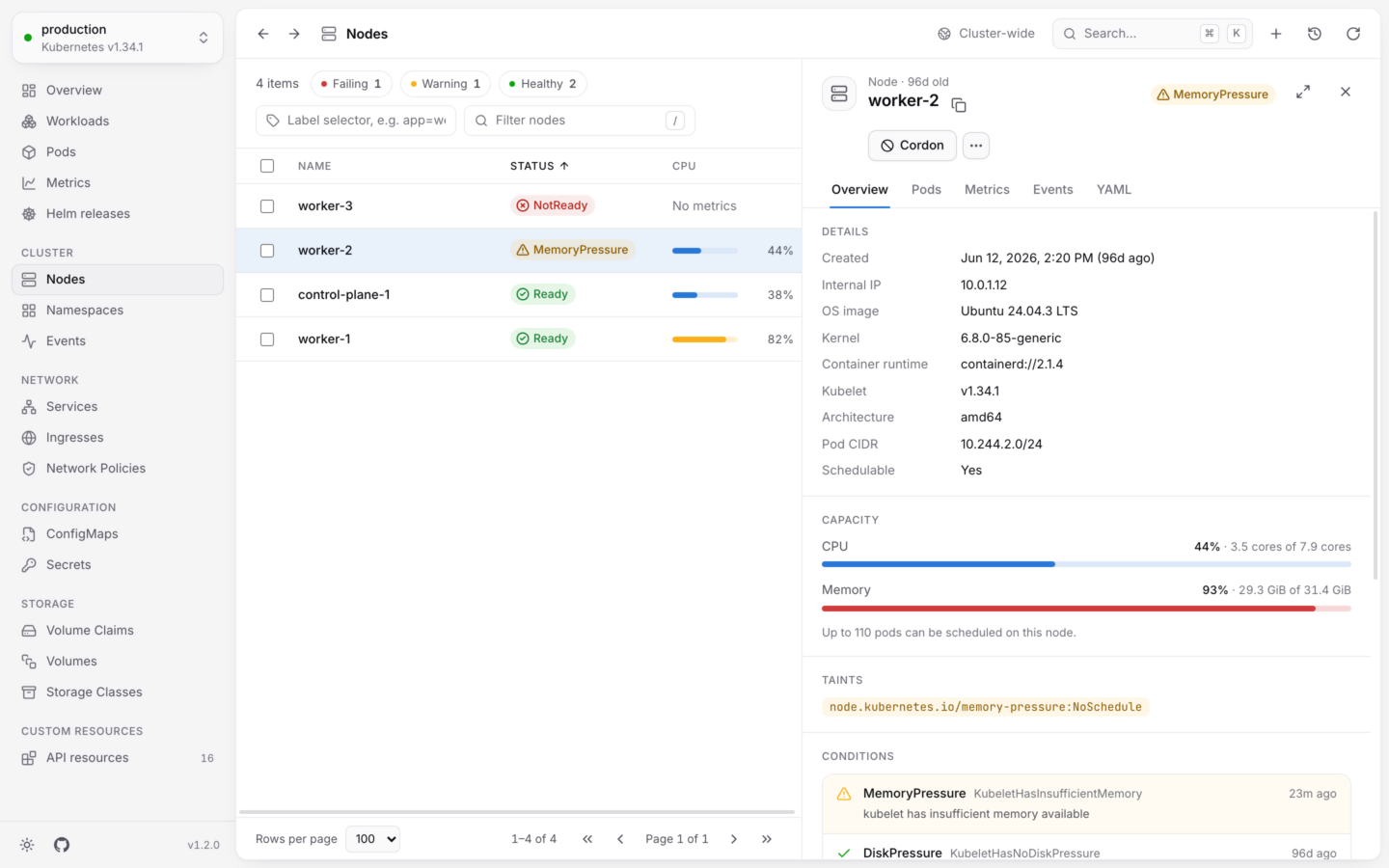
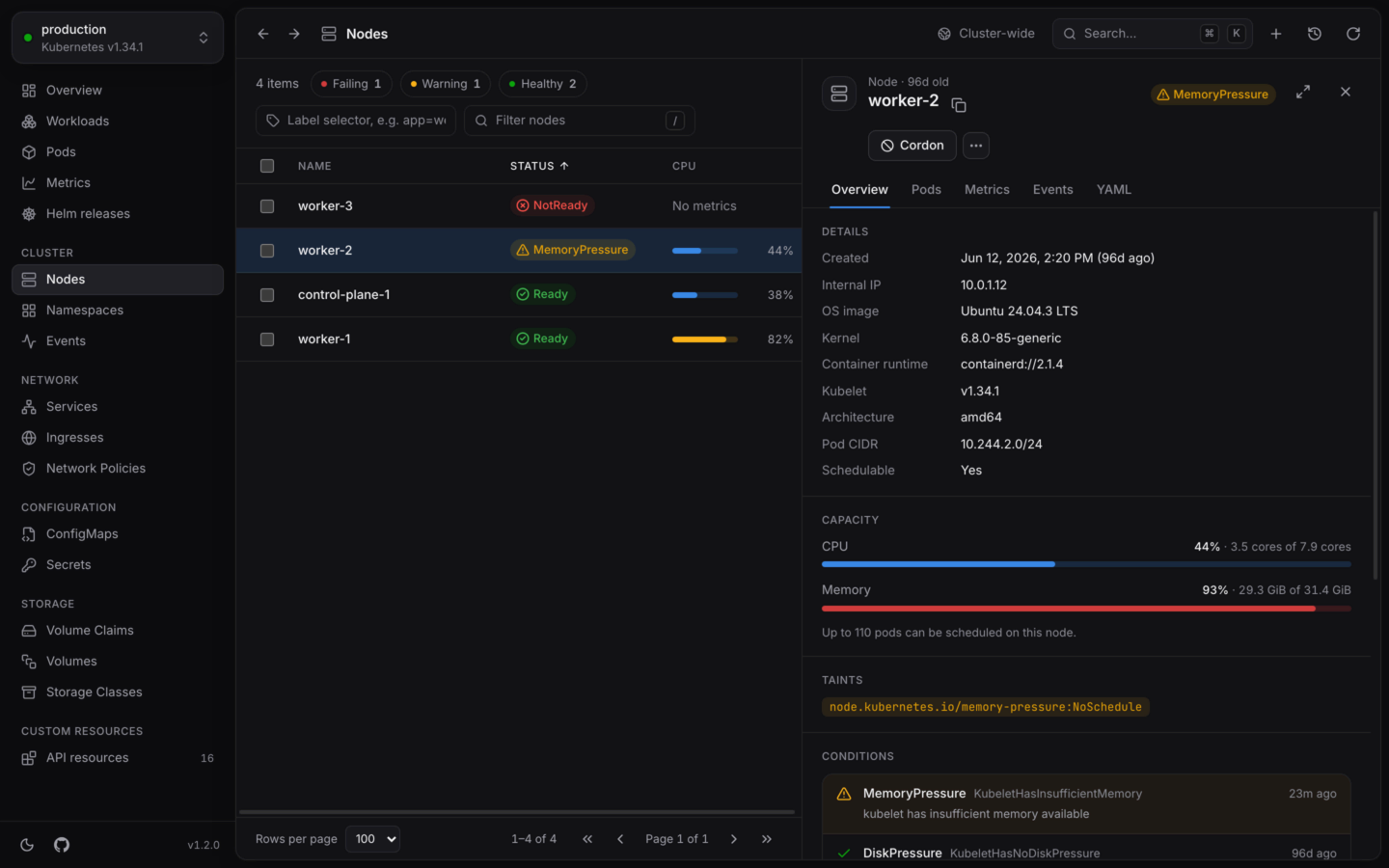
Cordoning marks a node unschedulable, so no new pods land on it. These run at once, and can be undone from the notification.
Cordons the node, then evicts its pods, like `kubectl drain --ignore-daemonsets`. The dialog lists every pod on the node and what will happen to it:
| Pod | What happens |
| - | - |
| Managed by a controller | Evicted, and started again elsewhere |
| Part of a DaemonSet | Skipped: it stays on the node |
| A static pod | Skipped: the kubelet manages it |
| Keeps data in an `emptyDir` volume | Needs **Delete local data**: the data is lost |
| Has no controller | Needs **Evict pods without a controller**: nothing restarts it elsewhere |
**Drain** stays disabled until you've ticked the options the node's pods need. The two options add `--delete-emptydir-data` and `--force` to the command.
Evictions run four at a time, respect PodDisruptionBudgets, and show their progress per pod. A pod whose eviction fails says why, and can be retried. In a cluster named like production, you type the node's name first.
For Deployments, StatefulSets and DaemonSets, like `kubectl rollout restart`: new pods with the same spec. The dialog explains how the pods are replaced:
* **Deployments** replace pods a few at a time, following the rollout strategy, so a healthy app stays available. With the `Recreate` strategy, every pod stops before new ones start, and the dialog warns you to expect downtime.
* **StatefulSets** replace pods one at a time, from the highest ordinal down, each once the one before it is ready.
* **DaemonSets** replace pods node by node.
For Deployments, StatefulSets, DaemonSets and CronJobs. Each container has its own field, init containers included. For a Deployment, images it ran before are offered as suggestions.
Pods are replaced with the new images, following the rollout strategy. For a CronJob, jobs it starts from then on use the new images.
Undo restores the previous images.
For Deployments, StatefulSets and DaemonSets, like `kubectl rollout undo`. The dialog lists the earlier revisions, newest first, each with its age, its change cause when it has one, and the image of each container. Images that differ from what's running now are highlighted, and **Running now** says which revision is current.
Pick one and choose **Roll back**. KubeStacks puts that revision's pod template back, and the workload rolls out as usual.
For Deployments, like `kubectl rollout pause` and `resume`. These run at once, without a dialog, and can be undone from the notification.
## Pods
Opens a terminal in a running container, in the pod's **Shell** tab. See [Shells and debug containers](/debug/shell).
Adds a debug container with tools to a running pod, like `kubectl debug`, and opens a shell in it. Works for distroless images too. See [Shells and debug containers](/debug/shell#debug-containers).
Forwards a port on your computer to a running pod, or to a service's pod. See [Port forwarding](/debug/port-forwarding).
**Desktop app only:** a browser has no computer of yours to forward a port to.
For pods that a controller manages. KubeStacks deletes the pod: it shuts down gracefully, and its controller starts a new one to replace it. The button reads **Restart pod**.
Evicts the pod through the Eviction API. Unlike a delete, evictions respect PodDisruptionBudgets: if the eviction would leave too few pods running, the cluster refuses, and nothing changes. The dialog says whether a controller will start a replacement.
Deleting a pod says whether its controller replaces it. Tick **Force: skip graceful shutdown** to remove it from the API at once, without waiting for its containers to stop (`--grace-period=0 --force`). The button changes to **Force delete**.
For a pod that's already stuck terminating, the option starts ticked. Its containers may keep running if their node is unreachable.
## Jobs and CronJobs
Starts a job from a CronJob's template right away, outside its schedule, like `kubectl create job --from=cronjob/…`. The job is named after the CronJob, with `-manual-` and five random characters, and carries the `cronjob.kubernetes.io/instantiate: manual` annotation. If the schedule is suspended, it stays suspended.
The notification has an **Open** button that takes you to the new job.
For CronJobs and Jobs, by setting `spec.suspend`. A suspended CronJob starts no new runs; a suspended Job stops its pods until you resume it. They run at once, and can be undone from the notification. **Suspend** isn't offered for a Job that has completed.
## Nodes
Cordoning marks a node unschedulable, so no new pods land on it. These run at once, and can be undone from the notification.
Cordons the node, then evicts its pods, like `kubectl drain --ignore-daemonsets`. The dialog lists every pod on the node and what will happen to it:
| Pod | What happens |
| - | - |
| Managed by a controller | Evicted, and started again elsewhere |
| Part of a DaemonSet | Skipped: it stays on the node |
| A static pod | Skipped: the kubelet manages it |
| Keeps data in an `emptyDir` volume | Needs **Delete local data**: the data is lost |
| Has no controller | Needs **Evict pods without a controller**: nothing restarts it elsewhere |
**Drain** stays disabled until you've ticked the options the node's pods need. The two options add `--delete-emptydir-data` and `--force` to the command.
Evictions run four at a time, respect PodDisruptionBudgets, and show their progress per pod. A pod whose eviction fails says why, and can be retried. In a cluster named like production, you type the node's name first.
 ## Autoscalers and volumes
For HorizontalPodAutoscalers: set **Minimum replicas** and **Maximum replicas**. The minimum is at least 1, and can't be above the maximum. The dialog says what happens next: the workload scales up to a new minimum, down to a new maximum, or stays put when it's within the new range.
Undo puts the previous range back.
For bound PersistentVolumeClaims. Enter the new size in Mi, Gi or Ti; it starts at about twice the current size, and must be larger than now. If the claim's StorageClass doesn't allow volumes to grow, the dialog says so and won't expand it.
The storage provider grows the volume. Some filesystems only finish growing once a pod mounts the volume again, and volumes can't be made smaller afterwards.
## Every kind
Labels and annotations, each on a tab, as key and value pairs. Keys and label values are checked the way the API server checks them, as you type. The `kubectl.kubernetes.io/last-applied-configuration` annotation is left out: it's huge, and `kubectl apply` manages it.
Undo puts the previous labels and annotations back.
Opens the object in the **YAML** tab's editor. Changes are checked by the cluster and shown as a diff before they're saved. See [Edit YAML](/changes/yaml).
For objects that own others (Deployments, StatefulSets, DaemonSets, ReplicaSets, Jobs and CronJobs), you choose what happens to what it owns:
| Option | Effect | kubectl |
| - | - | - |
| **Delete what it owns too** | Its pods are removed right after it (the default) | |
| **Delete what it owns first** | It stays, marked for deletion, until its pods are gone | `--cascade=foreground` |
| **Keep what it owns** | Its pods keep running without a controller | `--cascade=orphan` |
Namespaces, nodes, volumes, volume claims, storage classes and CustomResourceDefinitions ask you to type the name first, and so does anything in a cluster named like production.
## Custom resources
Custom kinds that serve the scale subresource can be scaled like Deployments. Views add actions of their own, like **Sync** for an Argo CD application or **Reconcile** for a Flux Kustomization. They go through the same checks as KubeStacks' own: permissions first, the `kubectl patch` command shown, a confirmation when the view asks for one, and undo when it spells one out. See [Built-in views](/custom-resources/built-in-views).
## What can be undone
| Action | Undo |
| - | - |
| Scale | Scales back to the previous count |
| Cordon, Uncordon | The opposite |
| Pause rollout, Resume rollout | The opposite |
| Suspend, Resume | The opposite |
| Change image | Restores the previous images |
| Edit replica range | Restores the previous range |
| Edit labels | Restores the previous labels and annotations |
| A view's action | When the view spells out an undo |
See [Undo and activity](/changes/undo-and-activity).
Restart, cordon, suspend or delete many objects together.
Any change, checked by the cluster and shown as a diff first.
This documentation is built and hosted on [Mintlify](https://mintlify.com), a developer documentation platform.
## Autoscalers and volumes
For HorizontalPodAutoscalers: set **Minimum replicas** and **Maximum replicas**. The minimum is at least 1, and can't be above the maximum. The dialog says what happens next: the workload scales up to a new minimum, down to a new maximum, or stays put when it's within the new range.
Undo puts the previous range back.
For bound PersistentVolumeClaims. Enter the new size in Mi, Gi or Ti; it starts at about twice the current size, and must be larger than now. If the claim's StorageClass doesn't allow volumes to grow, the dialog says so and won't expand it.
The storage provider grows the volume. Some filesystems only finish growing once a pod mounts the volume again, and volumes can't be made smaller afterwards.
## Every kind
Labels and annotations, each on a tab, as key and value pairs. Keys and label values are checked the way the API server checks them, as you type. The `kubectl.kubernetes.io/last-applied-configuration` annotation is left out: it's huge, and `kubectl apply` manages it.
Undo puts the previous labels and annotations back.
Opens the object in the **YAML** tab's editor. Changes are checked by the cluster and shown as a diff before they're saved. See [Edit YAML](/changes/yaml).
For objects that own others (Deployments, StatefulSets, DaemonSets, ReplicaSets, Jobs and CronJobs), you choose what happens to what it owns:
| Option | Effect | kubectl |
| - | - | - |
| **Delete what it owns too** | Its pods are removed right after it (the default) | |
| **Delete what it owns first** | It stays, marked for deletion, until its pods are gone | `--cascade=foreground` |
| **Keep what it owns** | Its pods keep running without a controller | `--cascade=orphan` |
Namespaces, nodes, volumes, volume claims, storage classes and CustomResourceDefinitions ask you to type the name first, and so does anything in a cluster named like production.
## Custom resources
Custom kinds that serve the scale subresource can be scaled like Deployments. Views add actions of their own, like **Sync** for an Argo CD application or **Reconcile** for a Flux Kustomization. They go through the same checks as KubeStacks' own: permissions first, the `kubectl patch` command shown, a confirmation when the view asks for one, and undo when it spells one out. See [Built-in views](/custom-resources/built-in-views).
## What can be undone
| Action | Undo |
| - | - |
| Scale | Scales back to the previous count |
| Cordon, Uncordon | The opposite |
| Pause rollout, Resume rollout | The opposite |
| Suspend, Resume | The opposite |
| Change image | Restores the previous images |
| Edit replica range | Restores the previous range |
| Edit labels | Restores the previous labels and annotations |
| A view's action | When the view spells out an undo |
See [Undo and activity](/changes/undo-and-activity).
Restart, cordon, suspend or delete many objects together.
Any change, checked by the cluster and shown as a diff first.
This documentation is built and hosted on [Mintlify](https://mintlify.com), a developer documentation platform.