> ## Documentation Index
> Fetch the complete documentation index at: https://docs.kubestacks.com/llms.txt
> Use this file to discover all available pages before exploring further.
# Several at once
> Pick rows in any list, then restart, cordon, suspend or delete them together, with progress for each object and a retry for any that fail.
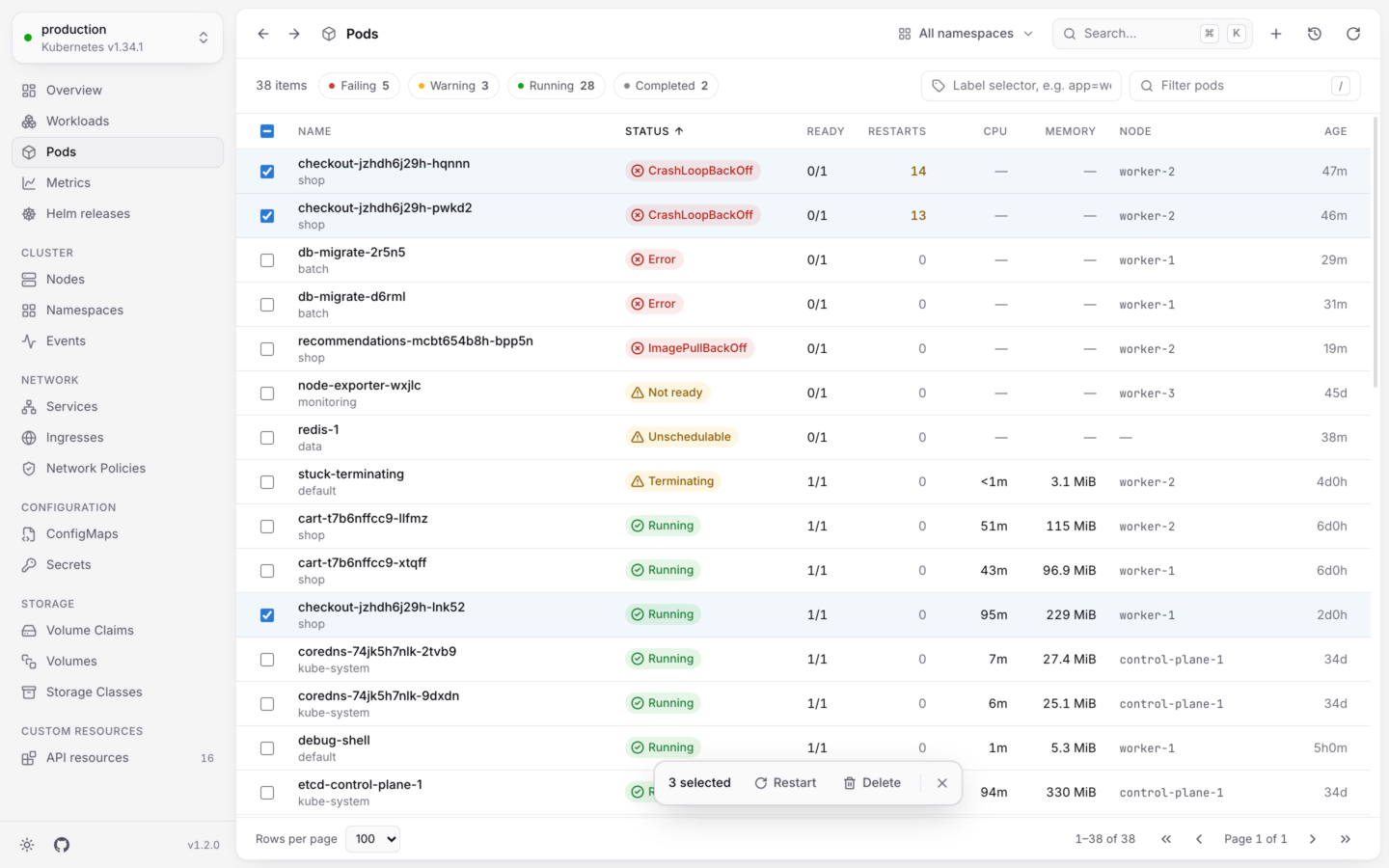
Restarting ten pods, cordoning three nodes or cleaning up a batch of finished jobs takes one action, not ten. Pick the rows, choose what to do, and watch each object's progress.
 ## Pick rows
Selecting works in every list, and on the **Workloads** page across kinds.
| To | Do this |
| - | - |
| Pick a row | Tick its checkbox, or press X on the focused row |
| Pick a range | Shift-click a checkbox, or press ⇧X |
| Pick every row on the page | ⌘A (CtrlA on Windows and Linux) |
| Clear the selection | Esc, or the **×** in the selection bar |
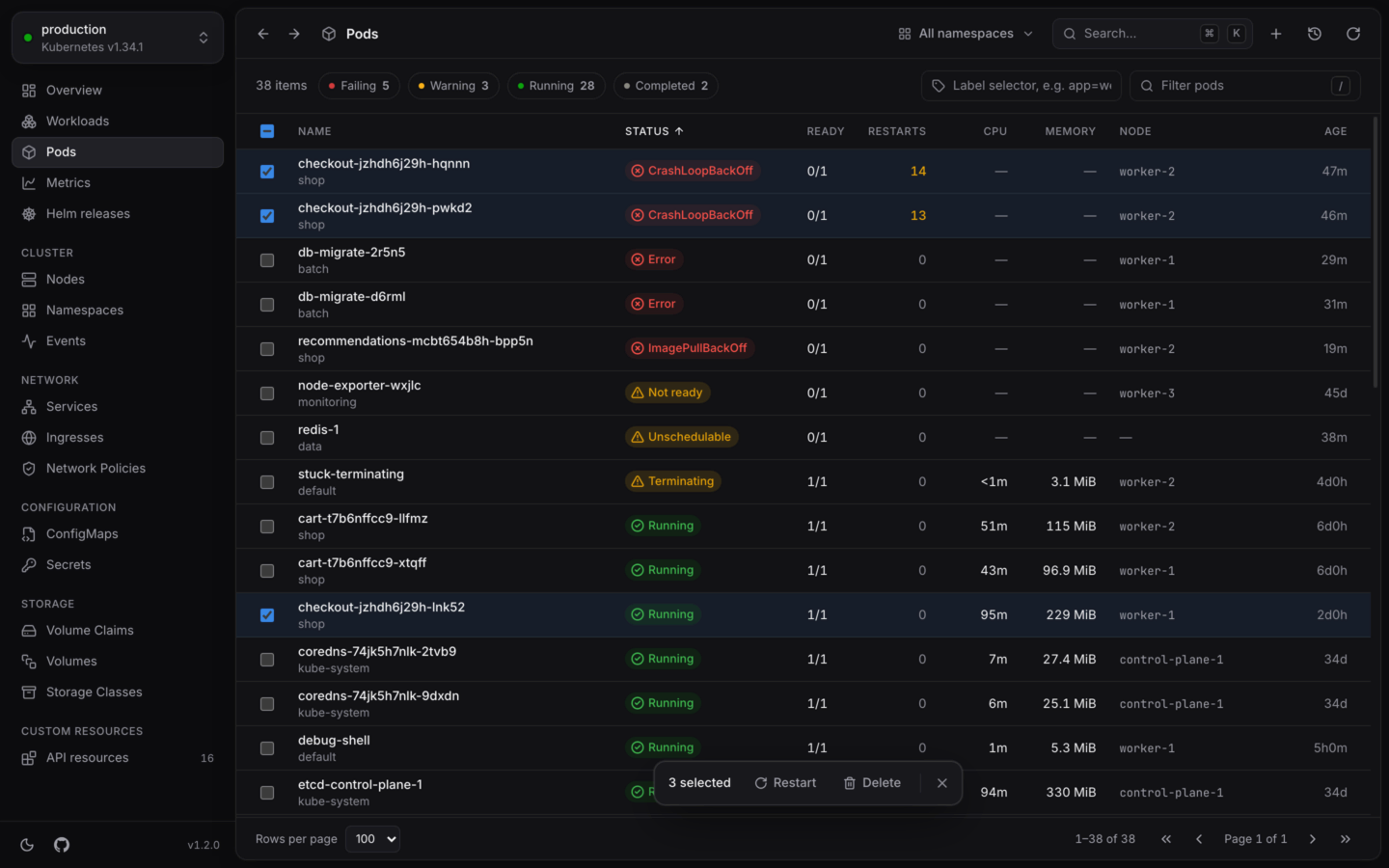
A bar at the bottom of the list says how many rows you picked, and offers the actions that apply to at least one of them.
Narrow the list first, with the filter (/), a health chip or a label selector, then press ⌘A to pick everything that's left. See [Finding things](/explore/finding-things).
## What you can do
| Action | For | Like |
| - | - | - |
| **Restart** | Deployments, StatefulSets, DaemonSets, and pods a controller manages | `kubectl rollout restart` for workloads; `kubectl delete` for pods, which their controllers replace |
| **Cordon**, **Uncordon** | Nodes | `kubectl cordon`, `kubectl uncordon` |
| **Suspend**, **Resume** | CronJobs and Jobs | `kubectl patch … -p '{"spec":{"suspend":true}}'` |
| **Delete** | Any kind | `kubectl delete` |
If an action applies to only some of the rows you picked, the dialog says how many it leaves out, like "Left out: 2 of the selected, which restart doesn't apply to." Those rows are left alone.
## Run it
Choose it in the selection bar. The dialog lists every object it will change, and the equivalent `kubectl` commands: one line for each namespace and kind.
Confirm, and the changes run, four at a time. Each object shows its own progress, and the reason if it fails.
If some couldn't be changed, the dialog says how many ("2 of 12 couldn't be changed; see why below.") and the button becomes **Retry failed**. It runs the action again, only for those.
When everything succeeds, a notification confirms it, like "Restarted 12 pods".
## Deleting many at once
Bulk delete removes each object the way a single delete does by default: anything an object owns is deleted after it. There's no force option, and no choice of what happens to owned objects. For those, delete one at a time. See [Actions by kind](/changes/actions).
Some deletes ask you to type what's being done before they run:
* Deleting Namespaces, Nodes, PersistentVolumes, PersistentVolumeClaims, StorageClasses or CustomResourceDefinitions.
* Deleting anything in a cluster whose name looks like production. See [Changing things safely](/changes/safely#hard-to-do-by-accident).
You type the action and what it's for, like `delete namespaces`, `delete volume claims` or, on the Workloads page, `delete workloads`.
## Good to know
* **No undo.** Changes made together can't be undone from their notification. Each one is in the **Activity** log, with its command.
* **Permissions are checked by the cluster.** Bulk actions don't check your permissions before they start. Objects you can't change fail with the cluster's reason, and the rest go ahead.
* **Read-only clusters.** In a [read-only](/changes/read-only) cluster, the actions in the selection bar are disabled.
Everything you can do to one object, with all its options.
Take changes back, and see everything you changed this session.
This documentation is built and hosted on [Mintlify](https://mintlify.com), a developer documentation platform.
## Pick rows
Selecting works in every list, and on the **Workloads** page across kinds.
| To | Do this |
| - | - |
| Pick a row | Tick its checkbox, or press X on the focused row |
| Pick a range | Shift-click a checkbox, or press ⇧X |
| Pick every row on the page | ⌘A (CtrlA on Windows and Linux) |
| Clear the selection | Esc, or the **×** in the selection bar |
A bar at the bottom of the list says how many rows you picked, and offers the actions that apply to at least one of them.
Narrow the list first, with the filter (/), a health chip or a label selector, then press ⌘A to pick everything that's left. See [Finding things](/explore/finding-things).
## What you can do
| Action | For | Like |
| - | - | - |
| **Restart** | Deployments, StatefulSets, DaemonSets, and pods a controller manages | `kubectl rollout restart` for workloads; `kubectl delete` for pods, which their controllers replace |
| **Cordon**, **Uncordon** | Nodes | `kubectl cordon`, `kubectl uncordon` |
| **Suspend**, **Resume** | CronJobs and Jobs | `kubectl patch … -p '{"spec":{"suspend":true}}'` |
| **Delete** | Any kind | `kubectl delete` |
If an action applies to only some of the rows you picked, the dialog says how many it leaves out, like "Left out: 2 of the selected, which restart doesn't apply to." Those rows are left alone.
## Run it
Choose it in the selection bar. The dialog lists every object it will change, and the equivalent `kubectl` commands: one line for each namespace and kind.
Confirm, and the changes run, four at a time. Each object shows its own progress, and the reason if it fails.
If some couldn't be changed, the dialog says how many ("2 of 12 couldn't be changed; see why below.") and the button becomes **Retry failed**. It runs the action again, only for those.
When everything succeeds, a notification confirms it, like "Restarted 12 pods".
## Deleting many at once
Bulk delete removes each object the way a single delete does by default: anything an object owns is deleted after it. There's no force option, and no choice of what happens to owned objects. For those, delete one at a time. See [Actions by kind](/changes/actions).
Some deletes ask you to type what's being done before they run:
* Deleting Namespaces, Nodes, PersistentVolumes, PersistentVolumeClaims, StorageClasses or CustomResourceDefinitions.
* Deleting anything in a cluster whose name looks like production. See [Changing things safely](/changes/safely#hard-to-do-by-accident).
You type the action and what it's for, like `delete namespaces`, `delete volume claims` or, on the Workloads page, `delete workloads`.
## Good to know
* **No undo.** Changes made together can't be undone from their notification. Each one is in the **Activity** log, with its command.
* **Permissions are checked by the cluster.** Bulk actions don't check your permissions before they start. Objects you can't change fail with the cluster's reason, and the rest go ahead.
* **Read-only clusters.** In a [read-only](/changes/read-only) cluster, the actions in the selection bar are disabled.
Everything you can do to one object, with all its options.
Take changes back, and see everything you changed this session.
This documentation is built and hosted on [Mintlify](https://mintlify.com), a developer documentation platform.