> ## Documentation Index
> Fetch the complete documentation index at: https://docs.kubestacks.com/llms.txt
> Use this file to discover all available pages before exploring further.
# Read-only mode
> Turn changes off for one cluster, or for all of them, so you can look around without any chance of changing something.
Read-only mode is for the clusters you only want to look at: production on a busy day, a customer's cluster, a shared machine. KubeStacks shows everything as usual, and changes nothing.
 ## For one cluster
Open the cluster switcher at the top of the sidebar, and turn on **Read-only**. Its caption reads "KubeStacks won't change" and the cluster's name.
Press ⌘K (CtrlK on Windows and Linux), and choose **Make** *cluster* **read-only**. The same command reads **Allow changes to** *cluster* when it's already read-only.
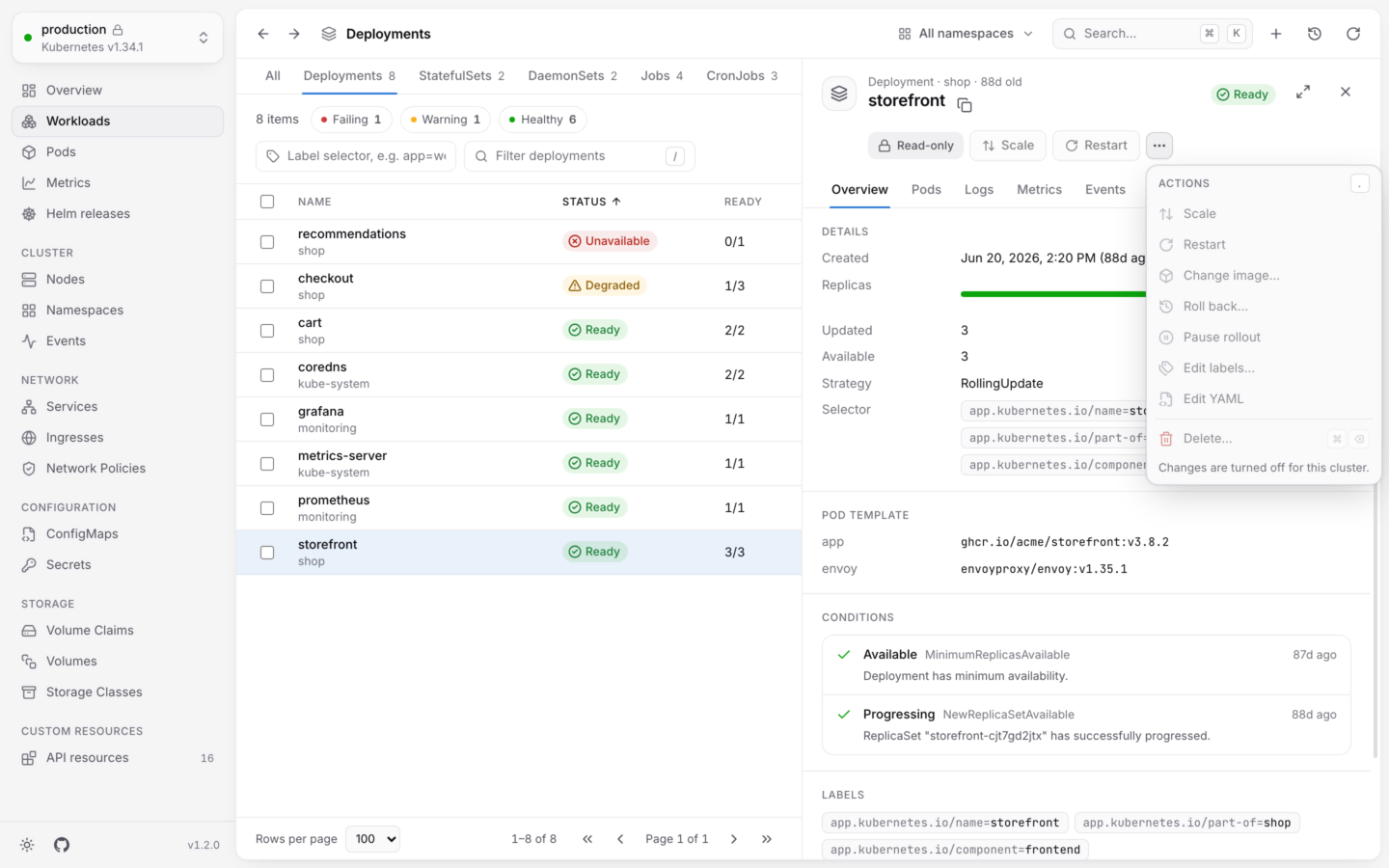
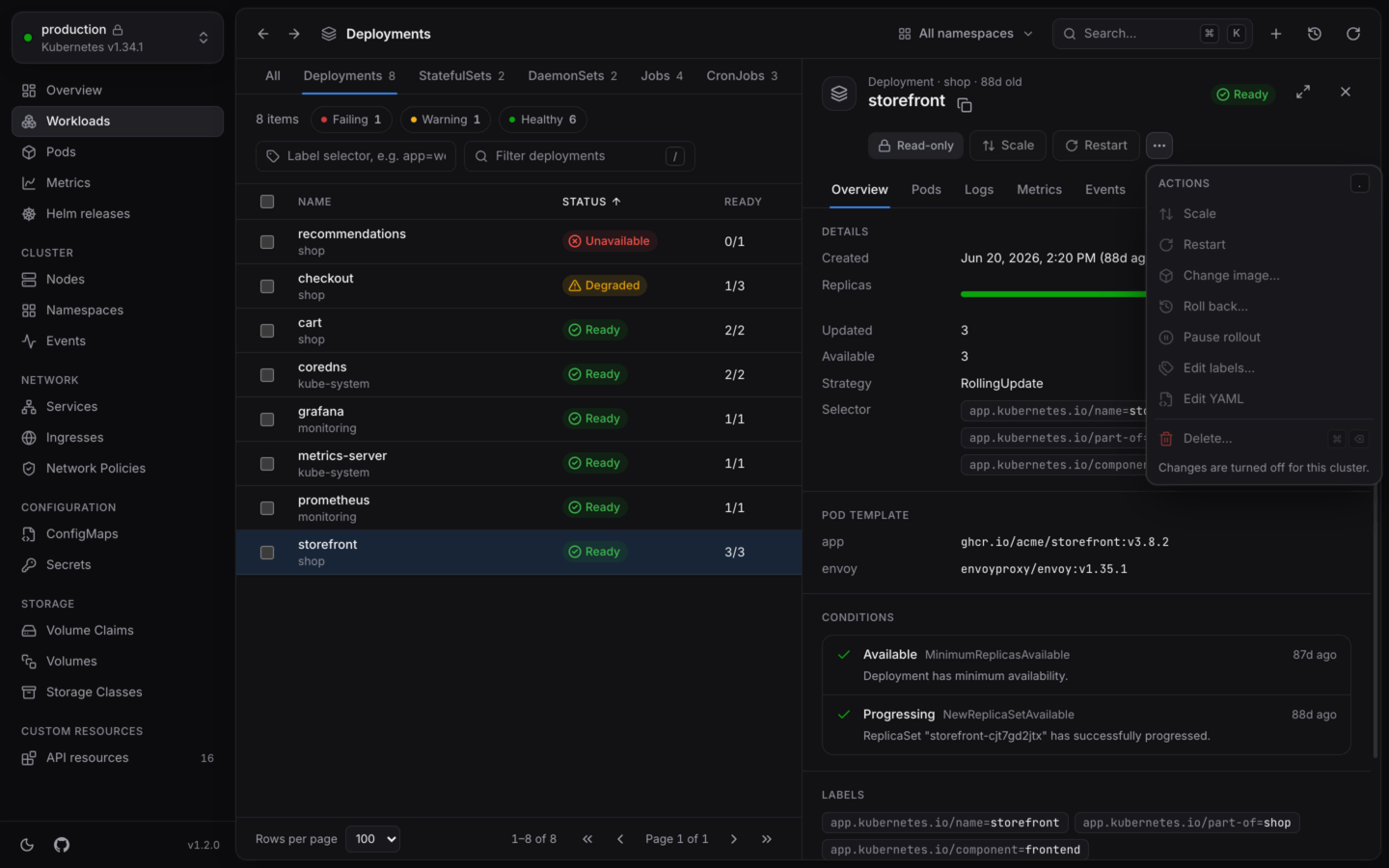
A read-only cluster has a lock next to its name. Next to an object's actions, a **Read-only** badge says changes are off; choose it, then **Allow changes**, to turn them back on.
KubeStacks remembers which clusters you made read-only, by their kubeconfig context name.
## For every cluster
Set `KUBESTACKS_READ_ONLY` to `1` (or `true`) in the environment KubeStacks starts in. Every cluster is read-only, and it can't be turned off from the app: the switch is disabled, with the caption "Set by KUBESTACKS\_READ\_ONLY". That makes it a good fit for shared machines, demos and screen shares.
```bash macOS theme={"theme":{"light":"github-light","dark":"github-dark-default"}}
# Quit KubeStacks first, so it starts with the variable.
KUBESTACKS_READ_ONLY=1 open -a KubeStacks
```
```bash Linux (.deb, .rpm) theme={"theme":{"light":"github-light","dark":"github-dark-default"}}
KUBESTACKS_READ_ONLY=1 kubestacks
```
```bash Linux (AppImage) theme={"theme":{"light":"github-light","dark":"github-dark-default"}}
KUBESTACKS_READ_ONLY=1 ./KubeStacks-*-linux-x86_64.AppImage
```
To set it for every launch, or on Windows, see [Setting environment variables](/reference/environment-variables#setting-them).
## What it turns off
It isn't only the buttons. The part of KubeStacks that talks to your clusters (the desktop app's main process, or the server when KubeStacks runs in your cluster) refuses every change to a read-only cluster, whatever asks for it:
> production is read-only in KubeStacks. Allow changes to it to continue.
| | In a read-only cluster |
| - | - |
| Actions: scale, restart, drain, delete, labels… | Off |
| [Edit YAML](/changes/yaml), including its dry runs | Off |
| [Create from YAML](/changes/create) | Off |
| [Several at once](/changes/bulk) | Off |
| [Helm](/helm/upgrade-and-rollback) upgrades, installs, rollbacks and uninstalls | Off |
| [Shells](/debug/shell) and debug containers | Off: a shell can change a container |
| [Port forwards](/debug/port-forwarding) | On: they don't change the cluster |
| Lists, details, logs, metrics, YAML, Helm releases | On |
Actions that are off stay visible, disabled, with "Changes are turned off for this cluster."
## In your cluster
When KubeStacks runs in your cluster as a shared dashboard, read-only works at two levels:
* **For everyone.** Set `readOnly: true` in the Helm chart's values (`KUBESTACKS_READ_ONLY=true` when you run the image another way). Nobody changes anything through KubeStacks, whatever their RBAC allows. The switch shows "For everyone, on this server". See [Helm values](/server/helm-values).
* **For yourself.** Anyone can make the cluster read-only for themselves from the cluster switcher or the command palette. It's kept in their browser, and the server enforces it for them.
Read-only mode is a guard rail in KubeStacks, not a permission. To keep someone from changing a cluster at all, give their account read-only RBAC, like the built-in `view` ClusterRole. See [Permissions](/clusters/permissions).
The other guard rails, for when changes are on.
Everything KubeStacks reads from its environment.
This documentation is built and hosted on [Mintlify](https://mintlify.com), a developer documentation platform.
## For one cluster
Open the cluster switcher at the top of the sidebar, and turn on **Read-only**. Its caption reads "KubeStacks won't change" and the cluster's name.
Press ⌘K (CtrlK on Windows and Linux), and choose **Make** *cluster* **read-only**. The same command reads **Allow changes to** *cluster* when it's already read-only.
A read-only cluster has a lock next to its name. Next to an object's actions, a **Read-only** badge says changes are off; choose it, then **Allow changes**, to turn them back on.
KubeStacks remembers which clusters you made read-only, by their kubeconfig context name.
## For every cluster
Set `KUBESTACKS_READ_ONLY` to `1` (or `true`) in the environment KubeStacks starts in. Every cluster is read-only, and it can't be turned off from the app: the switch is disabled, with the caption "Set by KUBESTACKS\_READ\_ONLY". That makes it a good fit for shared machines, demos and screen shares.
```bash macOS theme={"theme":{"light":"github-light","dark":"github-dark-default"}}
# Quit KubeStacks first, so it starts with the variable.
KUBESTACKS_READ_ONLY=1 open -a KubeStacks
```
```bash Linux (.deb, .rpm) theme={"theme":{"light":"github-light","dark":"github-dark-default"}}
KUBESTACKS_READ_ONLY=1 kubestacks
```
```bash Linux (AppImage) theme={"theme":{"light":"github-light","dark":"github-dark-default"}}
KUBESTACKS_READ_ONLY=1 ./KubeStacks-*-linux-x86_64.AppImage
```
To set it for every launch, or on Windows, see [Setting environment variables](/reference/environment-variables#setting-them).
## What it turns off
It isn't only the buttons. The part of KubeStacks that talks to your clusters (the desktop app's main process, or the server when KubeStacks runs in your cluster) refuses every change to a read-only cluster, whatever asks for it:
> production is read-only in KubeStacks. Allow changes to it to continue.
| | In a read-only cluster |
| - | - |
| Actions: scale, restart, drain, delete, labels… | Off |
| [Edit YAML](/changes/yaml), including its dry runs | Off |
| [Create from YAML](/changes/create) | Off |
| [Several at once](/changes/bulk) | Off |
| [Helm](/helm/upgrade-and-rollback) upgrades, installs, rollbacks and uninstalls | Off |
| [Shells](/debug/shell) and debug containers | Off: a shell can change a container |
| [Port forwards](/debug/port-forwarding) | On: they don't change the cluster |
| Lists, details, logs, metrics, YAML, Helm releases | On |
Actions that are off stay visible, disabled, with "Changes are turned off for this cluster."
## In your cluster
When KubeStacks runs in your cluster as a shared dashboard, read-only works at two levels:
* **For everyone.** Set `readOnly: true` in the Helm chart's values (`KUBESTACKS_READ_ONLY=true` when you run the image another way). Nobody changes anything through KubeStacks, whatever their RBAC allows. The switch shows "For everyone, on this server". See [Helm values](/server/helm-values).
* **For yourself.** Anyone can make the cluster read-only for themselves from the cluster switcher or the command palette. It's kept in their browser, and the server enforces it for them.
Read-only mode is a guard rail in KubeStacks, not a permission. To keep someone from changing a cluster at all, give their account read-only RBAC, like the built-in `view` ClusterRole. See [Permissions](/clusters/permissions).
The other guard rails, for when changes are on.
Everything KubeStacks reads from its environment.
This documentation is built and hosted on [Mintlify](https://mintlify.com), a developer documentation platform.