> ## Documentation Index
> Fetch the complete documentation index at: https://docs.kubestacks.com/llms.txt
> Use this file to discover all available pages before exploring further.
# Shells and debug containers
> Open a terminal in any running container, or add a debug container with tools to a pod that has none, distroless included.
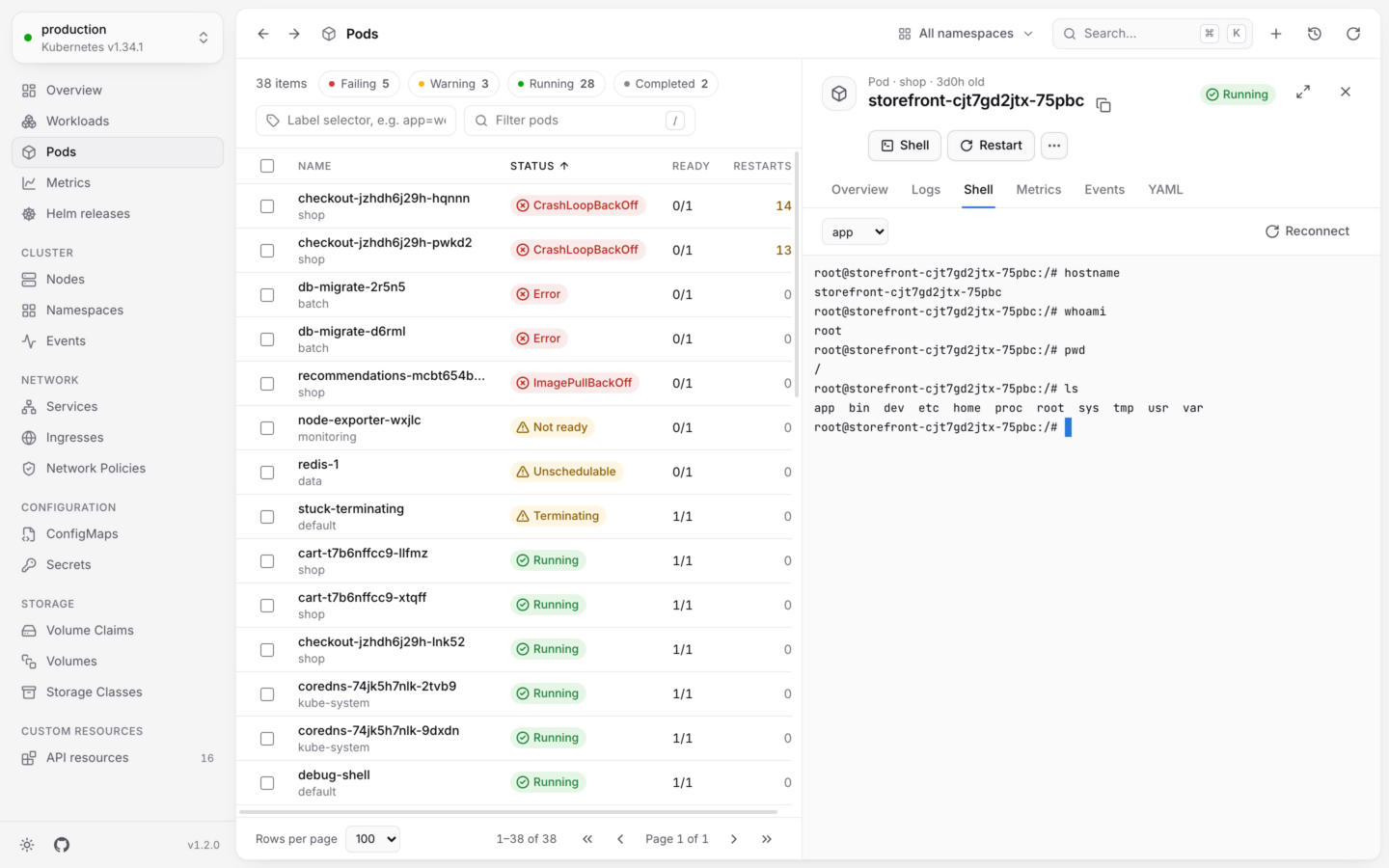
When logs aren't enough, get inside. KubeStacks opens a terminal in a running container, like `kubectl exec -it`, right in the pod's panel. For images with no shell at all, it adds a debug container that brings its own tools, like `kubectl debug`.
 ## Open a shell
Find the pod in **Pods**, or in a workload's **Pods** tab, and open it.
Choose **Shell** at the top of the panel, or open the **Shell** tab.
The terminal connects to the pod's first container. Pick another from the container menu; debug containers you've added are listed too.
KubeStacks starts `bash` when the container has it, and `sh` otherwise. There's nothing to choose:
```bash theme={"theme":{"light":"github-light","dark":"github-dark-default"}}
sh -c 'command -v bash >/dev/null 2>&1 && exec bash || exec sh'
```
## In the terminal
* The terminal fits the panel, and the container learns its new size when you resize the panel. Expand the panel for more room.
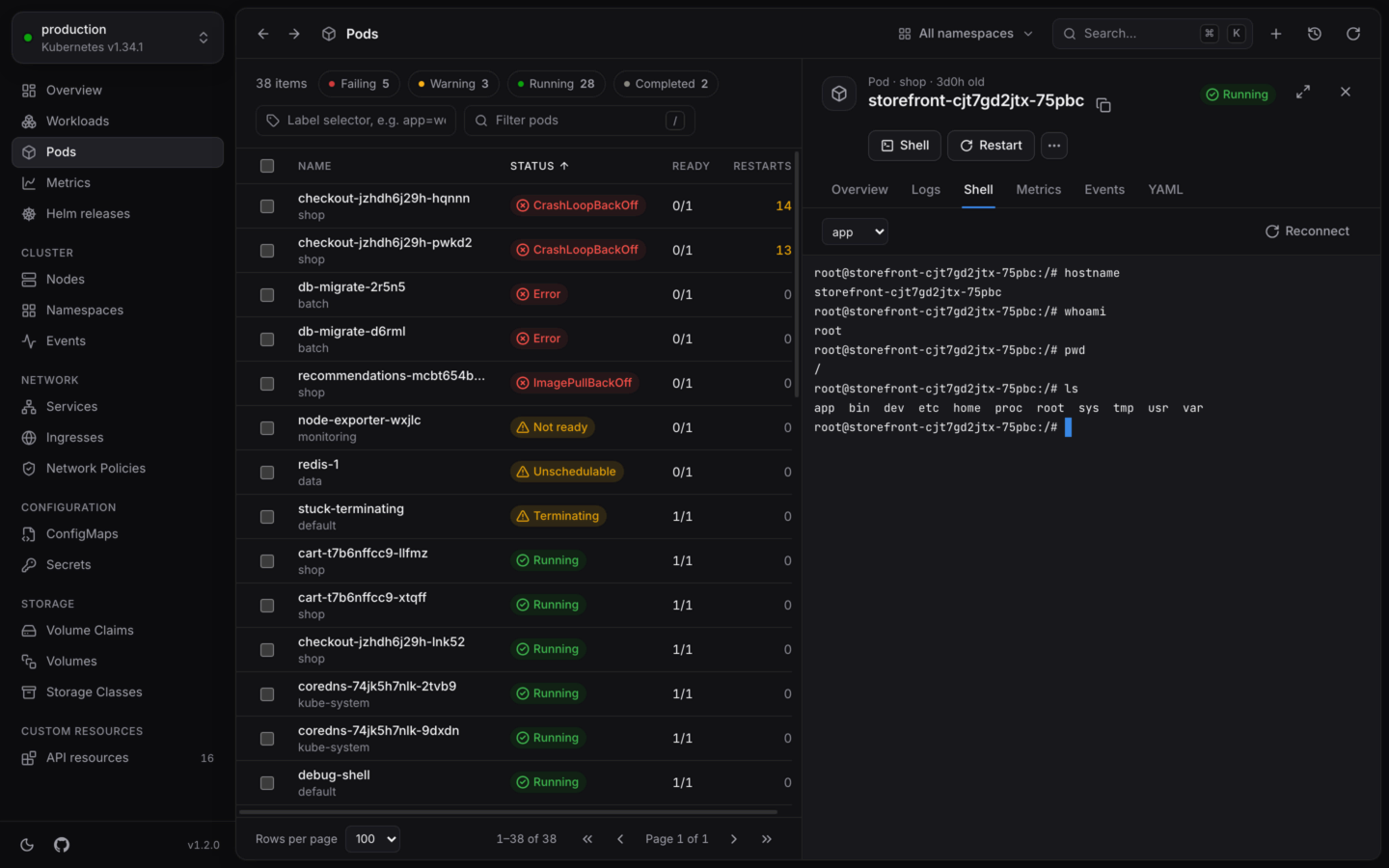
* It keeps 5,000 lines of scrollback, and uses the app's colors in light and dark.
* Keys go to the terminal: Esc works in `vi` and `less`, and doesn't close the panel.
* **Reconnect** starts a fresh session in the same container.
## When it ends
The session ends when the shell exits, when the connection to the container closes, or when you close the tab, open something else or quit. The terminal says why:
| Message | Means |
| - | - |
| The shell exited with code N. | You exited, or the shell did. |
| The connection to the container closed. | The container stopped, or the network dropped. |
| *container* has no shell. | The image has neither `bash` nor `sh`. Choose **Debug** to add a debug container instead. |
**Reconnect** starts again either way.
## When a shell isn't offered
| You see | Why | What to do |
| - | - | - |
| **Shells are off** | The cluster is [read-only](/changes/read-only) in KubeStacks. A shell can change a container. | Allow changes to the cluster, if you mean to. |
| **No shell access** | Your account can't open shells in the namespace. | Ask for `create` on `pods/exec`. See [Permissions](/clusters/permissions). |
| *container* **isn't running** | A shell needs a running container. | Wait for it to start, or check its logs and events. |
## Debug containers
Distroless and scratch images have no shell, and many slim images have no tools. A debug container fixes both: KubeStacks adds a temporary container with the tools you pick to the running pod, and opens a shell in it. The pod's own containers aren't restarted.
Open a running pod, and choose **Debug…** from its actions. Or choose **Debug** where a shell says the container has none.
| Image | Brings |
| - | - |
| `busybox:1.37` (the default) | Small: sh, ps, top, wget, nslookup |
| `nicolaka/netshoot:v0.14` | Networking: curl, dig, tcpdump, iperf and more |
| `alpine:3.22` | apk, to install what you need |
| Other image | Any image you name, like `ubuntu:24.04` |
**Share processes with** a container to see its processes from the debug container, with `ps`, and reach its files through `/proc`. It starts on the pod's first container. Choose **no container** to keep them apart.
Choose **Start debugging**. KubeStacks adds a container named `debugger-` and five random characters, and opens a shell in it, in the pod's **Shell** tab.
The equivalent command is shown before you start:
```bash theme={"theme":{"light":"github-light","dark":"github-dark-default"}}
kubectl debug -it web-1 --image=busybox:1.37 --container=debugger-ab12c --target=web -n shop --context dev
```
A debug container is an ephemeral container: it stays in the pod until the pod is replaced, and can't be removed before then. Adding one needs `patch` on `pods/ephemeralcontainers`, and like other changes, it's off in read-only clusters.
Every pod of a workload, merged in the order lines were written.
Reach a pod or service from your own computer.
This documentation is built and hosted on [Mintlify](https://mintlify.com), a developer documentation platform.
## Open a shell
Find the pod in **Pods**, or in a workload's **Pods** tab, and open it.
Choose **Shell** at the top of the panel, or open the **Shell** tab.
The terminal connects to the pod's first container. Pick another from the container menu; debug containers you've added are listed too.
KubeStacks starts `bash` when the container has it, and `sh` otherwise. There's nothing to choose:
```bash theme={"theme":{"light":"github-light","dark":"github-dark-default"}}
sh -c 'command -v bash >/dev/null 2>&1 && exec bash || exec sh'
```
## In the terminal
* The terminal fits the panel, and the container learns its new size when you resize the panel. Expand the panel for more room.
* It keeps 5,000 lines of scrollback, and uses the app's colors in light and dark.
* Keys go to the terminal: Esc works in `vi` and `less`, and doesn't close the panel.
* **Reconnect** starts a fresh session in the same container.
## When it ends
The session ends when the shell exits, when the connection to the container closes, or when you close the tab, open something else or quit. The terminal says why:
| Message | Means |
| - | - |
| The shell exited with code N. | You exited, or the shell did. |
| The connection to the container closed. | The container stopped, or the network dropped. |
| *container* has no shell. | The image has neither `bash` nor `sh`. Choose **Debug** to add a debug container instead. |
**Reconnect** starts again either way.
## When a shell isn't offered
| You see | Why | What to do |
| - | - | - |
| **Shells are off** | The cluster is [read-only](/changes/read-only) in KubeStacks. A shell can change a container. | Allow changes to the cluster, if you mean to. |
| **No shell access** | Your account can't open shells in the namespace. | Ask for `create` on `pods/exec`. See [Permissions](/clusters/permissions). |
| *container* **isn't running** | A shell needs a running container. | Wait for it to start, or check its logs and events. |
## Debug containers
Distroless and scratch images have no shell, and many slim images have no tools. A debug container fixes both: KubeStacks adds a temporary container with the tools you pick to the running pod, and opens a shell in it. The pod's own containers aren't restarted.
Open a running pod, and choose **Debug…** from its actions. Or choose **Debug** where a shell says the container has none.
| Image | Brings |
| - | - |
| `busybox:1.37` (the default) | Small: sh, ps, top, wget, nslookup |
| `nicolaka/netshoot:v0.14` | Networking: curl, dig, tcpdump, iperf and more |
| `alpine:3.22` | apk, to install what you need |
| Other image | Any image you name, like `ubuntu:24.04` |
**Share processes with** a container to see its processes from the debug container, with `ps`, and reach its files through `/proc`. It starts on the pod's first container. Choose **no container** to keep them apart.
Choose **Start debugging**. KubeStacks adds a container named `debugger-` and five random characters, and opens a shell in it, in the pod's **Shell** tab.
The equivalent command is shown before you start:
```bash theme={"theme":{"light":"github-light","dark":"github-dark-default"}}
kubectl debug -it web-1 --image=busybox:1.37 --container=debugger-ab12c --target=web -n shop --context dev
```
A debug container is an ephemeral container: it stays in the pod until the pod is replaced, and can't be removed before then. Adding one needs `patch` on `pods/ephemeralcontainers`, and like other changes, it's off in read-only clusters.
Every pod of a workload, merged in the order lines were written.
Reach a pod or service from your own computer.
This documentation is built and hosted on [Mintlify](https://mintlify.com), a developer documentation platform.