> ## Documentation Index
> Fetch the complete documentation index at: https://docs.kubestacks.com/llms.txt
> Use this file to discover all available pages before exploring further.
# Events
> What happened in the cluster, newest first, with a link from each event to the object it's about.
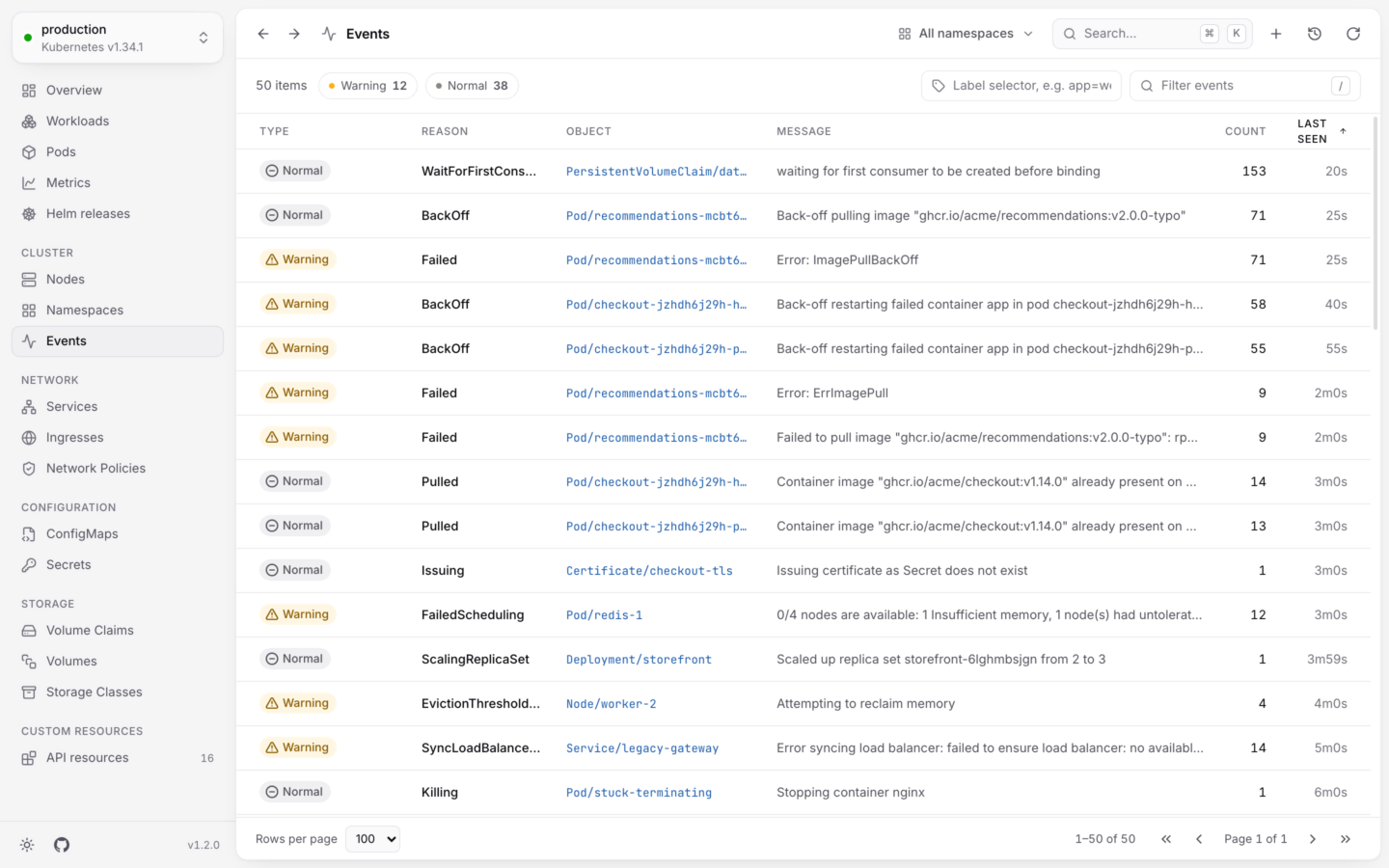
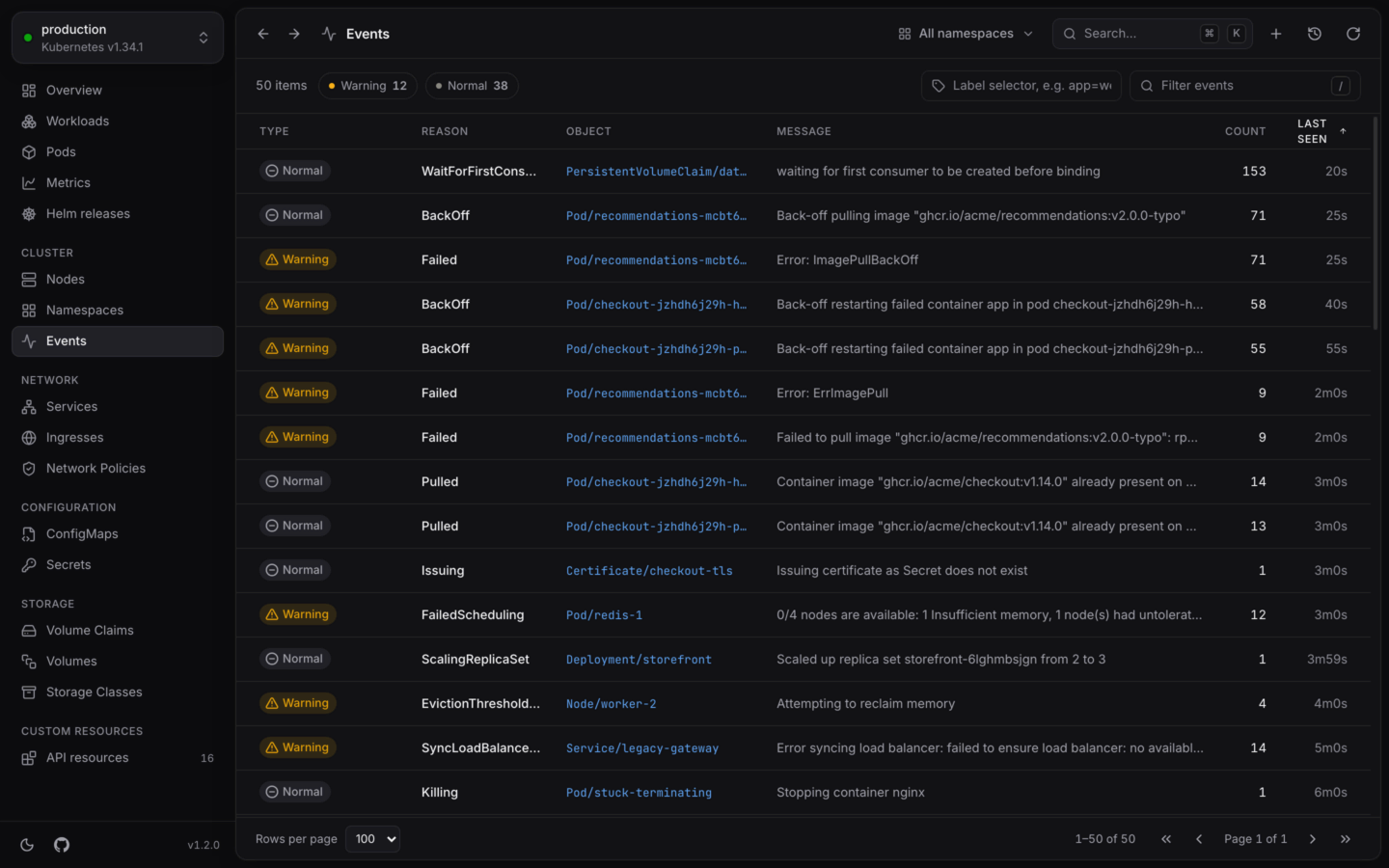
Kubernetes records an event when something happens to an object: a pod is scheduled, an image fails to pull, a probe fails, a node runs low on memory. **Events** lists them, newest first. Open it from the sidebar under **Cluster**, with G then E, or with ⌘6 in the desktop app (Ctrl6 on Windows and Linux).
 | Column | Shows |
| - | - |
| **Type** | Warning or Normal |
| **Reason** | A short code, like `BackOff`, `FailedScheduling` or `Pulled` |
| **Object** | The object it's about, like `Pod/checkout-7d9f…`. Click it to open that object. |
| **Message** | What happened, in words |
| **Count** | How many times it happened |
| **Last seen** | When it last happened |
## Only the warnings
The chips above the list count each type. Pick **Warning** to hide the routine events. The overview's **Warnings** tile opens the list this way.
The filter (/) matches an event's reason, message and object name as well as its labels, so typing `OOMKilled` or a pod's name finds what you're after.
## An object's own events
Every object's detail panel has an **Events** tab with the events about it, newest first. It's often the fastest way to see why a pod won't start or a volume won't bind. The overview lists the latest warnings across the namespace, too.
Kubernetes keeps events for a limited time (an hour, unless the cluster is set up otherwise), so old ones disappear. For a longer view of what a workload did, see [Usage history](/metrics/usage-history) and its logs.
The latest warnings, next to what needs attention.
What the statuses on each object mean.
This documentation is built and hosted on [Mintlify](https://mintlify.com), a developer documentation platform.
| Column | Shows |
| - | - |
| **Type** | Warning or Normal |
| **Reason** | A short code, like `BackOff`, `FailedScheduling` or `Pulled` |
| **Object** | The object it's about, like `Pod/checkout-7d9f…`. Click it to open that object. |
| **Message** | What happened, in words |
| **Count** | How many times it happened |
| **Last seen** | When it last happened |
## Only the warnings
The chips above the list count each type. Pick **Warning** to hide the routine events. The overview's **Warnings** tile opens the list this way.
The filter (/) matches an event's reason, message and object name as well as its labels, so typing `OOMKilled` or a pod's name finds what you're after.
## An object's own events
Every object's detail panel has an **Events** tab with the events about it, newest first. It's often the fastest way to see why a pod won't start or a volume won't bind. The overview lists the latest warnings across the namespace, too.
Kubernetes keeps events for a limited time (an hour, unless the cluster is set up otherwise), so old ones disappear. For a longer view of what a workload did, see [Usage history](/metrics/usage-history) and its logs.
The latest warnings, next to what needs attention.
What the statuses on each object mean.
This documentation is built and hosted on [Mintlify](https://mintlify.com), a developer documentation platform.