> ## Documentation Index
> Fetch the complete documentation index at: https://docs.kubestacks.com/llms.txt
> Use this file to discover all available pages before exploring further.
# Upgrade, roll back and uninstall
> Change a release's values or chart, reviewed as a server-side dry run first, roll back to any revision, or uninstall it.
Changes to Helm releases go through your own `helm`, so hooks, three-way merges and Helm's own record of revisions work as they always do. KubeStacks prepares the command, shows it to you, and shows what it would change before anything does.
Open a release in **Helm releases** (G then H), and use **Upgrade…**, **Roll back…** or **Uninstall…** at the top of its panel.
## Upgrade
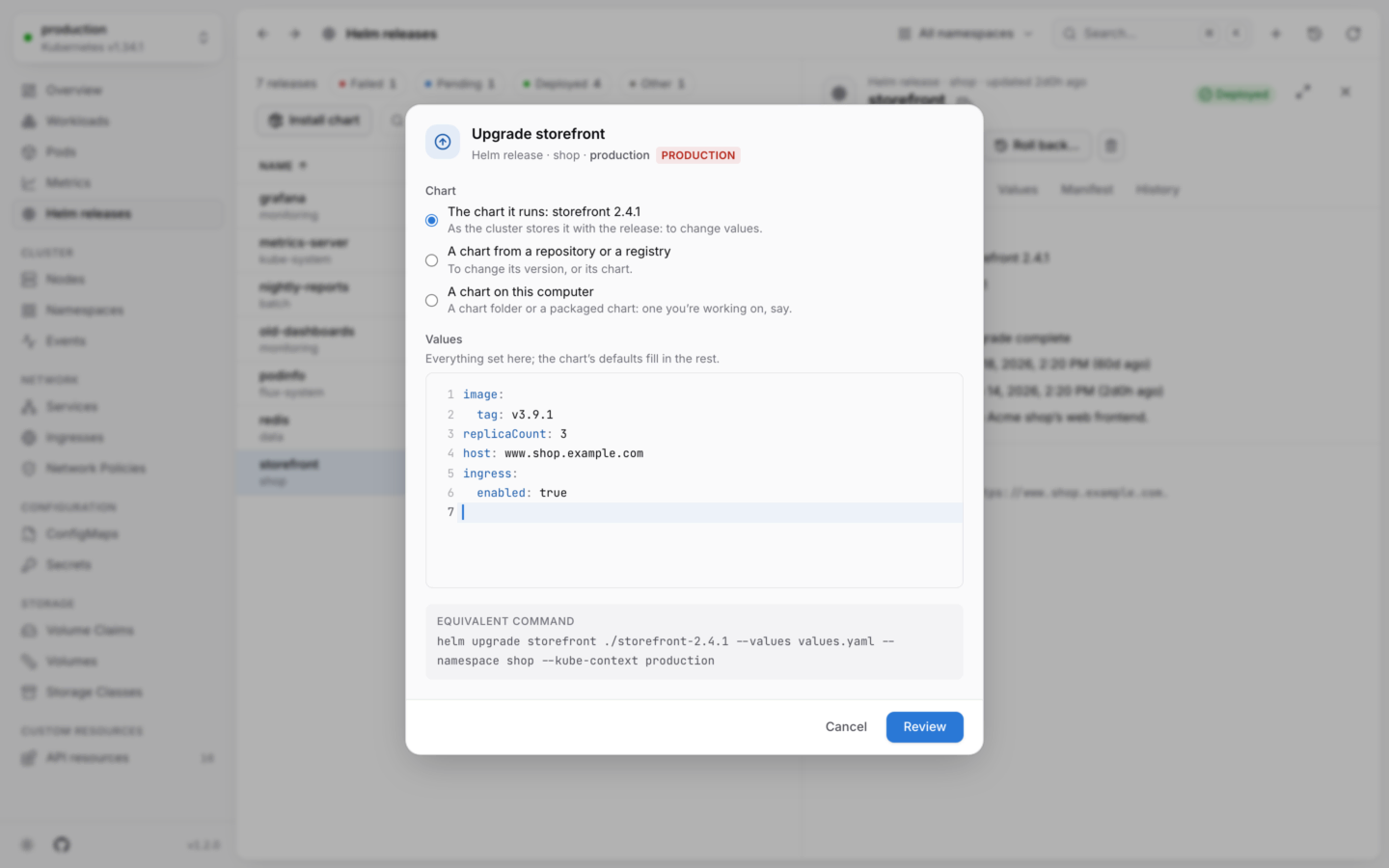
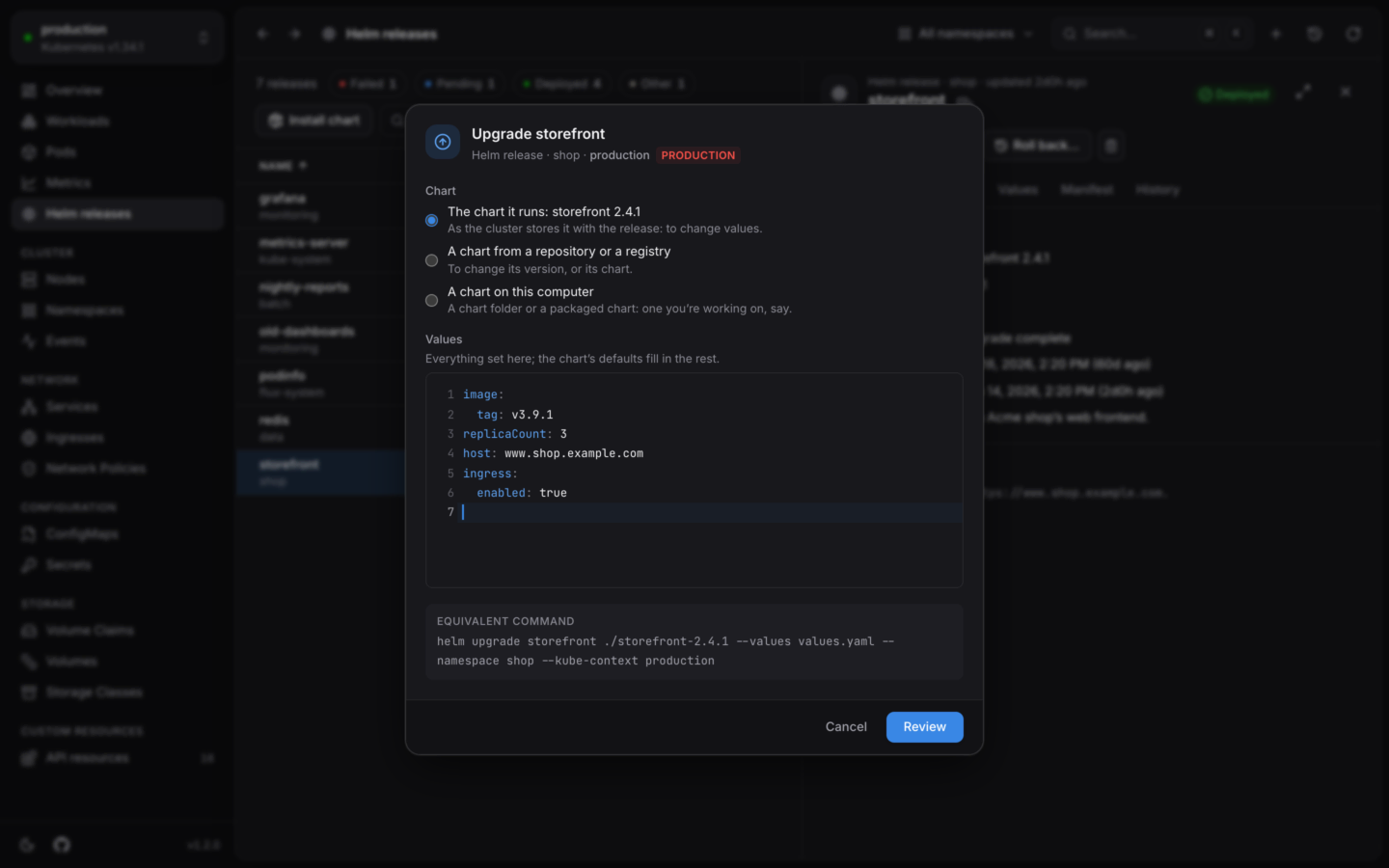 The chart exactly as the cluster stores it with the release. Use it to change values without touching the chart or its version.
Helm doesn't store subcharts with a release, so a chart with subcharts can't be reused this way. KubeStacks says which subcharts it has, and you pick the chart from its repository instead.
To change the chart's version, or the chart itself. Type any of:
| Chart | Repository URL |
| - | - |
| A name, like `nginx` | The repository it's in, like `https://charts.example.com` |
| An OCI reference, like `oci://ghcr.io/org/charts/web` | Empty |
| A packaged chart's URL, like `https://example.com/web-1.2.0.tgz` | Empty |
Leave **Version** empty for the latest, or type one. With a repository URL, **List its versions** reads the repository's index and offers every version in a menu.
A chart folder or a packaged `.tgz`, like the one you're working on. It's checked with `helm lint`, and can have its subcharts downloaded. See [Charts on your computer](/helm/local-charts).
Desktop app only.
The editor starts with the values set for the release now. Everything set here applies, and the chart's defaults fill in the rest, the way `helm upgrade --values` works.
**Start from the chart's defaults** replaces the editor's contents with the chosen chart's `values.yaml` (from `helm show values`), for when you want to see everything you could set.
Press **Review**, or ⌘S in the editor (Ctrl+S on Windows and Linux). KubeStacks checks the values are valid YAML, then runs the upgrade as a server-side dry run: Helm renders the chart and the API server validates every object, but nothing changes.
You see **The cluster accepts it**, how many lines of the manifest change, the diff, and the notes the chart would print. If the cluster refuses something, you see what it said instead.
Press **Upgrade** to run it for real, or **Back to editing** to change something. The notification and the [Activity](/changes/undo-and-activity) log record the command.
The dialog shows the equivalent command all along, like:
```bash theme={"theme":{"light":"github-light","dark":"github-dark-default"}}
helm upgrade web ./web-1.4.2 --values values.yaml --namespace shop --kube-context production
```
## Roll back
**Roll back…** lists every earlier revision with its status, age, chart and app version, and description. Pick one, and the dialog tells you what going back means: "Running now: revision 5. Going back to 3 changes 12 lines of its values and 40 of its manifest."
It runs `helm rollback `. Helm records a rollback as a new revision, so you can always go forward again the same way. A release with a single revision has nothing to roll back to, and doesn't offer it.
To see exactly what differs before you roll back, use the release's **History** tab: pick any two revisions and compare their values or manifests.
## Uninstall
**Uninstall…** says how many objects it deletes. Objects the chart keeps on purpose stay: CRDs, and anything annotated with `helm.sh/resource-policy: keep`. Type the release's name to confirm.
Tick **Keep its history** to run `helm uninstall --keep-history`: the revisions stay, so the release can be rolled back into being. It then shows as Uninstalled.
## Releases Flux manages
If Flux's helm-controller manages a release, every dialog warns that Flux puts back changes made any other way. Change it through its `HelmRelease` instead, or suspend that first. See [Helm releases](/helm/releases#releases-flux-manages).
## Which helm runs
The desktop app runs the `helm` on your login shell's `PATH`, so it's the same one your terminal uses. To use another, set `KUBESTACKS_HELM` to its path before starting KubeStacks.
If KubeStacks can't find it, the dialog says so: "KubeStacks uses helm for this, and couldn't run helm. Install Helm ([https://helm.sh](https://helm.sh)), or set KUBESTACKS\_HELM to where it is."
Each command is pointed at the cluster you're looking at with `--kube-context`, uses your kubeconfig's credentials, and may run for up to 10 minutes (for charts with slow hooks).
**In your cluster:** the image includes `helm`, and runs it as the person signed in, with their own permissions. Charts come from repositories, registries or URLs, never from files. See [What's different](/server/overview).
## When changes are off
A cluster you made [read-only](/changes/read-only) can't be changed with Helm either: the buttons are disabled with "Changes are turned off for this cluster." The app itself refuses the change, not just its buttons.
Upgrade from the chart you're working on, checked with helm lint.
Find one on Artifact Hub, and install it with a dry run first.
This documentation is built and hosted on [Mintlify](https://mintlify.com), a developer documentation platform.
The chart exactly as the cluster stores it with the release. Use it to change values without touching the chart or its version.
Helm doesn't store subcharts with a release, so a chart with subcharts can't be reused this way. KubeStacks says which subcharts it has, and you pick the chart from its repository instead.
To change the chart's version, or the chart itself. Type any of:
| Chart | Repository URL |
| - | - |
| A name, like `nginx` | The repository it's in, like `https://charts.example.com` |
| An OCI reference, like `oci://ghcr.io/org/charts/web` | Empty |
| A packaged chart's URL, like `https://example.com/web-1.2.0.tgz` | Empty |
Leave **Version** empty for the latest, or type one. With a repository URL, **List its versions** reads the repository's index and offers every version in a menu.
A chart folder or a packaged `.tgz`, like the one you're working on. It's checked with `helm lint`, and can have its subcharts downloaded. See [Charts on your computer](/helm/local-charts).
Desktop app only.
The editor starts with the values set for the release now. Everything set here applies, and the chart's defaults fill in the rest, the way `helm upgrade --values` works.
**Start from the chart's defaults** replaces the editor's contents with the chosen chart's `values.yaml` (from `helm show values`), for when you want to see everything you could set.
Press **Review**, or ⌘S in the editor (Ctrl+S on Windows and Linux). KubeStacks checks the values are valid YAML, then runs the upgrade as a server-side dry run: Helm renders the chart and the API server validates every object, but nothing changes.
You see **The cluster accepts it**, how many lines of the manifest change, the diff, and the notes the chart would print. If the cluster refuses something, you see what it said instead.
Press **Upgrade** to run it for real, or **Back to editing** to change something. The notification and the [Activity](/changes/undo-and-activity) log record the command.
The dialog shows the equivalent command all along, like:
```bash theme={"theme":{"light":"github-light","dark":"github-dark-default"}}
helm upgrade web ./web-1.4.2 --values values.yaml --namespace shop --kube-context production
```
## Roll back
**Roll back…** lists every earlier revision with its status, age, chart and app version, and description. Pick one, and the dialog tells you what going back means: "Running now: revision 5. Going back to 3 changes 12 lines of its values and 40 of its manifest."
It runs `helm rollback `. Helm records a rollback as a new revision, so you can always go forward again the same way. A release with a single revision has nothing to roll back to, and doesn't offer it.
To see exactly what differs before you roll back, use the release's **History** tab: pick any two revisions and compare their values or manifests.
## Uninstall
**Uninstall…** says how many objects it deletes. Objects the chart keeps on purpose stay: CRDs, and anything annotated with `helm.sh/resource-policy: keep`. Type the release's name to confirm.
Tick **Keep its history** to run `helm uninstall --keep-history`: the revisions stay, so the release can be rolled back into being. It then shows as Uninstalled.
## Releases Flux manages
If Flux's helm-controller manages a release, every dialog warns that Flux puts back changes made any other way. Change it through its `HelmRelease` instead, or suspend that first. See [Helm releases](/helm/releases#releases-flux-manages).
## Which helm runs
The desktop app runs the `helm` on your login shell's `PATH`, so it's the same one your terminal uses. To use another, set `KUBESTACKS_HELM` to its path before starting KubeStacks.
If KubeStacks can't find it, the dialog says so: "KubeStacks uses helm for this, and couldn't run helm. Install Helm ([https://helm.sh](https://helm.sh)), or set KUBESTACKS\_HELM to where it is."
Each command is pointed at the cluster you're looking at with `--kube-context`, uses your kubeconfig's credentials, and may run for up to 10 minutes (for charts with slow hooks).
**In your cluster:** the image includes `helm`, and runs it as the person signed in, with their own permissions. Charts come from repositories, registries or URLs, never from files. See [What's different](/server/overview).
## When changes are off
A cluster you made [read-only](/changes/read-only) can't be changed with Helm either: the buttons are disabled with "Changes are turned off for this cluster." The app itself refuses the change, not just its buttons.
Upgrade from the chart you're working on, checked with helm lint.
Find one on Artifact Hub, and install it with a dry run first.
This documentation is built and hosted on [Mintlify](https://mintlify.com), a developer documentation platform.