> ## Documentation Index
> Fetch the complete documentation index at: https://docs.kubestacks.com/llms.txt
> Use this file to discover all available pages before exploring further.
# Keyboard shortcuts
> Every view is a keystroke away. Here is every shortcut KubeStacks knows, grouped by where you use it.
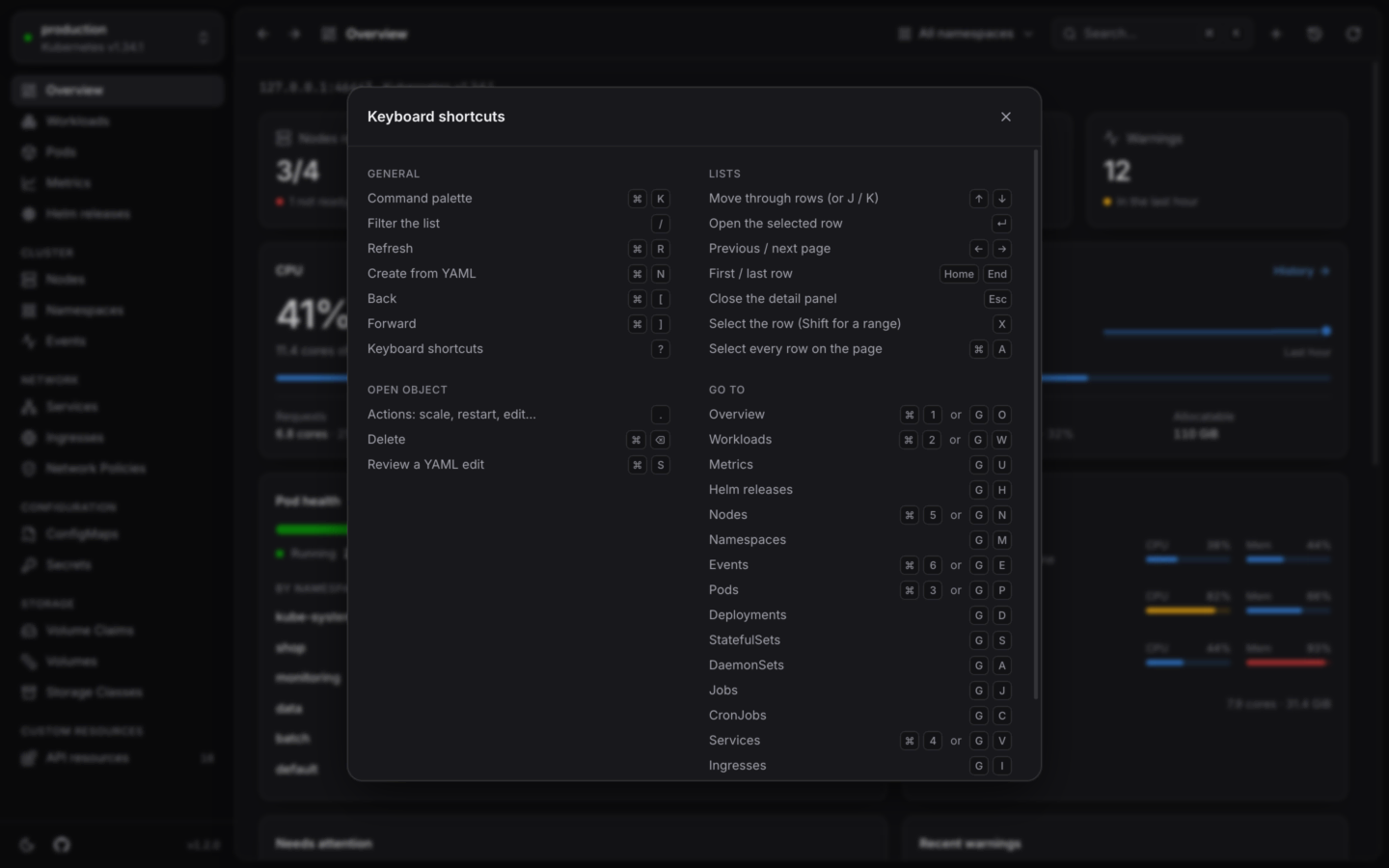
KubeStacks works from the keyboard as well as the mouse. Press ? anywhere to see the shortcut sheet. It's also in the command palette, and in the desktop app's **Help** menu.
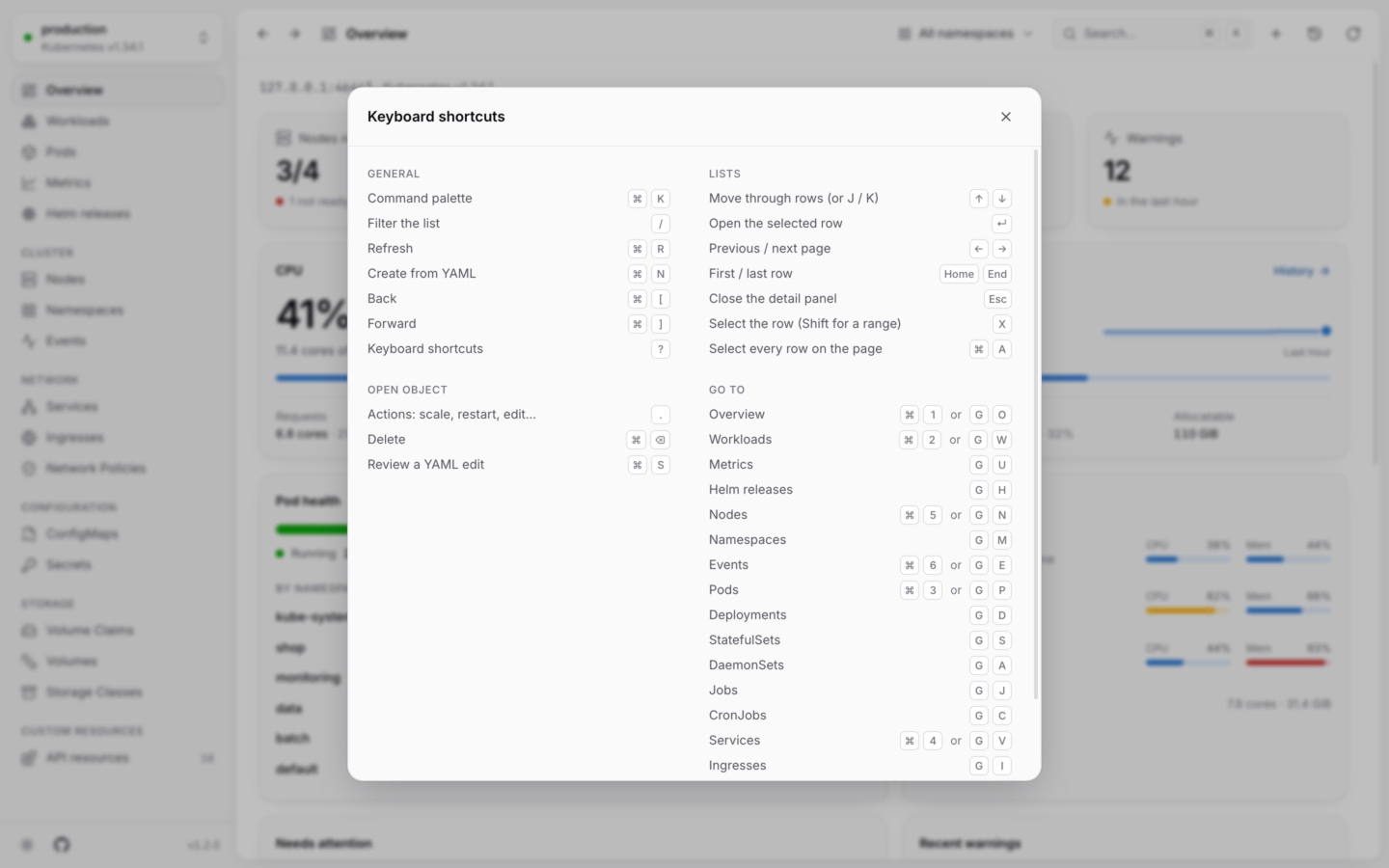
 Shortcuts are written for macOS. On Windows and Linux, use Ctrl wherever you see ⌘. KubeStacks accepts either key on every platform.
## General
| Shortcut | What it does |
| - | - |
| ⌘K | Open the [command palette](/explore/finding-things). On the start screen, it searches your clusters instead. |
| / | Filter the list |
| ⌘R | Refresh now |
| ⌘\[ or Alt← | Back |
| ⌘] or Alt→ | Forward |
| ? | Keyboard shortcuts |
### Desktop app only
These come from the app's menus, so they work in the desktop app. A browser keeps ⌘N and ⌘1…6 for its own windows and tabs, so when KubeStacks runs [in your cluster](/server/overview), use the command palette for those instead.
| Shortcut | What it does | Menu |
| - | - | - |
| ⌘N | Create from YAML | **File → New from YAML…** |
| ⌘1 … ⌘6 | Overview, Workloads, Pods, Services, Nodes, Events | **Go** |
| ⌘⇧C | All clusters (back to the start screen) | **Go → All Clusters** |
| ⌘/ | Keyboard shortcuts | **Help → Keyboard Shortcuts** |
## Go to a view
Press G, then a letter, within a second or so. Hover an item in the sidebar to see its letter.
| Keys | View | Keys | View |
| - | - | - | - |
| G O | Overview | G J | Jobs |
| G W | Workloads | G C | CronJobs |
| G U | Metrics | G V | Services |
| G H | Helm releases | G I | Ingresses |
| G N | Nodes | G F | ConfigMaps |
| G M | Namespaces | G X | Secrets |
| G E | Events | G L | Volume Claims |
| G P | Pods | | |
| G D | Deployments | | |
| G S | StatefulSets | | |
| G A | DaemonSets | | |
ReplicaSets, Autoscalers, Network Policies, Volumes, Storage Classes and API resources have no letter. Open them from the sidebar, or type their name into ⌘K.
Single-key shortcuts like G, / and ? don't fire while you type in a field, or while a dialog or menu is open, so they never get in your way.
## Lists
| Shortcut | What it does |
| - | - |
| ↑ ↓ or J K | Move through the rows |
| Home End | First or last row |
| PgUp PgDn | Jump ten rows |
| ← → | Previous or next page |
| ↵ | Open the focused row in the detail panel |
| X | Select the focused row |
| ⇧X | Select a range of rows |
| ⌘A | Select every row on the page |
| Esc | Clear the selection, then close the detail panel |
While the detail panel is open, moving through the list opens each row in turn. In the filter box, ↓ moves into the list and Esc leaves the box. See [Several at once](/changes/bulk) for what to do with a selection.
## The open object
| Shortcut | What it does |
| - | - |
| . | Open the actions menu: scale, restart, edit… |
| ⌘⌫ | Delete the open object |
| Esc | Close the detail panel |
The panel's edge can be dragged to resize it, or focused and moved with ← →. KubeStacks remembers its width. See [Object details](/explore/details).
## Editing YAML
| Shortcut | What it does |
| - | - |
| ⌘S | Review changes: the cluster checks the edit and shows a diff |
| Tab | Indent |
| ⌘F | Search the YAML |
| ⌘Z / ⌘⇧Z | Undo and redo |
Esc doesn't close the panel while you're editing, so a stray keystroke never loses your work. See [Edit YAML](/changes/yaml).
## Charts
On the [Metrics](/metrics/usage-history) page and in every **Metrics** tab:
| Shortcut | What it does |
| - | - |
| Drag across a chart | Zoom in on that stretch of time |
| ← →, Home End | Read the values at earlier or later points in time |
| Esc | Hide the readout |
| Click a legend item | Show or hide that series |
| Alt or ⇧ and click a legend item (or ⌘ on macOS) | Show only that series; do it again to show them all |
## Logs
| Shortcut | What it does |
| - | - |
| Esc in the search box | Clear the search |
Everything else in the log viewer is a button or a chip. See [Logs](/debug/logs).
## Start screen and command palette
| Shortcut | What it does |
| - | - |
| ↑ ↓ | Move through clusters or results |
| ↵ | Open the cluster, or run the result |
| Esc | Close the palette |
| ? | All shortcuts, once you've left the search box (in it, ? is part of what you type) |
The command palette finds views, objects, namespaces and clusters, and the actions for the open object. See [Search, filters and ⌘K](/explore/finding-things).
This documentation is built and hosted on [Mintlify](https://mintlify.com), a developer documentation platform.
Shortcuts are written for macOS. On Windows and Linux, use Ctrl wherever you see ⌘. KubeStacks accepts either key on every platform.
## General
| Shortcut | What it does |
| - | - |
| ⌘K | Open the [command palette](/explore/finding-things). On the start screen, it searches your clusters instead. |
| / | Filter the list |
| ⌘R | Refresh now |
| ⌘\[ or Alt← | Back |
| ⌘] or Alt→ | Forward |
| ? | Keyboard shortcuts |
### Desktop app only
These come from the app's menus, so they work in the desktop app. A browser keeps ⌘N and ⌘1…6 for its own windows and tabs, so when KubeStacks runs [in your cluster](/server/overview), use the command palette for those instead.
| Shortcut | What it does | Menu |
| - | - | - |
| ⌘N | Create from YAML | **File → New from YAML…** |
| ⌘1 … ⌘6 | Overview, Workloads, Pods, Services, Nodes, Events | **Go** |
| ⌘⇧C | All clusters (back to the start screen) | **Go → All Clusters** |
| ⌘/ | Keyboard shortcuts | **Help → Keyboard Shortcuts** |
## Go to a view
Press G, then a letter, within a second or so. Hover an item in the sidebar to see its letter.
| Keys | View | Keys | View |
| - | - | - | - |
| G O | Overview | G J | Jobs |
| G W | Workloads | G C | CronJobs |
| G U | Metrics | G V | Services |
| G H | Helm releases | G I | Ingresses |
| G N | Nodes | G F | ConfigMaps |
| G M | Namespaces | G X | Secrets |
| G E | Events | G L | Volume Claims |
| G P | Pods | | |
| G D | Deployments | | |
| G S | StatefulSets | | |
| G A | DaemonSets | | |
ReplicaSets, Autoscalers, Network Policies, Volumes, Storage Classes and API resources have no letter. Open them from the sidebar, or type their name into ⌘K.
Single-key shortcuts like G, / and ? don't fire while you type in a field, or while a dialog or menu is open, so they never get in your way.
## Lists
| Shortcut | What it does |
| - | - |
| ↑ ↓ or J K | Move through the rows |
| Home End | First or last row |
| PgUp PgDn | Jump ten rows |
| ← → | Previous or next page |
| ↵ | Open the focused row in the detail panel |
| X | Select the focused row |
| ⇧X | Select a range of rows |
| ⌘A | Select every row on the page |
| Esc | Clear the selection, then close the detail panel |
While the detail panel is open, moving through the list opens each row in turn. In the filter box, ↓ moves into the list and Esc leaves the box. See [Several at once](/changes/bulk) for what to do with a selection.
## The open object
| Shortcut | What it does |
| - | - |
| . | Open the actions menu: scale, restart, edit… |
| ⌘⌫ | Delete the open object |
| Esc | Close the detail panel |
The panel's edge can be dragged to resize it, or focused and moved with ← →. KubeStacks remembers its width. See [Object details](/explore/details).
## Editing YAML
| Shortcut | What it does |
| - | - |
| ⌘S | Review changes: the cluster checks the edit and shows a diff |
| Tab | Indent |
| ⌘F | Search the YAML |
| ⌘Z / ⌘⇧Z | Undo and redo |
Esc doesn't close the panel while you're editing, so a stray keystroke never loses your work. See [Edit YAML](/changes/yaml).
## Charts
On the [Metrics](/metrics/usage-history) page and in every **Metrics** tab:
| Shortcut | What it does |
| - | - |
| Drag across a chart | Zoom in on that stretch of time |
| ← →, Home End | Read the values at earlier or later points in time |
| Esc | Hide the readout |
| Click a legend item | Show or hide that series |
| Alt or ⇧ and click a legend item (or ⌘ on macOS) | Show only that series; do it again to show them all |
## Logs
| Shortcut | What it does |
| - | - |
| Esc in the search box | Clear the search |
Everything else in the log viewer is a button or a chip. See [Logs](/debug/logs).
## Start screen and command palette
| Shortcut | What it does |
| - | - |
| ↑ ↓ | Move through clusters or results |
| ↵ | Open the cluster, or run the result |
| Esc | Close the palette |
| ? | All shortcuts, once you've left the search box (in it, ? is part of what you type) |
The command palette finds views, objects, namespaces and clusters, and the actions for the open object. See [Search, filters and ⌘K](/explore/finding-things).
This documentation is built and hosted on [Mintlify](https://mintlify.com), a developer documentation platform.