> ## Documentation Index
> Fetch the complete documentation index at: https://docs.kubestacks.com/llms.txt
> Use this file to discover all available pages before exploring further.
# Troubleshooting
> What each error in KubeStacks means, and what to try. Most problems come from the connection to a cluster, and say so.
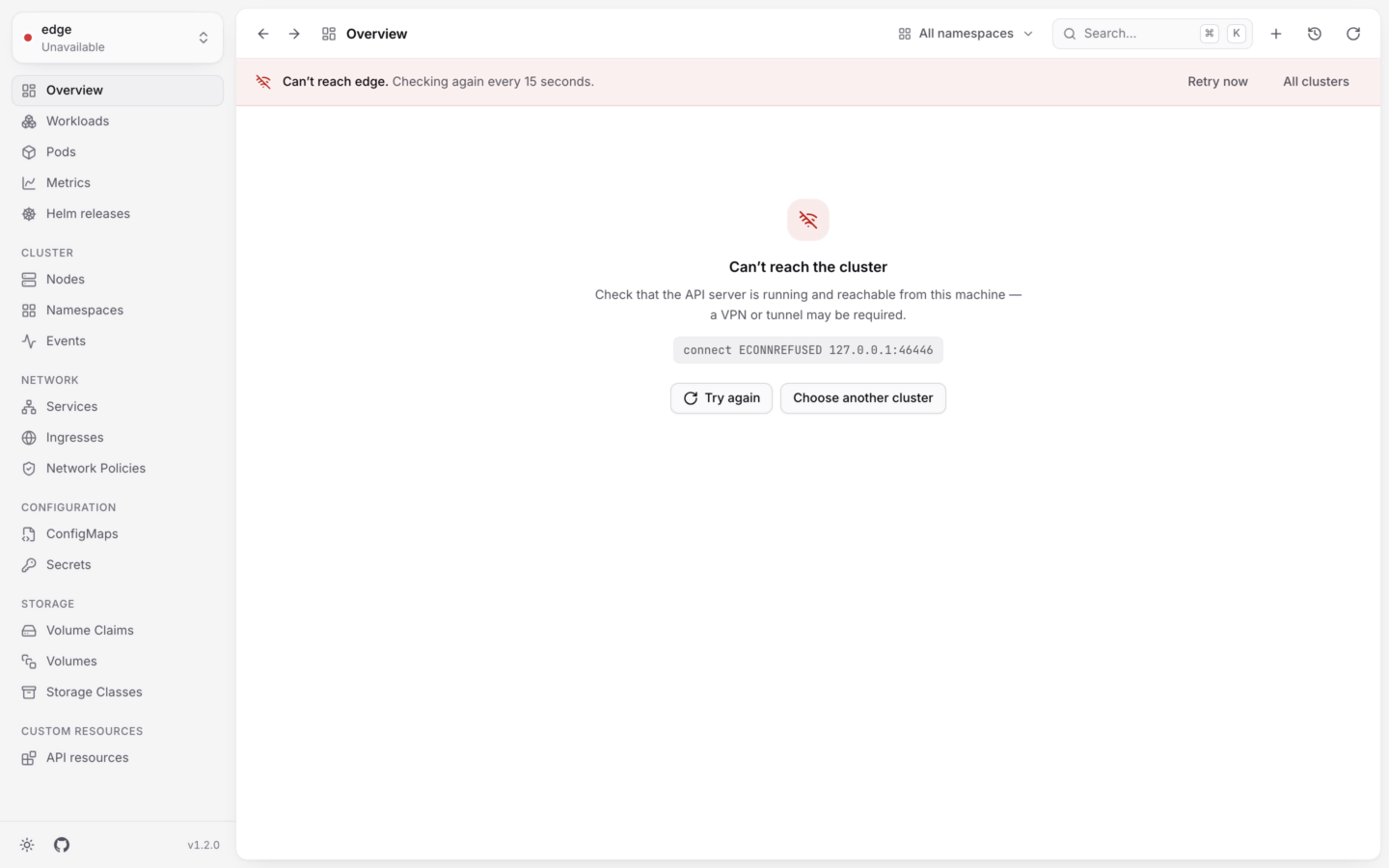
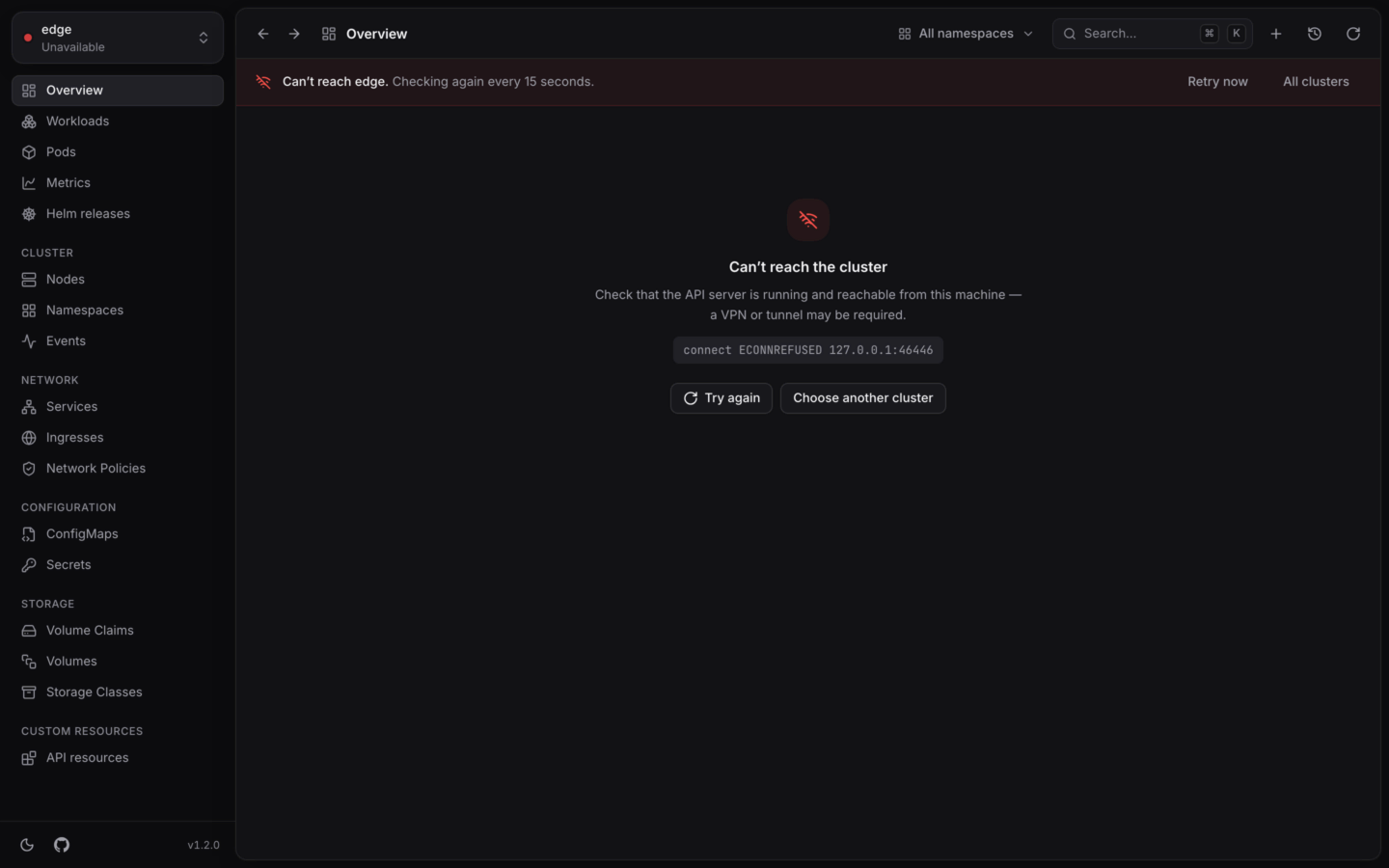
KubeStacks tries to say what went wrong in plain words, and what to try next. On the start screen, each cluster that can't be opened gets a short label; hover it to read the full message. Inside a cluster, an error screen has a title, a hint and **Try again**.
 ## Connecting to a cluster
| Start screen label | Error screen title |
| - | - |
| **Unreachable** | Can't reach the cluster |
| **Timed out** | The cluster isn't responding |
| **Certificate error** | The cluster's certificate couldn't be verified |
| **Plain HTTP blocked** | Plain HTTP isn't allowed |
| **Credentials failed** | Couldn't get credentials |
| **Unauthorized** | Your credentials were rejected |
| **Forbidden** | Access denied |
KubeStacks couldn't open a connection to the API server.
* Check that the cluster is running, and that this computer can reach it. Many clusters are only reachable over a VPN or a tunnel.
* If you have `kubectl`, `kubectl --context get --raw /version` tells you whether the API server answers from this computer.
* Choose **Try again**, or **Reload** on the start screen, once the network is back.
The API server accepted the connection, but didn't answer within 20 seconds. That's usually a busy or distant API server.
Try again in a moment. If it's always slow, give it longer with [`KUBESTACKS_REQUEST_TIMEOUT_MS`](/reference/environment-variables#setting-them). On macOS, quit KubeStacks, then:
```bash theme={"theme":{"light":"github-light","dark":"github-dark-default"}}
KUBESTACKS_REQUEST_TIMEOUT_MS=60000 open -a KubeStacks
```
The certificate authority in your kubeconfig doesn't match the API server's certificate. The full message starts with `TLS handshake failed`.
This happens when a cluster is recreated or its certificates rotate. Get a fresh kubeconfig entry from wherever the cluster came from, for example `aws eks update-kubeconfig`, `gcloud container clusters get-credentials` or `az aks get-credentials`, then choose **Reload**.
The cluster's address starts with `http://`, for example through `kubectl proxy`. KubeStacks only uses unencrypted connections when the kubeconfig says so for that cluster, the same rule as the official JavaScript client:
```yaml ~/.kube/config theme={"theme":{"light":"github-light","dark":"github-dark-default"}}
clusters:
- name: local-proxy
cluster:
server: http://127.0.0.1:8001
insecure-skip-tls-verify: true
```
The context gets its credentials from a plugin, like `gke-gcloud-auth-plugin`, `aws eks get-token` or `kubelogin`, and the plugin failed.
* **The credential plugin “…” wasn't found.** Install the plugin, or make sure it's on your `PATH`. On macOS and Linux, KubeStacks reads `PATH` from your login shell when it starts, even when you open it from the Dock or a launcher. So the plugin must be on the `PATH` your shell profile sets up. Restart KubeStacks after changing it.
* **Could not get credentials: …** The plugin ran but failed, most often because you're signed out of your cloud provider. Sign in again (`gcloud auth login`, `aws sso login`, `az login`…), then choose **Try again**.
The API server turned down the token or client certificate. Expired credentials end up here. Sign in again, or get a fresh kubeconfig entry, then try again.
Your account isn't allowed to read this. If you only have access to some namespaces, pick one from the namespace menu. If your account can't list namespaces, type the name of one you can use. See [Namespaces](/clusters/namespaces) and [Permissions](/clusters/permissions).
* **Your kubeconfig couldn't be read.** A file has a syntax error. KubeStacks names the file and the first line of the problem. Fix the file, then choose **Reload**.
* **No clusters found.** KubeStacks found no contexts. Set `KUBECONFIG`, or create `~/.kube/config`, then reload. See [Connecting clusters](/clusters/connect).
`kubectl` in your terminal uses the `KUBECONFIG` your shell profile exports. KubeStacks opened from the Dock, Spotlight or a launcher doesn't see that variable (it takes only `PATH` from your shell), so it reads `~/.kube/config`. **Loaded from**, at the bottom of the start screen, shows which files it read.
Start KubeStacks from your terminal, or set `KUBECONFIG` where apps see it. See [Setting environment variables](/reference/environment-variables#setting-them).
## While you work
**Can't reach … Checking again every 15 seconds.** The connection dropped. The last data stays on screen, and KubeStacks reconnects by itself when it can. Choose **Retry now** to check at once, or **All clusters** to open another.
**Couldn't refresh — showing the last data.** A refresh failed, but what you see is still the latest KubeStacks has. Choose **Retry**.
Lists load in chunks of 500 and stop at 5,000 objects, so huge clusters stay fast. A note says **Showing the first … of …**. Choose **Filter by label** to narrow the list on the server, pick a namespace, or raise the limit with [`KUBESTACKS_MAX_LIST_ITEMS`](/reference/environment-variables).
KubeStacks asks the cluster what you're allowed to do before offering an action, and says why it can't:
* **Your account can't … in ….** Your RBAC doesn't allow it. See [Permissions](/clusters/permissions).
* **Changes are turned off for this cluster.** You, or `KUBESTACKS_READ_ONLY`, made it read-only. See [Read-only mode](/changes/read-only).
Someone else changed the object while you were editing its YAML. KubeStacks doesn't overwrite their change. Choose **Start over from the latest**, and make your edit again. See [Edit YAML](/changes/yaml).
Images built without a shell (distroless ones, say) can't run one. Choose **Debug** to add a debug container with tools to the pod instead. See [Shells and debug containers](/debug/shell).
**Shells are off** means the cluster is read-only in KubeStacks: shells count as changes.
**Port … on this computer can't be used (EADDRINUSE).** Something else on your computer listens on that port. Pick another local port. See [Port forwarding](/debug/port-forwarding).
KubeStacks didn't expect this. Choose **Try again** first. When a page fails unexpectedly, its error screen shows what happened, with **Copy details** and **Report issue**, so it can be fixed.
## Usage and metrics
Live usage comes from [metrics-server](https://github.com/kubernetes-sigs/metrics-server), as for `kubectl top`. Without it, the overview says **Live usage needs metrics-server**, and KubeStacks shows requests and limits against capacity instead. Install metrics-server in the cluster to see live usage. See [Live usage](/metrics/live-usage).
History comes from a Prometheus or VictoriaMetrics in the cluster.
* **No Prometheus found.** KubeStacks looked among the cluster's services and found none that answered. Choose **Choose a service** to pick its namespace, service, port and path (`/select/0/prometheus` for vmselect), or **Look again**.
* **Can't read usage history.** The source is there, but reading it failed. Your account needs `get` on `services/proxy` in the source's namespace, because KubeStacks reaches it through the API server with your credentials.
* **Usage history is off.** It was turned off for this cluster. Choose **Change** to turn it back on.
See [Usage history](/metrics/usage-history).
## Helm
Looking at releases needs nothing, but changing them runs your own `helm`. Install [Helm](https://helm.sh), or set [`KUBESTACKS_HELM`](/reference/environment-variables) to where it is. On macOS and Linux, `helm` must be on your login shell's `PATH`.
The error shown is what `helm` said. A failed upgrade is often a chart or values problem, which the [dry run](/helm/upgrade-and-rollback) usually catches first.
If the release is managed by Flux, KubeStacks says so and links to its `HelmRelease`. Flux puts back changes made any other way, so make the change in Flux instead.
## Installing
The Windows installer isn't code-signed yet. Choose **More info**, then **Run anyway**. You can [check the download](/get-started/desktop#verify-your-download) against the release's checksums first.
Make the file executable first: `chmod +x KubeStacks-*.AppImage`. Then run it from a terminal to see any error it prints.
## In your cluster
Each page keeps a WebSocket open to KubeStacks, and **Reconnecting to KubeStacks…** shows while it's down. If it drops every minute or so, something in front of KubeStacks closes idle connections. Give your ingress a long timeout, for example with ingress-nginx:
```yaml values.yaml theme={"theme":{"light":"github-light","dark":"github-dark-default"}}
ingress:
annotations:
nginx.ingress.kubernetes.io/proxy-read-timeout: '3600'
nginx.ingress.kubernetes.io/proxy-send-timeout: '3600'
```
KubeStacks also checks each connection every 30 seconds (`KUBESTACKS_HEARTBEAT_SECONDS`). Keep that shorter than the idle timeouts of the proxies in between. See [Address and ingress](/server/expose).
Sessions live in KubeStacks' memory, so restarting it, as an upgrade does, signs everyone out. With single sign-on, signing in again is a click. Sessions also end after 12 hours, unless you set it otherwise. See [Upgrading](/server/upgrade).
The token is wrong, expired or revoked. Create a new one, for example `kubectl create token NAME --namespace NAMESPACE`. KubeStacks asks the cluster who a token belongs to with a SelfSubjectReview, which needs Kubernetes 1.28 or later. See [Tokens](/server/auth/tokens).
The token you signed in with expired, or the cluster stopped accepting it. Sign in again to carry on where you were. With single sign-on, KubeStacks renews tokens by itself when the provider gives it a refresh token.
## Reporting a problem
If none of this helps, please [open an issue](https://github.com/KubeStacks/KubeStacks/issues/new/choose). In the desktop app, **Help → Report an Issue…** opens the same page. It helps to include:
* your KubeStacks version, shown at the bottom of the sidebar,
* your operating system, and how the cluster is run (EKS, GKE, kind…),
* what you did, what you expected, and what happened instead,
* the details from the error screen, which **Copy details** copies.
For security problems, please don't open an issue: see [Reporting a vulnerability](/reference/privacy-and-security#reporting-a-vulnerability).
This documentation is built and hosted on [Mintlify](https://mintlify.com), a developer documentation platform.
## Connecting to a cluster
| Start screen label | Error screen title |
| - | - |
| **Unreachable** | Can't reach the cluster |
| **Timed out** | The cluster isn't responding |
| **Certificate error** | The cluster's certificate couldn't be verified |
| **Plain HTTP blocked** | Plain HTTP isn't allowed |
| **Credentials failed** | Couldn't get credentials |
| **Unauthorized** | Your credentials were rejected |
| **Forbidden** | Access denied |
KubeStacks couldn't open a connection to the API server.
* Check that the cluster is running, and that this computer can reach it. Many clusters are only reachable over a VPN or a tunnel.
* If you have `kubectl`, `kubectl --context get --raw /version` tells you whether the API server answers from this computer.
* Choose **Try again**, or **Reload** on the start screen, once the network is back.
The API server accepted the connection, but didn't answer within 20 seconds. That's usually a busy or distant API server.
Try again in a moment. If it's always slow, give it longer with [`KUBESTACKS_REQUEST_TIMEOUT_MS`](/reference/environment-variables#setting-them). On macOS, quit KubeStacks, then:
```bash theme={"theme":{"light":"github-light","dark":"github-dark-default"}}
KUBESTACKS_REQUEST_TIMEOUT_MS=60000 open -a KubeStacks
```
The certificate authority in your kubeconfig doesn't match the API server's certificate. The full message starts with `TLS handshake failed`.
This happens when a cluster is recreated or its certificates rotate. Get a fresh kubeconfig entry from wherever the cluster came from, for example `aws eks update-kubeconfig`, `gcloud container clusters get-credentials` or `az aks get-credentials`, then choose **Reload**.
The cluster's address starts with `http://`, for example through `kubectl proxy`. KubeStacks only uses unencrypted connections when the kubeconfig says so for that cluster, the same rule as the official JavaScript client:
```yaml ~/.kube/config theme={"theme":{"light":"github-light","dark":"github-dark-default"}}
clusters:
- name: local-proxy
cluster:
server: http://127.0.0.1:8001
insecure-skip-tls-verify: true
```
The context gets its credentials from a plugin, like `gke-gcloud-auth-plugin`, `aws eks get-token` or `kubelogin`, and the plugin failed.
* **The credential plugin “…” wasn't found.** Install the plugin, or make sure it's on your `PATH`. On macOS and Linux, KubeStacks reads `PATH` from your login shell when it starts, even when you open it from the Dock or a launcher. So the plugin must be on the `PATH` your shell profile sets up. Restart KubeStacks after changing it.
* **Could not get credentials: …** The plugin ran but failed, most often because you're signed out of your cloud provider. Sign in again (`gcloud auth login`, `aws sso login`, `az login`…), then choose **Try again**.
The API server turned down the token or client certificate. Expired credentials end up here. Sign in again, or get a fresh kubeconfig entry, then try again.
Your account isn't allowed to read this. If you only have access to some namespaces, pick one from the namespace menu. If your account can't list namespaces, type the name of one you can use. See [Namespaces](/clusters/namespaces) and [Permissions](/clusters/permissions).
* **Your kubeconfig couldn't be read.** A file has a syntax error. KubeStacks names the file and the first line of the problem. Fix the file, then choose **Reload**.
* **No clusters found.** KubeStacks found no contexts. Set `KUBECONFIG`, or create `~/.kube/config`, then reload. See [Connecting clusters](/clusters/connect).
`kubectl` in your terminal uses the `KUBECONFIG` your shell profile exports. KubeStacks opened from the Dock, Spotlight or a launcher doesn't see that variable (it takes only `PATH` from your shell), so it reads `~/.kube/config`. **Loaded from**, at the bottom of the start screen, shows which files it read.
Start KubeStacks from your terminal, or set `KUBECONFIG` where apps see it. See [Setting environment variables](/reference/environment-variables#setting-them).
## While you work
**Can't reach … Checking again every 15 seconds.** The connection dropped. The last data stays on screen, and KubeStacks reconnects by itself when it can. Choose **Retry now** to check at once, or **All clusters** to open another.
**Couldn't refresh — showing the last data.** A refresh failed, but what you see is still the latest KubeStacks has. Choose **Retry**.
Lists load in chunks of 500 and stop at 5,000 objects, so huge clusters stay fast. A note says **Showing the first … of …**. Choose **Filter by label** to narrow the list on the server, pick a namespace, or raise the limit with [`KUBESTACKS_MAX_LIST_ITEMS`](/reference/environment-variables).
KubeStacks asks the cluster what you're allowed to do before offering an action, and says why it can't:
* **Your account can't … in ….** Your RBAC doesn't allow it. See [Permissions](/clusters/permissions).
* **Changes are turned off for this cluster.** You, or `KUBESTACKS_READ_ONLY`, made it read-only. See [Read-only mode](/changes/read-only).
Someone else changed the object while you were editing its YAML. KubeStacks doesn't overwrite their change. Choose **Start over from the latest**, and make your edit again. See [Edit YAML](/changes/yaml).
Images built without a shell (distroless ones, say) can't run one. Choose **Debug** to add a debug container with tools to the pod instead. See [Shells and debug containers](/debug/shell).
**Shells are off** means the cluster is read-only in KubeStacks: shells count as changes.
**Port … on this computer can't be used (EADDRINUSE).** Something else on your computer listens on that port. Pick another local port. See [Port forwarding](/debug/port-forwarding).
KubeStacks didn't expect this. Choose **Try again** first. When a page fails unexpectedly, its error screen shows what happened, with **Copy details** and **Report issue**, so it can be fixed.
## Usage and metrics
Live usage comes from [metrics-server](https://github.com/kubernetes-sigs/metrics-server), as for `kubectl top`. Without it, the overview says **Live usage needs metrics-server**, and KubeStacks shows requests and limits against capacity instead. Install metrics-server in the cluster to see live usage. See [Live usage](/metrics/live-usage).
History comes from a Prometheus or VictoriaMetrics in the cluster.
* **No Prometheus found.** KubeStacks looked among the cluster's services and found none that answered. Choose **Choose a service** to pick its namespace, service, port and path (`/select/0/prometheus` for vmselect), or **Look again**.
* **Can't read usage history.** The source is there, but reading it failed. Your account needs `get` on `services/proxy` in the source's namespace, because KubeStacks reaches it through the API server with your credentials.
* **Usage history is off.** It was turned off for this cluster. Choose **Change** to turn it back on.
See [Usage history](/metrics/usage-history).
## Helm
Looking at releases needs nothing, but changing them runs your own `helm`. Install [Helm](https://helm.sh), or set [`KUBESTACKS_HELM`](/reference/environment-variables) to where it is. On macOS and Linux, `helm` must be on your login shell's `PATH`.
The error shown is what `helm` said. A failed upgrade is often a chart or values problem, which the [dry run](/helm/upgrade-and-rollback) usually catches first.
If the release is managed by Flux, KubeStacks says so and links to its `HelmRelease`. Flux puts back changes made any other way, so make the change in Flux instead.
## Installing
The Windows installer isn't code-signed yet. Choose **More info**, then **Run anyway**. You can [check the download](/get-started/desktop#verify-your-download) against the release's checksums first.
Make the file executable first: `chmod +x KubeStacks-*.AppImage`. Then run it from a terminal to see any error it prints.
## In your cluster
Each page keeps a WebSocket open to KubeStacks, and **Reconnecting to KubeStacks…** shows while it's down. If it drops every minute or so, something in front of KubeStacks closes idle connections. Give your ingress a long timeout, for example with ingress-nginx:
```yaml values.yaml theme={"theme":{"light":"github-light","dark":"github-dark-default"}}
ingress:
annotations:
nginx.ingress.kubernetes.io/proxy-read-timeout: '3600'
nginx.ingress.kubernetes.io/proxy-send-timeout: '3600'
```
KubeStacks also checks each connection every 30 seconds (`KUBESTACKS_HEARTBEAT_SECONDS`). Keep that shorter than the idle timeouts of the proxies in between. See [Address and ingress](/server/expose).
Sessions live in KubeStacks' memory, so restarting it, as an upgrade does, signs everyone out. With single sign-on, signing in again is a click. Sessions also end after 12 hours, unless you set it otherwise. See [Upgrading](/server/upgrade).
The token is wrong, expired or revoked. Create a new one, for example `kubectl create token NAME --namespace NAMESPACE`. KubeStacks asks the cluster who a token belongs to with a SelfSubjectReview, which needs Kubernetes 1.28 or later. See [Tokens](/server/auth/tokens).
The token you signed in with expired, or the cluster stopped accepting it. Sign in again to carry on where you were. With single sign-on, KubeStacks renews tokens by itself when the provider gives it a refresh token.
## Reporting a problem
If none of this helps, please [open an issue](https://github.com/KubeStacks/KubeStacks/issues/new/choose). In the desktop app, **Help → Report an Issue…** opens the same page. It helps to include:
* your KubeStacks version, shown at the bottom of the sidebar,
* your operating system, and how the cluster is run (EKS, GKE, kind…),
* what you did, what you expected, and what happened instead,
* the details from the error screen, which **Copy details** copies.
For security problems, please don't open an issue: see [Reporting a vulnerability](/reference/privacy-and-security#reporting-a-vulnerability).
This documentation is built and hosted on [Mintlify](https://mintlify.com), a developer documentation platform.