Install KubeStacks with its Helm chart, open it, and sign in with a token, in a few minutes.
You need Helm and kubectl on your computer, and an account that can create namespaces, service accounts and role bindings. The cluster needs Kubernetes 1.25 or later, and 1.28 or later to sign in with tokens, as below.
This creates a deployment with one KubeStacks pod, a kubestacks Service on port 80, and a service account. With the default sign-in (tokens), that service account needs no permissions, and the chart gives it none.
Then open http://localhost:8080. The chart’s notes, printed after helm install, say the same for your settings.
3
Get a token to sign in with
Any bearer token the cluster accepts works. To try it, make a service account that can view everything, and a token for it:
kubectl create serviceaccount alice --namespace kubestackskubectl create clusterrolebinding alice-view --clusterrole view \ --serviceaccount kubestacks:alicekubectl create token alice --namespace kubestacks
The token is valid for an hour. kubectl create token takes --duration for a longer one, up to what your API server allows.
4
Sign in
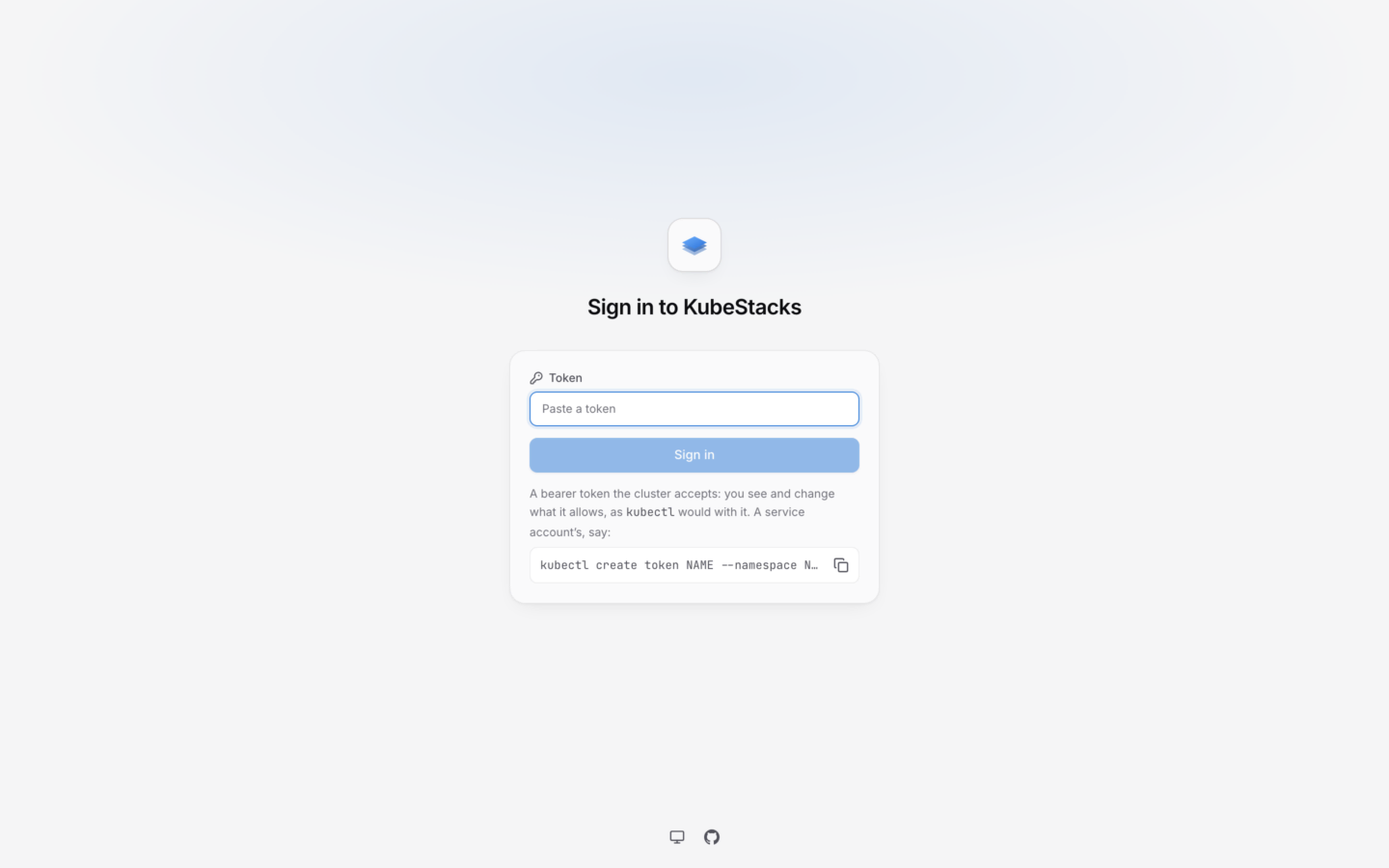
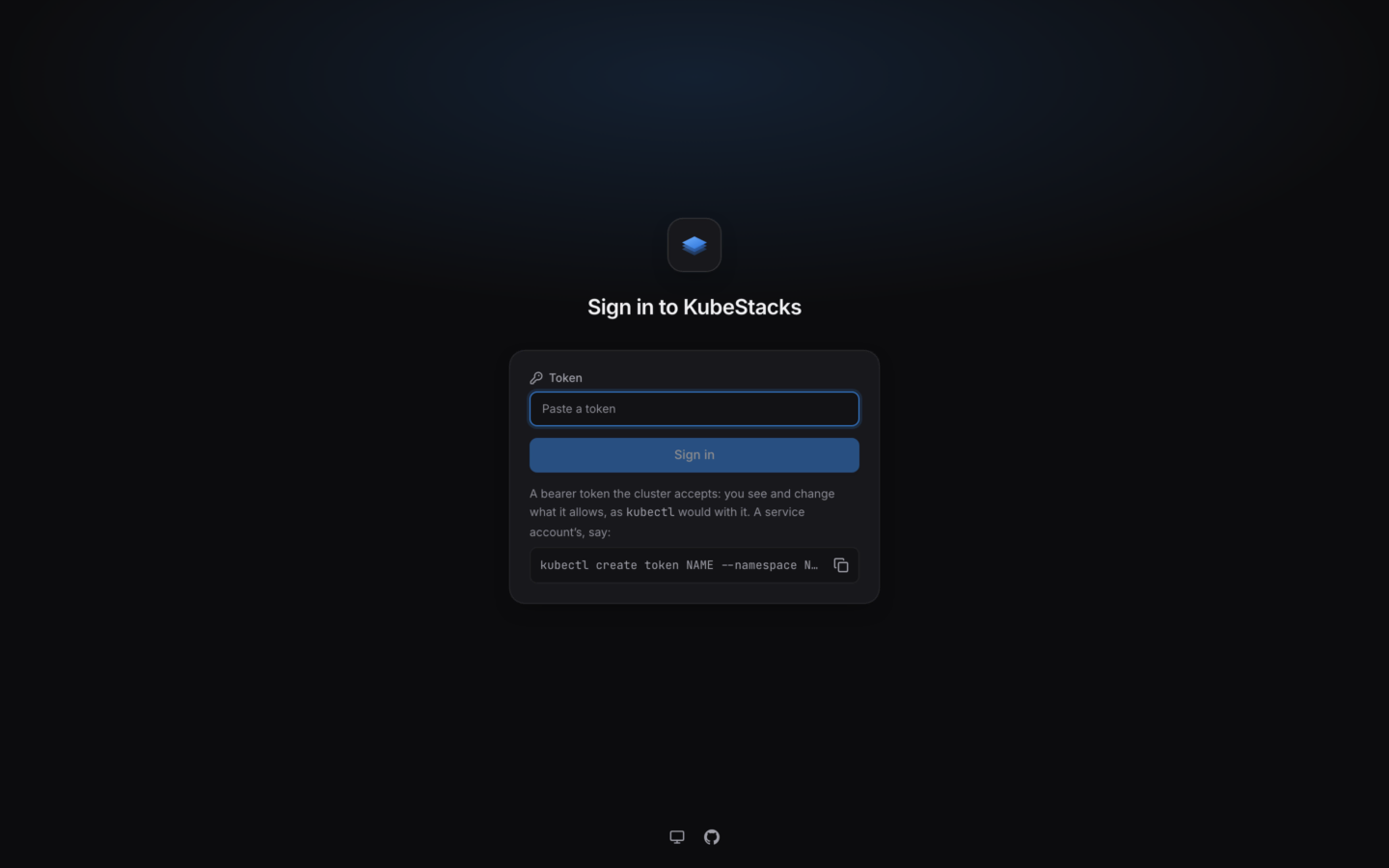
Paste the token into Token and choose Sign in. KubeStacks asks the cluster whose token it is, and opens the cluster’s overview. You see what the view role allows: most objects, but not Secrets, and nothing you can change.
Signing in with a token.
For people to make changes, bind them a role that allows them, like edit, or admin in their own namespaces. KubeStacks asks the cluster what each person may do, and turns off what they can’t, saying why. See Permissions.
For anything past a first try, keep the chart’s settings in a file, and install or upgrade from it. Every setting is in Helm values.
# What KubeStacks calls the cluster, in its pages and their titles.clusterName: production# The address people open it at.url: https://kubestacks.example.comingress: enabled: true className: nginx hosts: [kubestacks.example.com] tls: - secretName: kubestacks-tls hosts: [kubestacks.example.com] annotations: # Pages keep a WebSocket open: don't let the ingress close it after a minute. nginx.ingress.kubernetes.io/proxy-read-timeout: '3600' nginx.ingress.kubernetes.io/proxy-send-timeout: '3600'
2026-10-02T10:52:14.120Z KubeStacks 1.2.0 shows production (https://10.96.0.1:443) at http://localhost:8080/; people sign in with a token
After that, the log records who signs in and out, and what failed. A setting that doesn’t make sense stops KubeStacks before it starts, and the log says which one and why, like:
KUBESTACKS_URL must be set for single sign-on: the provider sends people back there.
The chart checks the same things where it can, so helm install fails first with the same advice.