

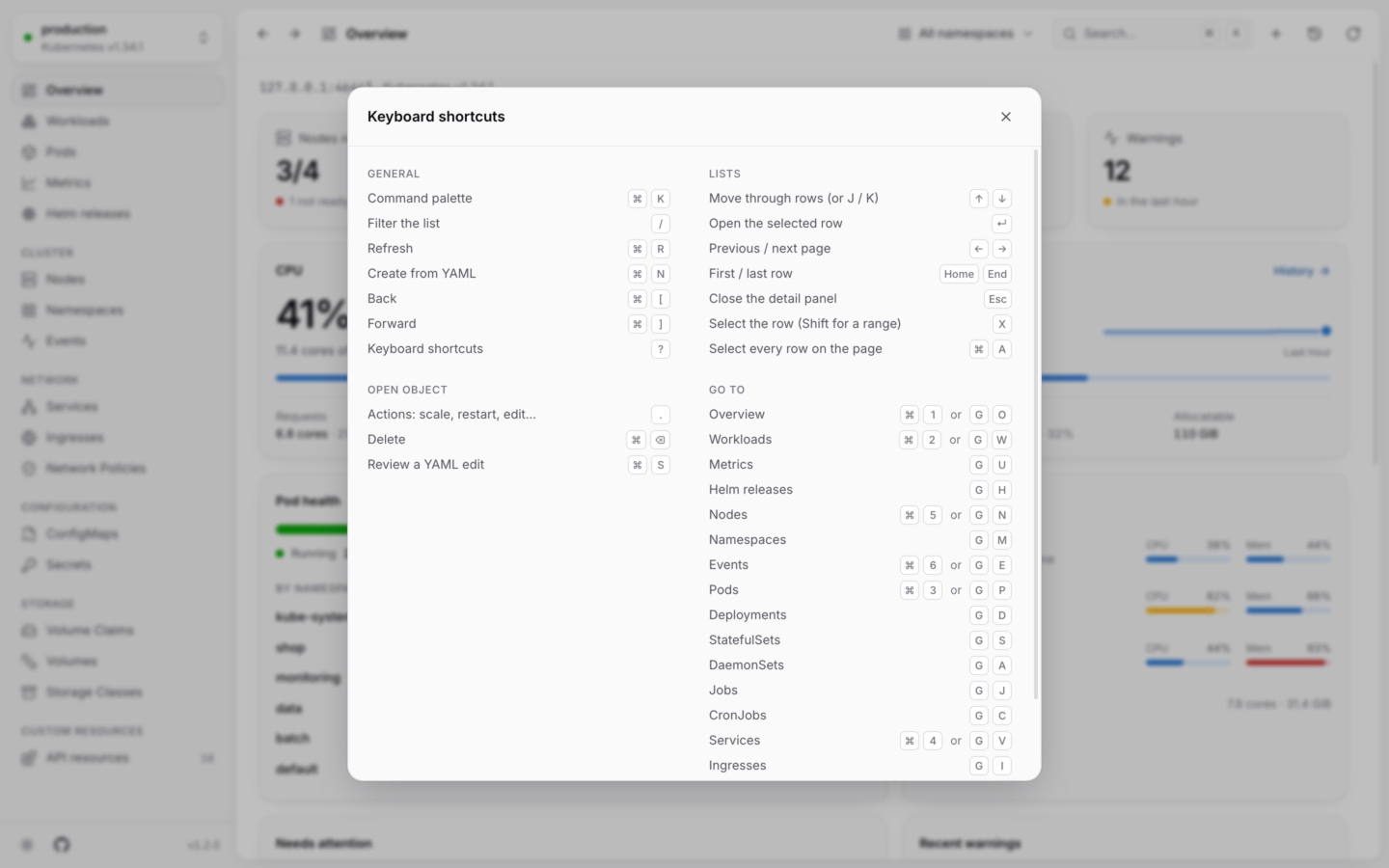
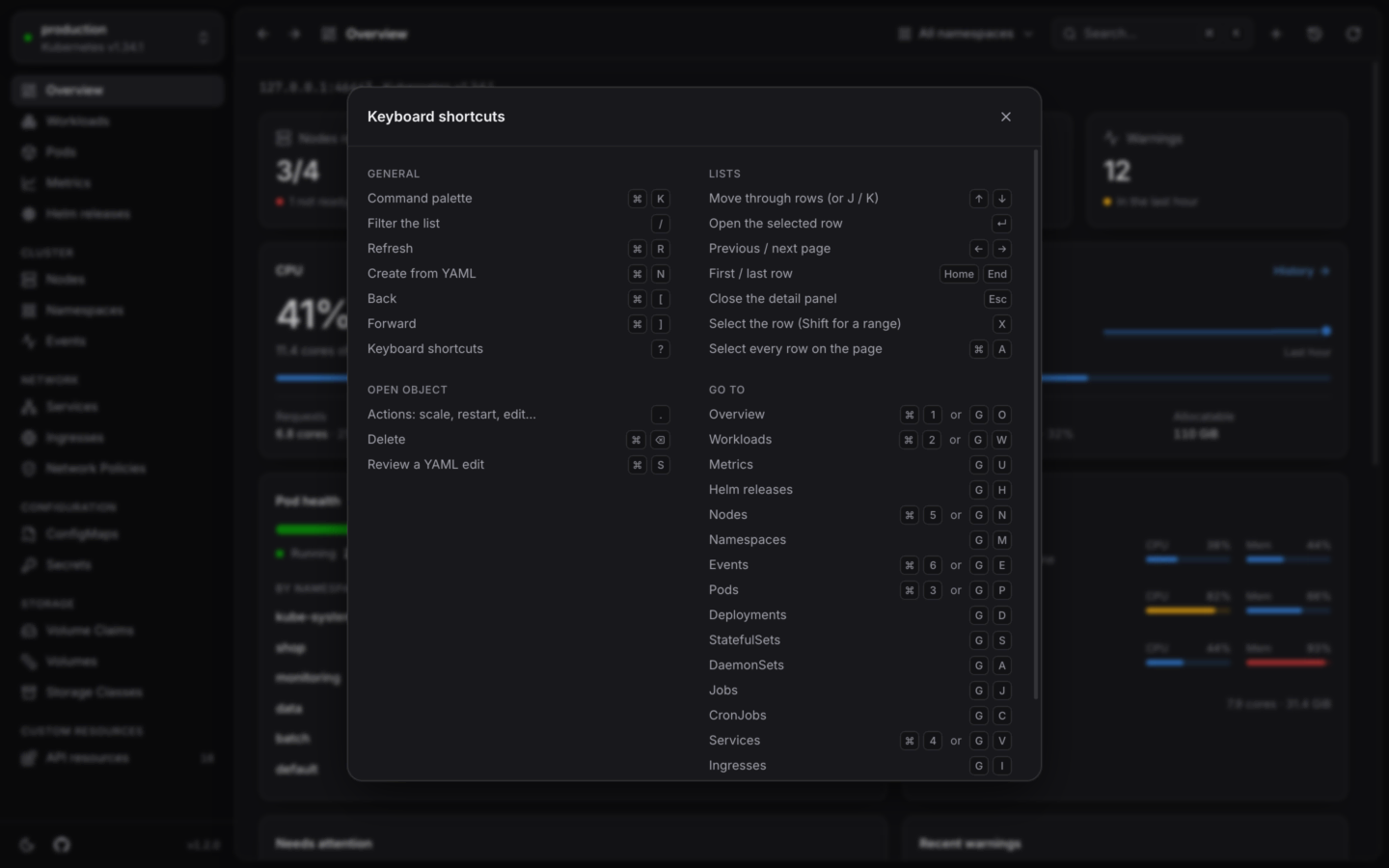
The shortcut sheet, one keystroke away.
Shortcuts are written for macOS. On Windows and Linux, use Ctrl wherever you see ⌘. KubeStacks accepts either key on every platform.
General
Desktop app only
These come from the app’s menus, so they work in the desktop app. A browser keeps ⌘N and ⌘1…6 for its own windows and tabs, so when KubeStacks runs in your cluster, use the command palette for those instead.Go to a view
Press G, then a letter, within a second or so. Hover an item in the sidebar to see its letter.
ReplicaSets, Autoscalers, Network Policies, Volumes, Storage Classes and API resources have no letter. Open them from the sidebar, or type their name into ⌘K.
Lists
While the detail panel is open, moving through the list opens each row in turn. In the filter box, ↓ moves into the list and Esc leaves the box. See Several at once for what to do with a selection.
The open object
The panel’s edge can be dragged to resize it, or focused and moved with ← →. KubeStacks remembers its width. See Object details.
Editing YAML
Esc doesn’t close the panel while you’re editing, so a stray keystroke never loses your work. See Edit YAML.
Charts
On the Metrics page and in every Metrics tab:Logs
Everything else in the log viewer is a button or a chip. See Logs.
Start screen and command palette
The command palette finds views, objects, namespaces and clusters, and the actions for the open object. See Search, filters and ⌘K.