

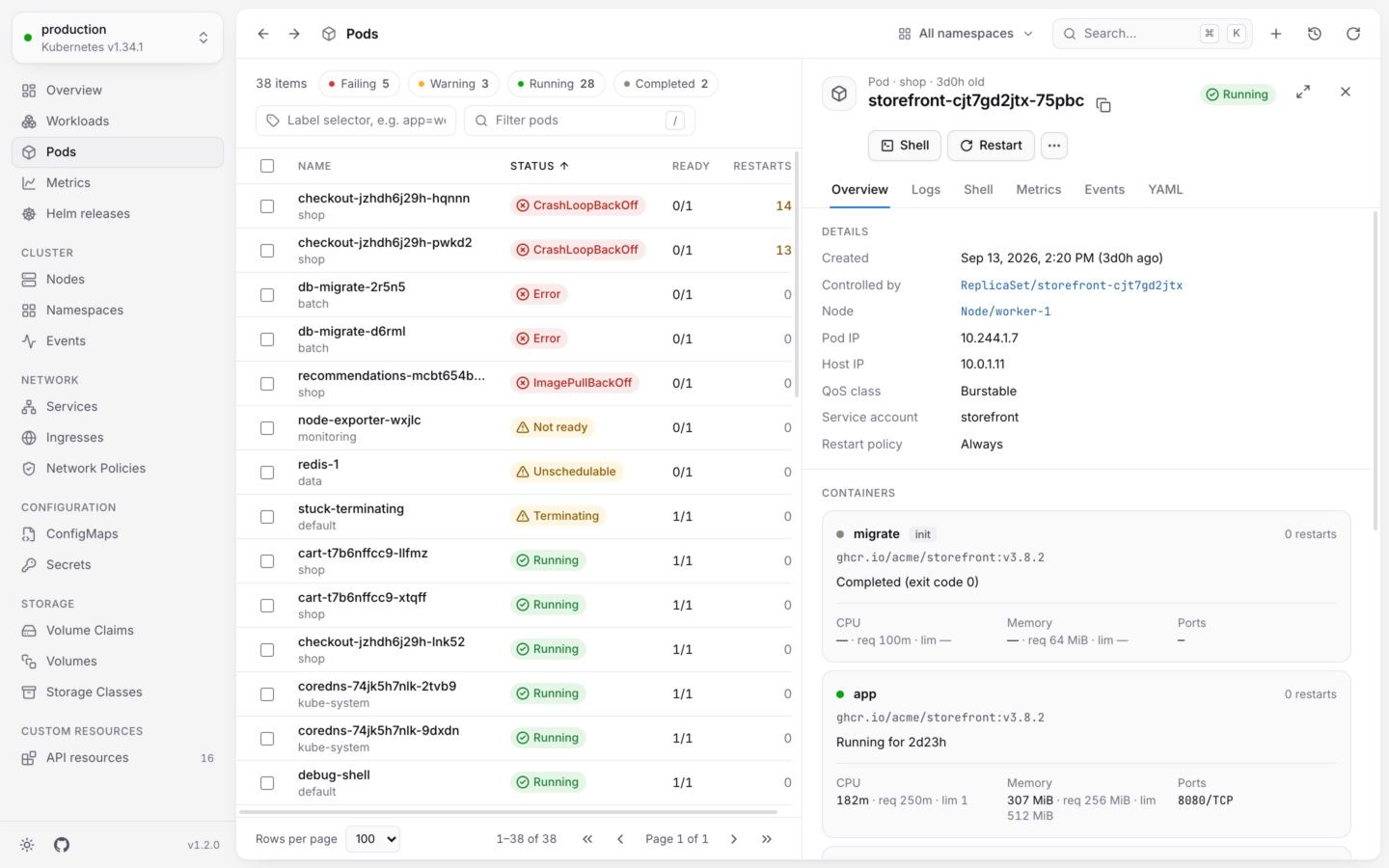
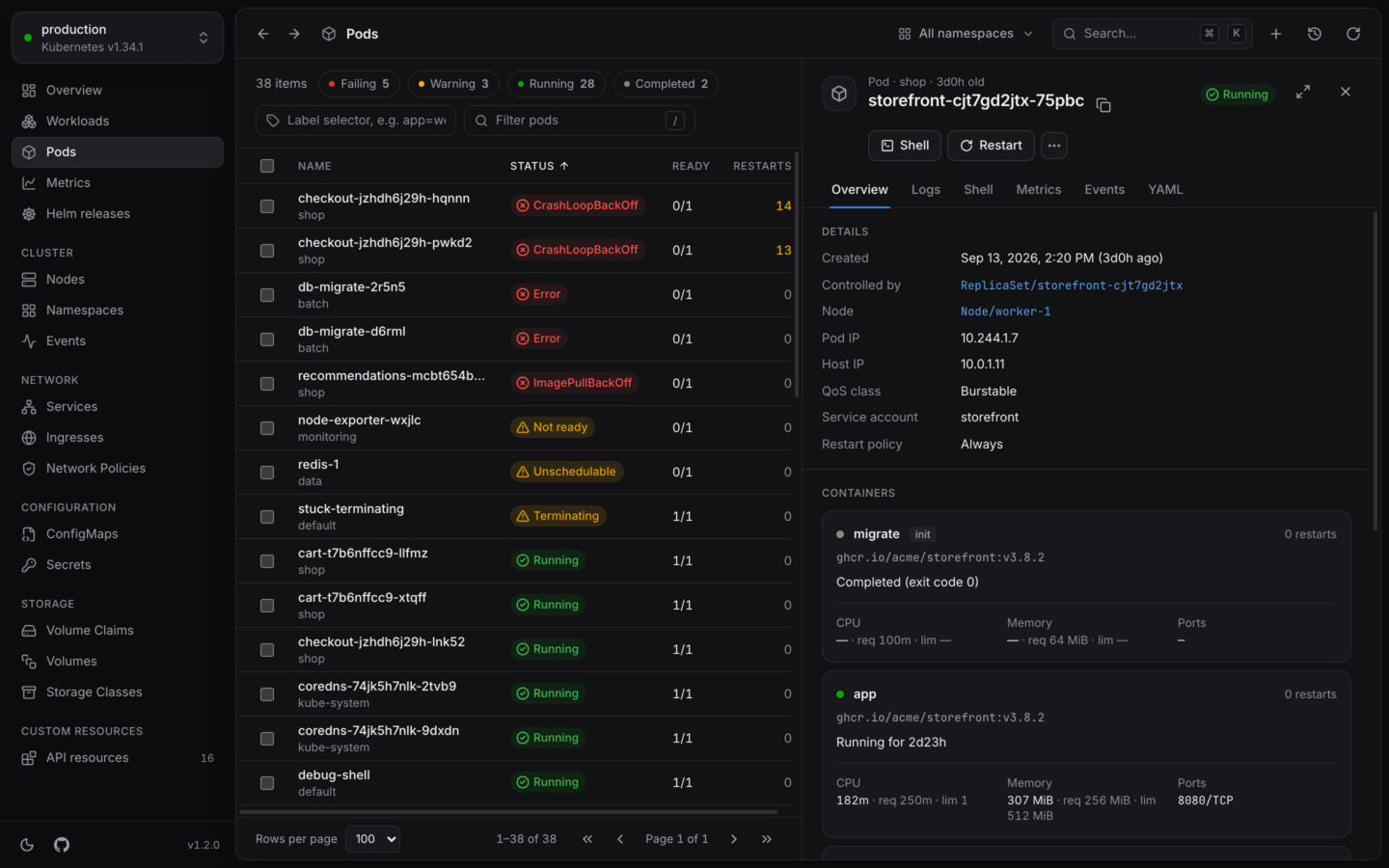
A pod's details next to the list: its containers, their usage and state.
The header
At the top: the object’s kind, namespace and age, its name (with a button to copy it), and its status. Below them are the actions you’ll use most for that kind, like Edit YAML, Scale or Cordon, and ⋯ for the rest. Press . to open that menu from the keyboard. (⌘ is Ctrl on Windows and Linux.)
Drag the panel’s edge to make it wider or narrower, or focus the edge and use ← →. It starts 600 pixels wide, and remembers the width you choose.
Tabs
Each kind gets the tabs that make sense for it:Overview
Details comes first: when the object was created, Controlled by (a link to its owner, like the ReplicaSet behind a pod), and the facts that matter for its kind. A Deployment shows its replicas, strategy and selector; a Service its type, IPs and selector; a node its OS, kernel, runtime and kubelet. Then a section for what’s particular to the kind:
Then Conditions, Labels and Annotations, when it has them. Conditions show at a glance which are healthy, with their reason, message and when they changed.
Names of related objects (a pod’s node, a claim’s volume, an owner) are links: click one to open it.
Custom resources and other kinds
For kinds without a page of their own, the Overview shows the object’s Spec, Status and other fields as a tree. Short values are inline, nested ones are indented, and deep ones start folded. Hover a field’s name to read what it means. The explanation comes from the kind’s OpenAPI schema, which clusters serve from Kubernetes 1.27. If a view covers the kind, its facts go in Details, and the objects it relates to are in Related.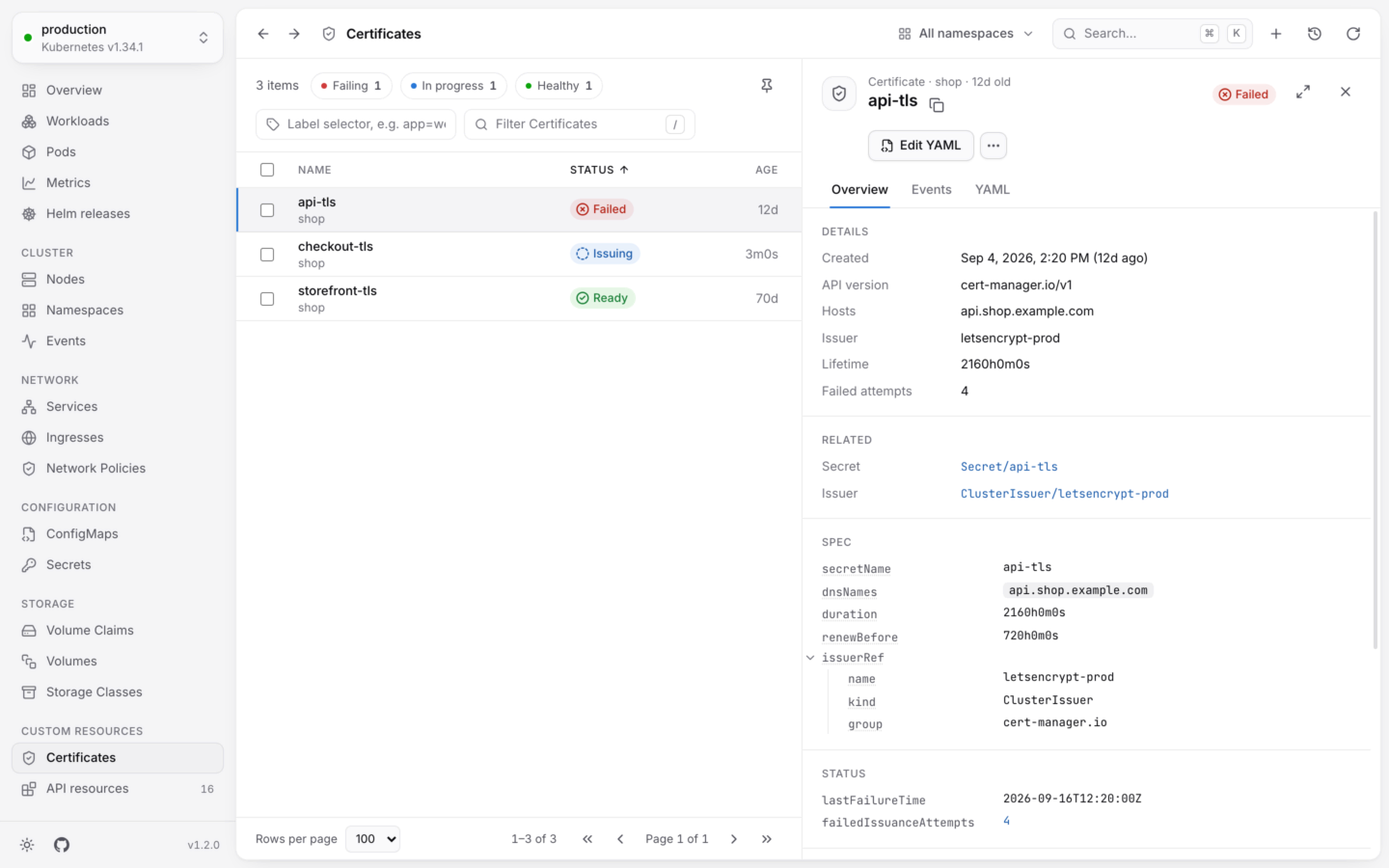
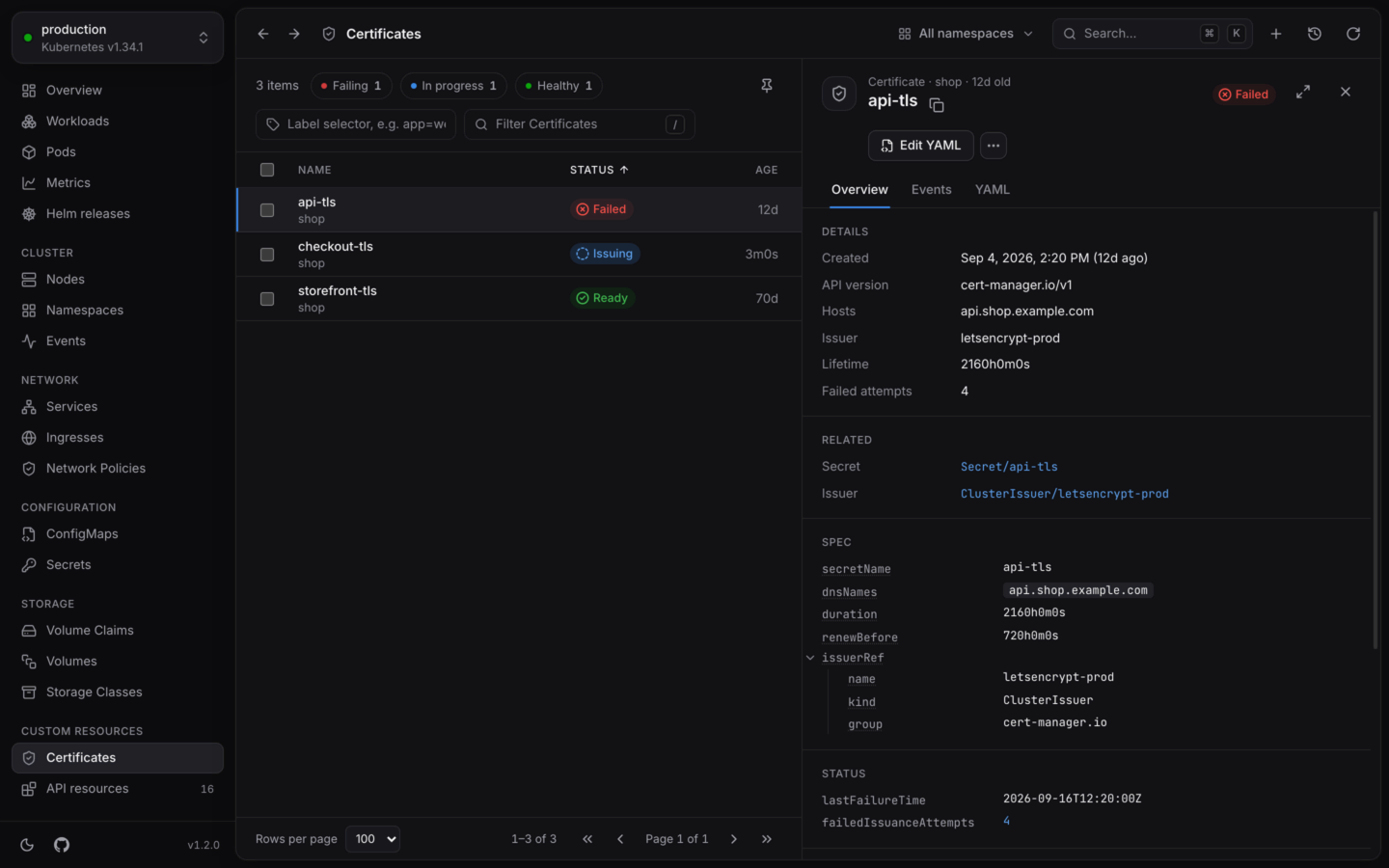
A cert-manager certificate, shown with KubeStacks' view of it.
Pods
The pods the object runs or selects (or, for a node, every pod on it), with their status, ready containers and restarts, failing ones first. Click one to open it.Events
The events about this object, newest first. Often the quickest answer to “why won’t it start?”YAML
The whole object, syntax highlighted. Copy YAML copies it, and Edit opens it for editing, checked by the cluster and shown as a diff before it’s saved. For a Secret, values stay hidden until you choose Reveal values.Right-click a row
Every row has a menu with the object’s actions, and:- Open
- Copy name and Copy namespace/name
- Copy kubectl describe, a ready-to-run command for this object
- Copy kubectl logs, for pods
Links to an open object
The open object is part of the address, so Back (⌘[) and Forward (⌘]) move between objects you opened, the way a browser does.In your cluster: every page, and every open object, has an address you can share. Send a teammate the link to a failing pod, and it opens on the same pod for them, with their own permissions.
Edit YAML
Change any object, with a dry run and a diff first.
Actions by kind
Everything the panel’s buttons and menu can do.