

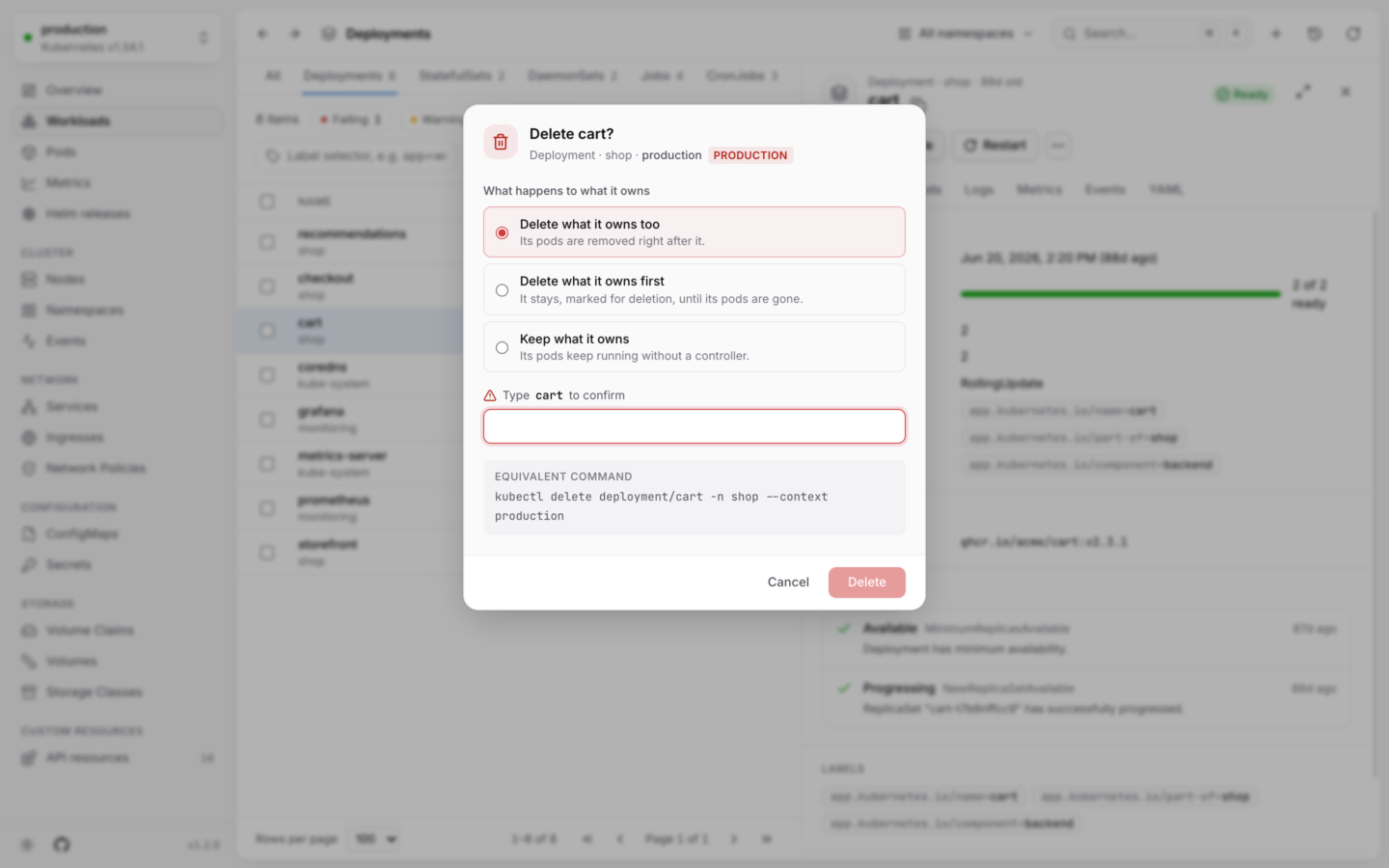
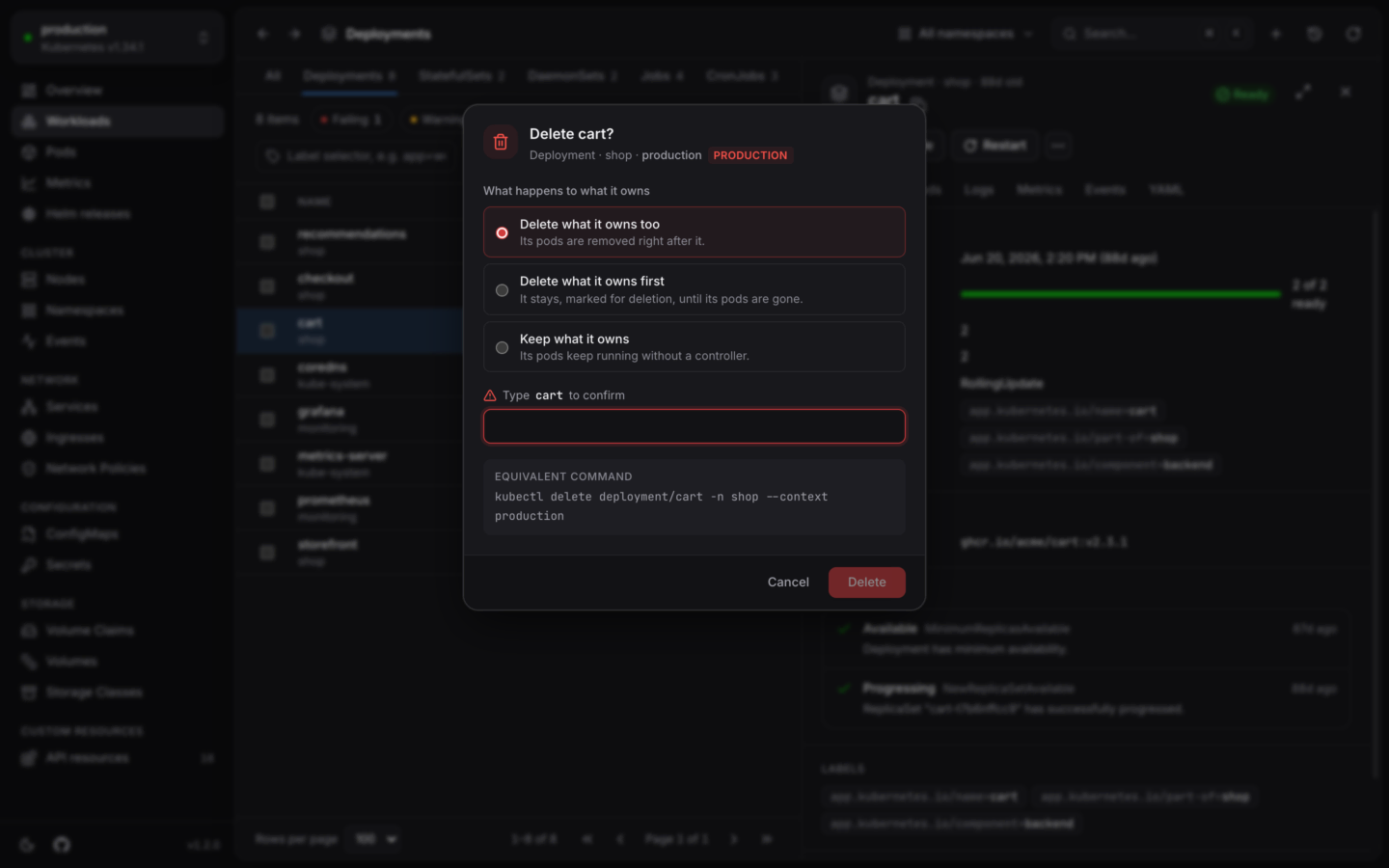
Deleting in a cluster named like production asks for the object's name first.
Your permissions, up front
Before it offers an action, KubeStacks asks the cluster whether your account may do it, with a SelfSubjectAccessReview, the same checkkubectl auth can-i makes. Actions you can’t take stay visible but disabled, and say why:
Your account can’t delete pods in shop.The answers are cached for a few minutes. If the cluster can’t answer, the action stays enabled and the cluster decides when you try. Either way, nothing gets past RBAC: KubeStacks only ever acts with your own credentials. See Permissions for what each feature needs.
Nothing surprising
Every dialog says what it changes and where:- The object and the cluster. The header names the object, its kind and namespace, and the kubeconfig context it’s in.
- The equivalent command. Under Equivalent command, the
kubectlcommand that does the same thing, ready to copy. It’s a good way to learn kubectl, and a record of what happened. - What will happen. Dialogs explain the effect in plain words: how a restart rolls out, which pods a drain evicts, whether a deleted pod comes back.
Checked by the cluster first
Changes you write yourself are checked by the API server before anything is saved:- YAML edits are sent as a server-side dry run first, and shown as a diff. Only Apply saves them. See Edit YAML.
- New objects from Create from YAML are all dry-run first. If any of them is refused, none is created. See Create from YAML.
- Helm upgrades and installs run as
helm … --dry-run=serverfirst, and show what the manifest would change. See Upgrade and roll back.
Changes made meanwhile are caught
A YAML edit is saved against the version you started from. If someone changed the object in the meantime, the cluster refuses the save, and KubeStacks says so instead of overwriting their change. Start over from the latest loads the current version.Hard to do by accident
Destructive dialogs start on Cancel
Destructive dialogs start on Cancel
Delete, drain and other destructive dialogs open with the focus on Cancel, or on the field where you type the name. A stray ↵ never deletes anything.
Risky deletes ask you to type the name
Risky deletes ask you to type the name
Deleting a Namespace, Node, PersistentVolume, PersistentVolumeClaim, StorageClass or CustomResourceDefinition asks you to type its name first. These are hard to recover from: a namespace takes everything in it along, and deleting a CRD deletes every object of its kind.For several objects at once, you type what’s being done instead, like
delete namespaces. See Several at once.Production clusters get an extra check
Production clusters get an extra check
When a context’s name looks like production, every dialog shows a PRODUCTION badge next to the cluster’s name, and every delete and drain asks you to type the name first, whatever the kind.A name looks like production when it contains
prod, production, prd or live as a word of its own. These match: prod, eu-prod-1, live_cluster, gke_acme_us-central1_production. These don’t: product-demo, delivery.Dialogs say what can't be taken back
Dialogs say what can't be taken back
Each delete explains its consequence. Deleting a pod says whether its controller replaces it. Deleting a volume claim warns that the data may go too, depending on the reclaim policy. Deleting a node explains that its pods keep running until its kubelet registers it again.
Easy to take back
Scaling, cordoning, pausing a rollout, suspending, changing images, changing an autoscaler’s range and editing labels can be undone from the notification that confirms them. See Undo and activity.Read-only when you want it
Turn changes off for one cluster from the cluster switcher, or for every cluster withKUBESTACKS_READ_ONLY=1. It isn’t only the buttons: the part of KubeStacks that talks to clusters refuses changes too. See Read-only mode.
Actions by kind
Everything you can do to each kind, and the options each action has.
Read-only mode
Look without touching, for one cluster or all of them.