

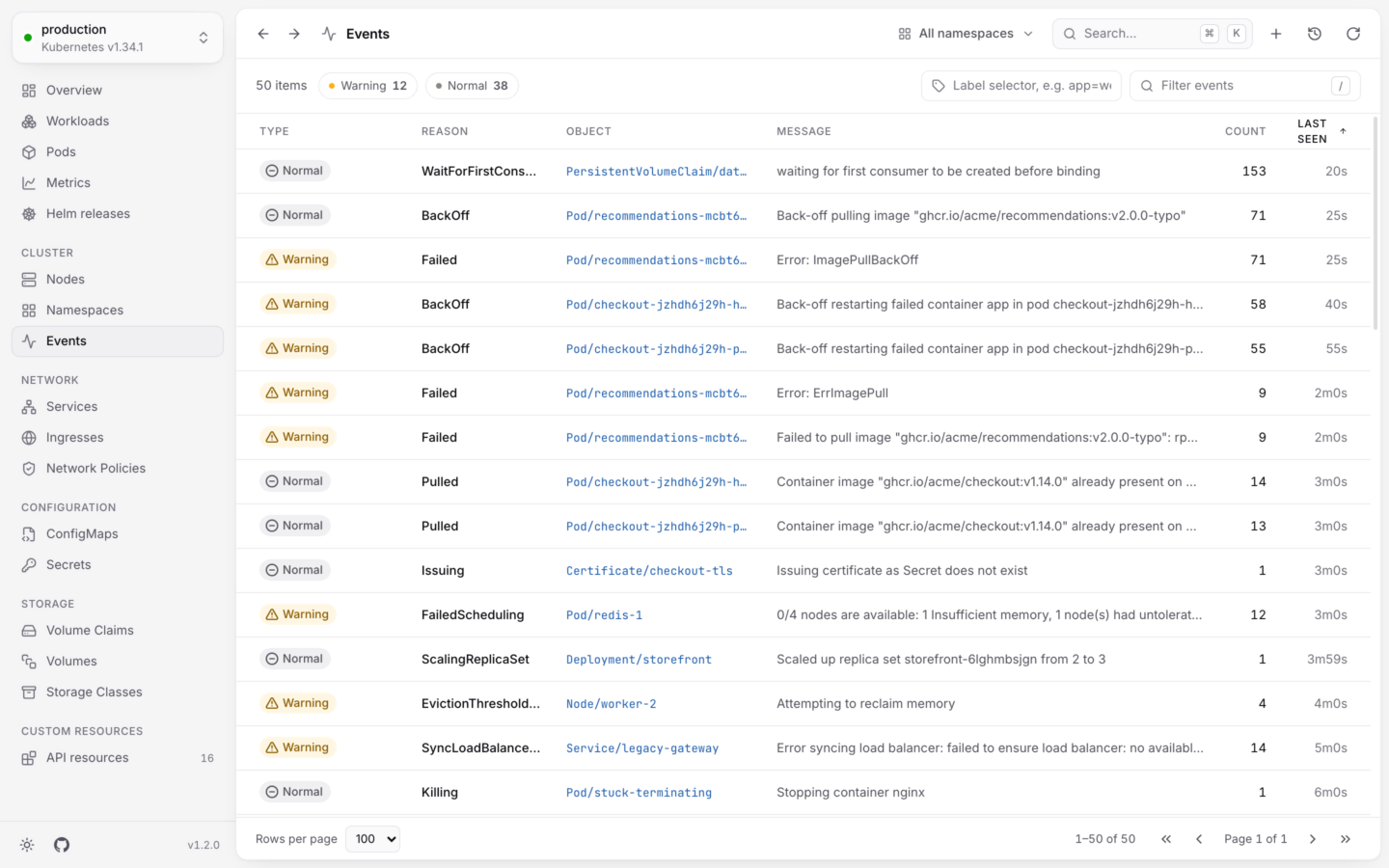
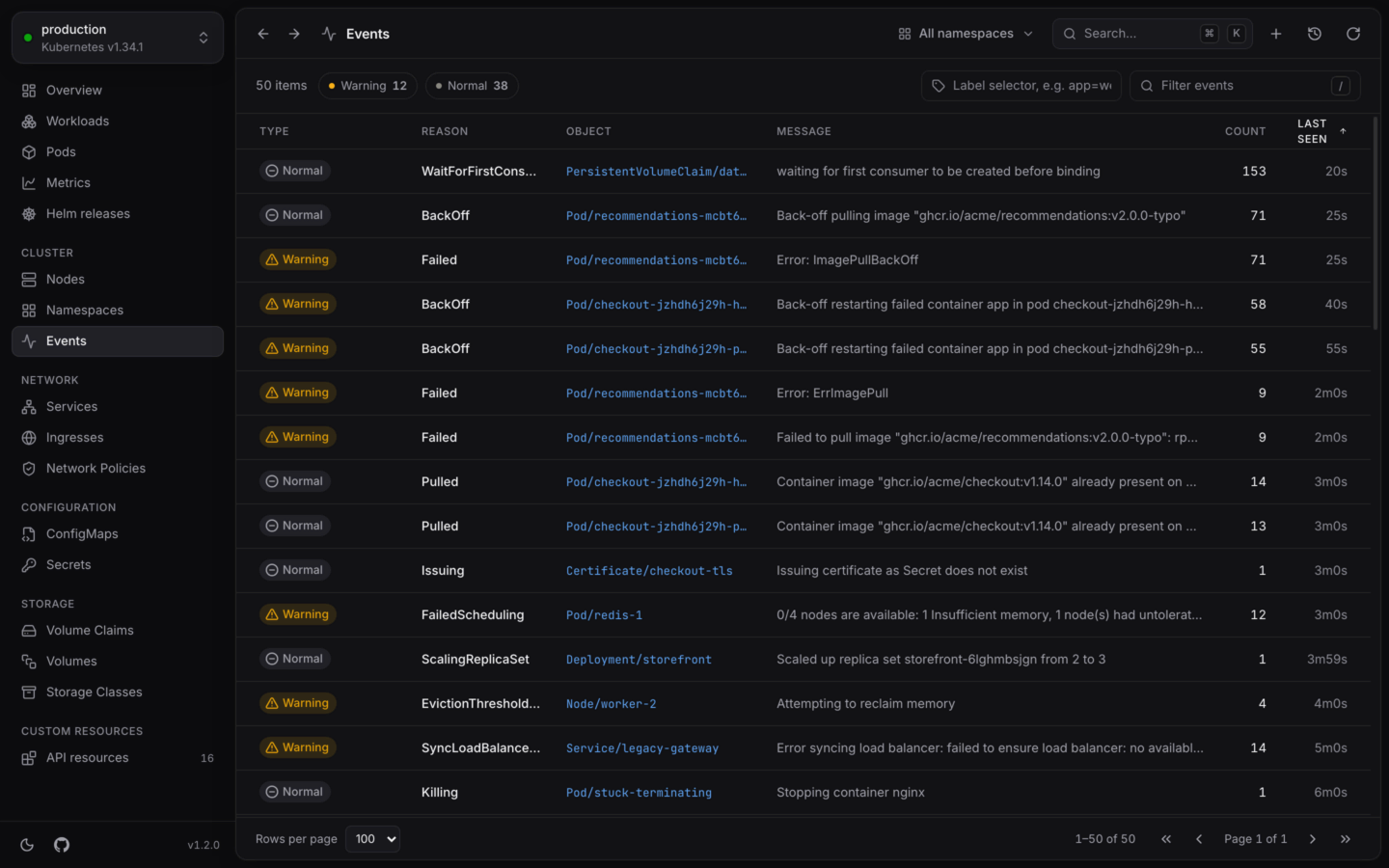
What happened in the cluster, newest first.
Only the warnings
The chips above the list count each type. Pick Warning to hide the routine events. The overview’s Warnings tile opens the list this way. The filter (/) matches an event’s reason, message and object name as well as its labels, so typingOOMKilled or a pod’s name finds what you’re after.
An object’s own events
Every object’s detail panel has an Events tab with the events about it, newest first. It’s often the fastest way to see why a pod won’t start or a volume won’t bind. The overview lists the latest warnings across the namespace, too.Kubernetes keeps events for a limited time (an hour, unless the cluster is set up otherwise), so old ones disappear. For a longer view of what a workload did, see Usage history and its logs.
Overview
The latest warnings, next to what needs attention.
Health and status
What the statuses on each object mean.