

gke-gcloud-auth-plugin, aws eks get-token and kubelogin.
In your cluster: KubeStacks served from a cluster shows that one cluster, and each person signs in with their own identity. There’s no kubeconfig and no cluster list. See Run it in your cluster.
Where clusters come from
KubeStacks finds your kubeconfig the same waykubectl does:
- The files listed in the
KUBECONFIGenvironment variable, separated by:(;on Windows). - Otherwise,
~/.kube/config.
- Files that are missing or empty are skipped.
- When two files define a cluster, user or context with the same name, the first file wins.
- The current context is the first one any file sets.
- Relative paths in a file (to a certificate, say) are read from that file’s folder.
Credential plugins
Contexts that get their credentials from a plugin (anexec entry in the kubeconfig) work as they do in a terminal. KubeStacks keeps each context’s configuration between requests, so a plugin’s cached token is reused instead of asked for again.
On macOS and Linux, apps opened from the Dock or a launcher don’t get the PATH your shell sets up. So when KubeStacks starts, it asks your login shell for its PATH, and finds plugins wherever your shell would. If the shell takes longer than five seconds or fails, KubeStacks keeps the PATH it started with. Windows apps already get the full PATH.
If a plugin isn’t found, the cluster shows Credentials failed, with the message: The credential plugin “gke-gcloud-auth-plugin” wasn’t found. Install it, or make sure it’s on your PATH.
Clusters on plain HTTP
A cluster served overhttp:// (through kubectl proxy, for example) has to opt in to unencrypted connections, the same rule as the official JavaScript client. Set insecure-skip-tls-verify: true on the cluster in your kubeconfig:
~/.kube/config
The start screen
KubeStacks opens on a list of your clusters, and checks each one as the list appears.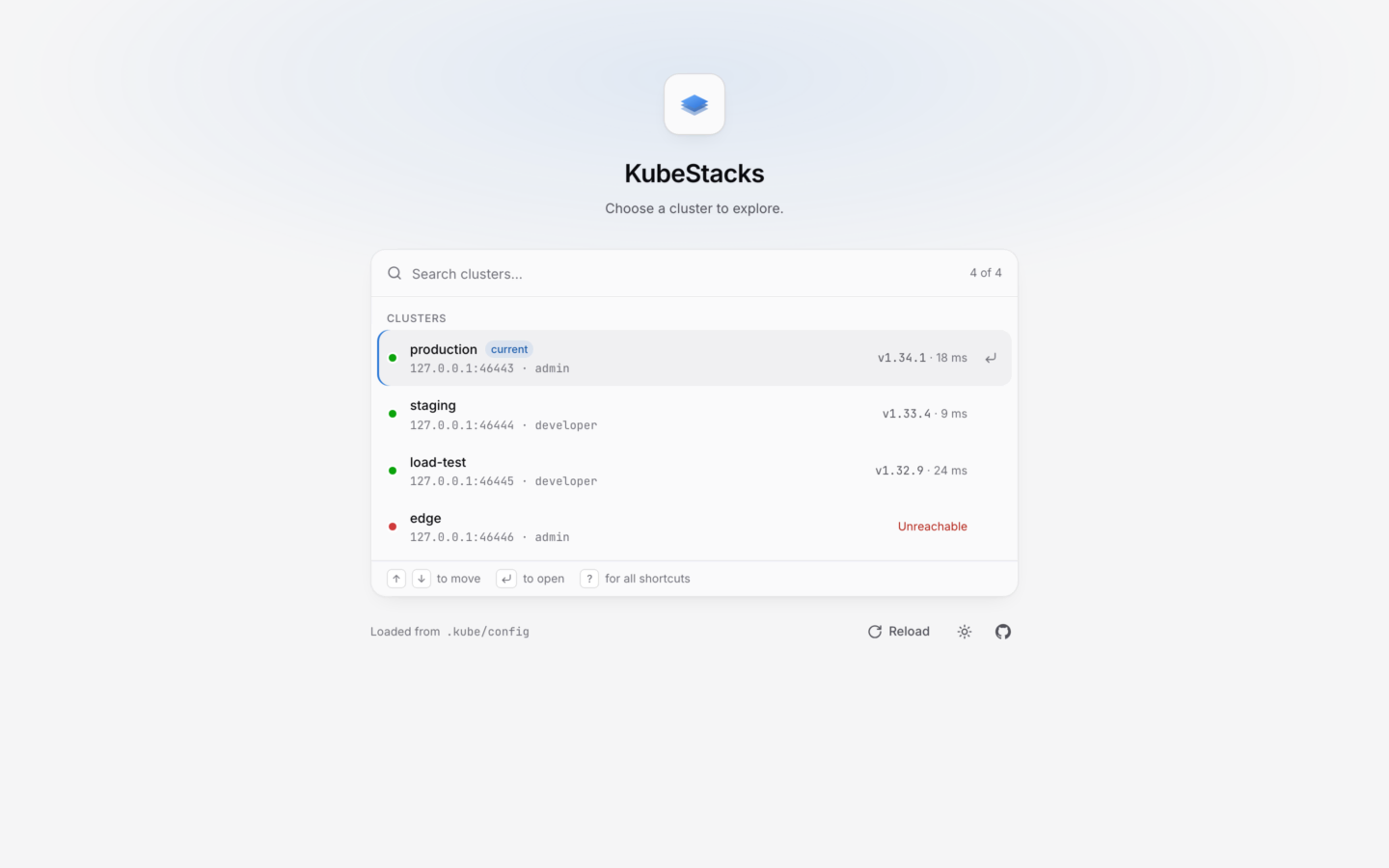
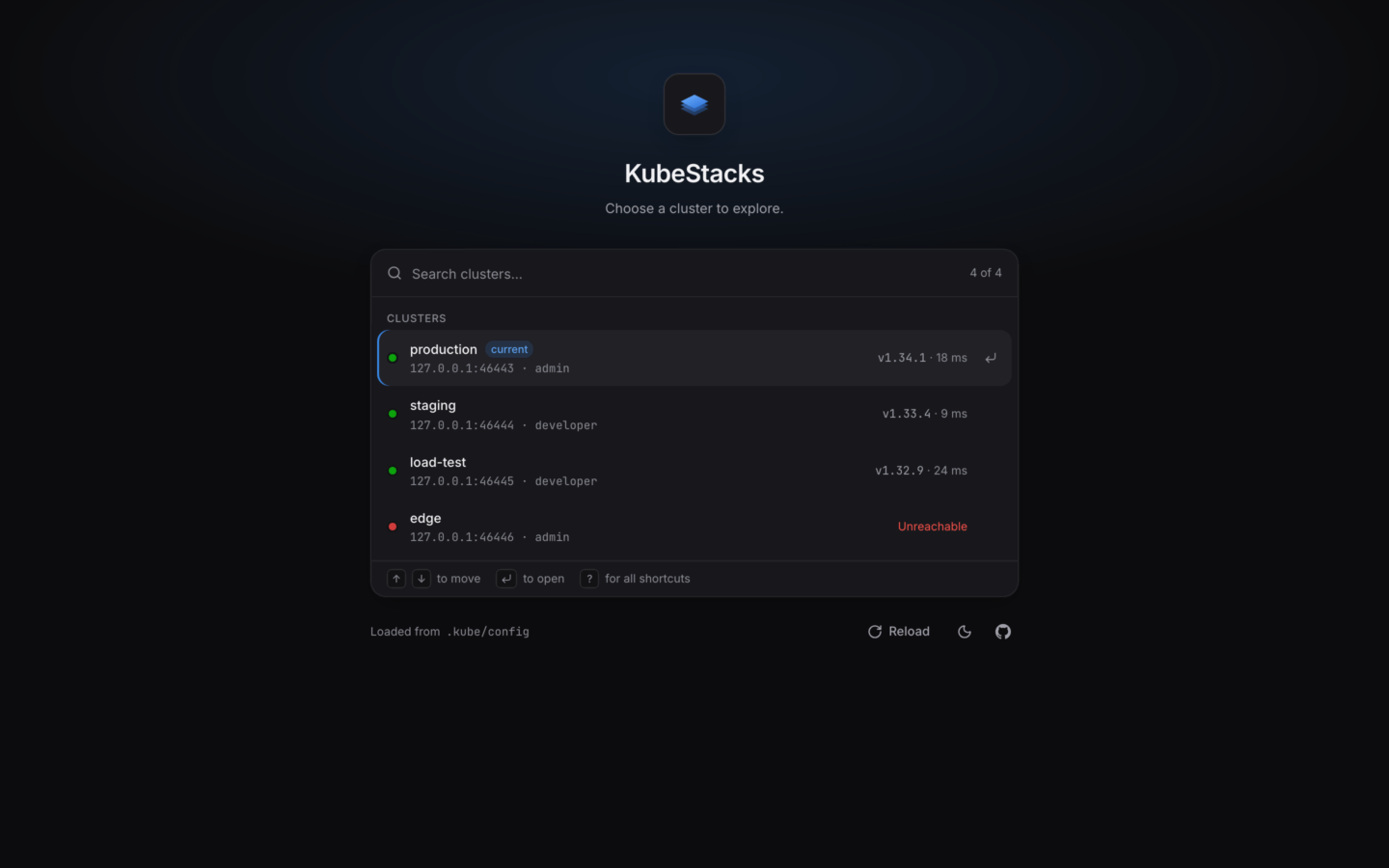
Every context in the kubeconfig, with its status.
- A status dot, and the context’s name. Your kubeconfig’s current context has a current badge.
- The API server’s host and the user, like
api.example.com · admin. - Checking… while KubeStacks asks the cluster for its version, then the version and how long it took to answer (
v1.34.1 · 18 ms), or what went wrong.
When a cluster can’t be reached
The label says what kind of problem it is. Hover it for the full message. If you open the cluster anyway, the page explains what to try, with Try again.
Expired credentials show up as Unauthorized, or as Credentials failed when the plugin that gets them fails. Signing in again with your cloud’s CLI usually fixes both.
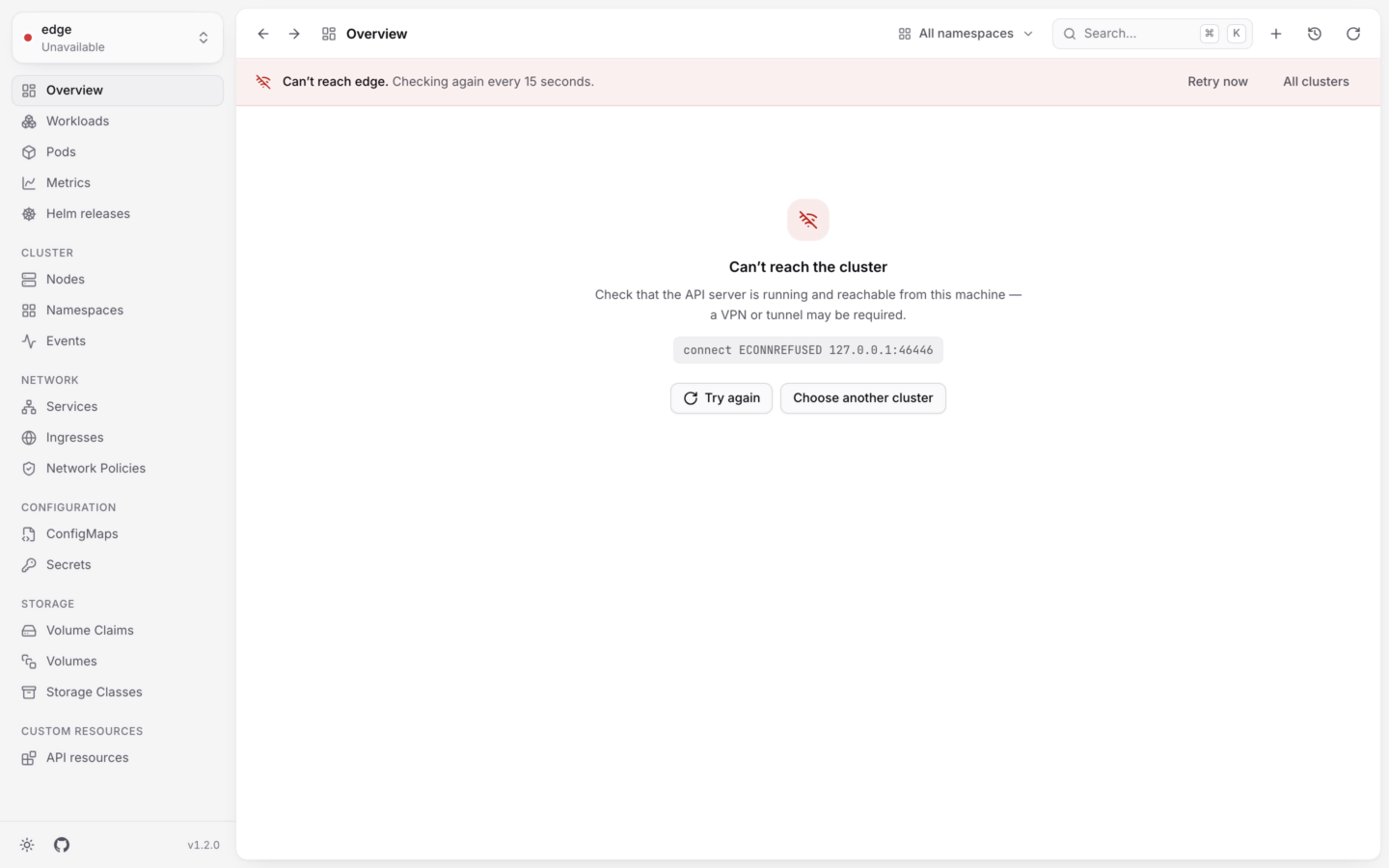
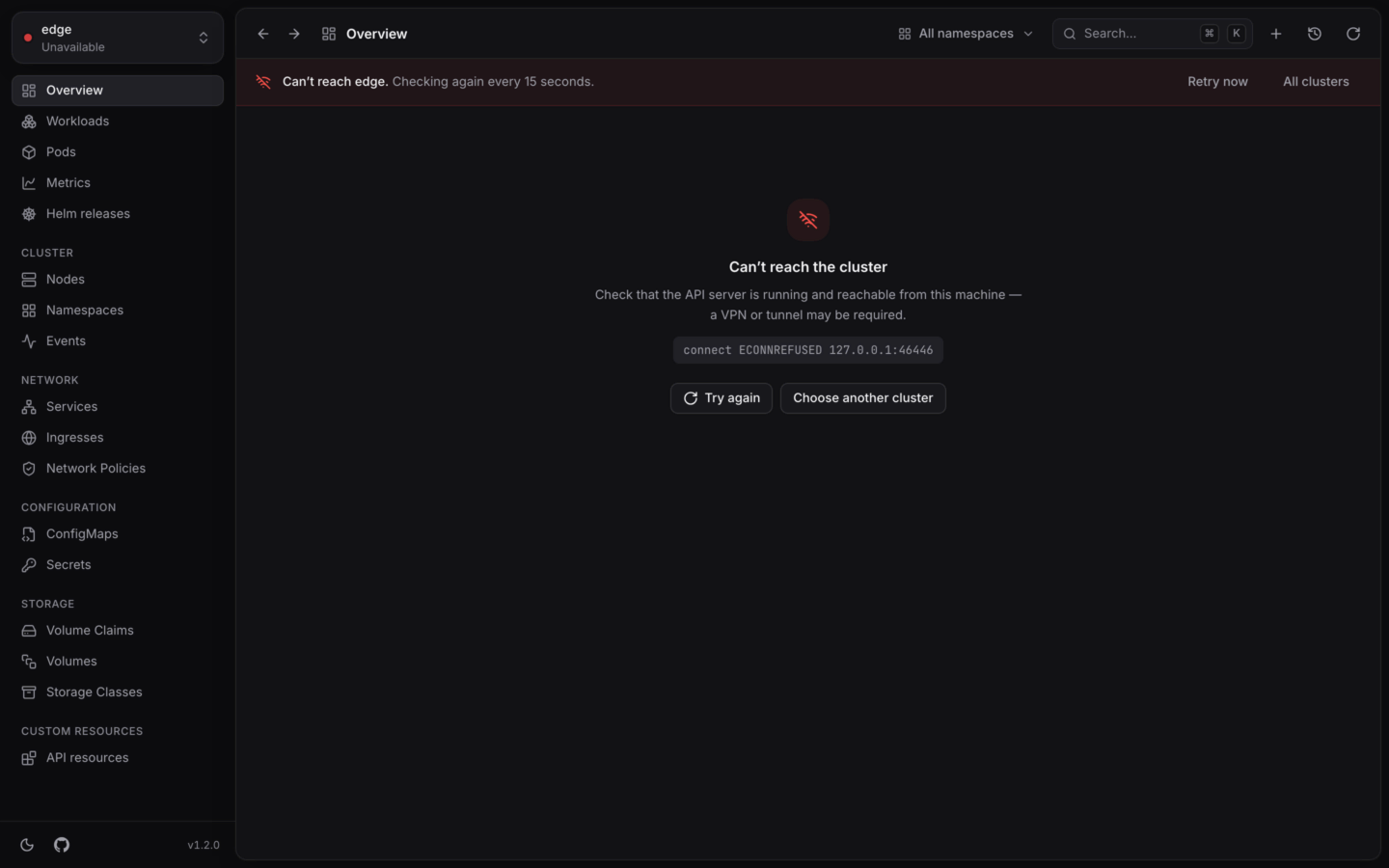
A cluster that doesn't answer, and what to try.
Switching clusters
The cluster switcher at the top of the sidebar shows the cluster you’re in, its Kubernetes version, and a lock if it’s read-only. Open it to:- Switch to another cluster: type to filter, and pick one.
- Go back to All clusters, the start screen.
- Turn Read-only on or off for this cluster.
When a cluster stops answering
If a cluster stops responding while you’re using it, a banner says Can’t reach production. Checking again every 15 seconds., with Retry now and All clusters. The last data stays on screen, so you can keep reading while it comes back. When a single list fails to refresh, it keeps its rows and says Couldn’t refresh — showing the last data., with Retry.Big or slow clusters
Both are read when the app starts. See Environment variables.
Namespaces
Scope every list to one namespace, or see them all.
Permissions
What KubeStacks needs from RBAC, feature by feature.