

Volumes and storage classes aren’t in a namespace, so their lists always show all of them. (⌘ is Ctrl on Windows and Linux.)
ConfigMaps
Open a ConfigMap and its Data section shows each key with its value, as text. Binary values (binaryData) are counted in the Keys column, and are in the YAML.
Secrets
Secret values stay hidden until you ask for them.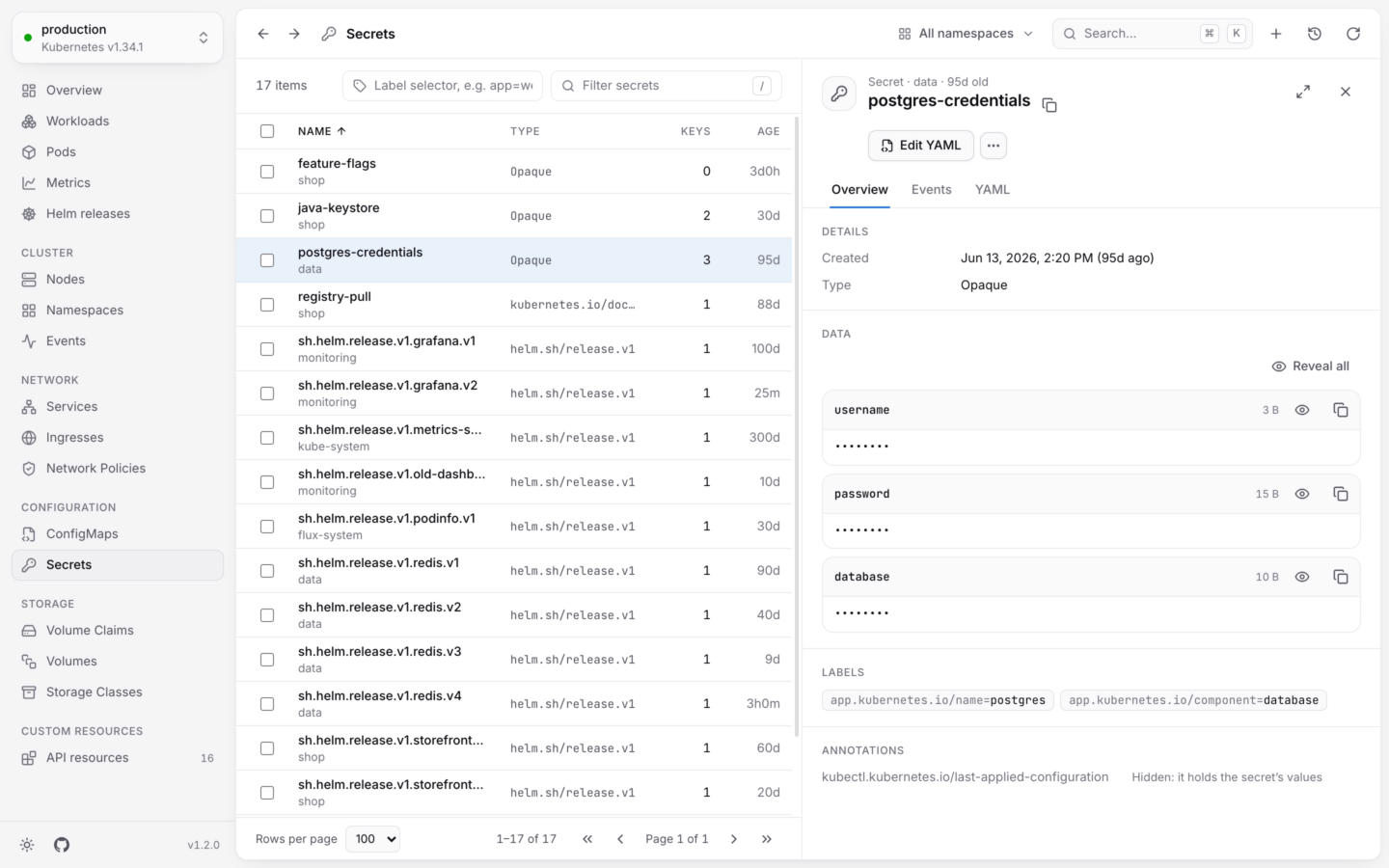
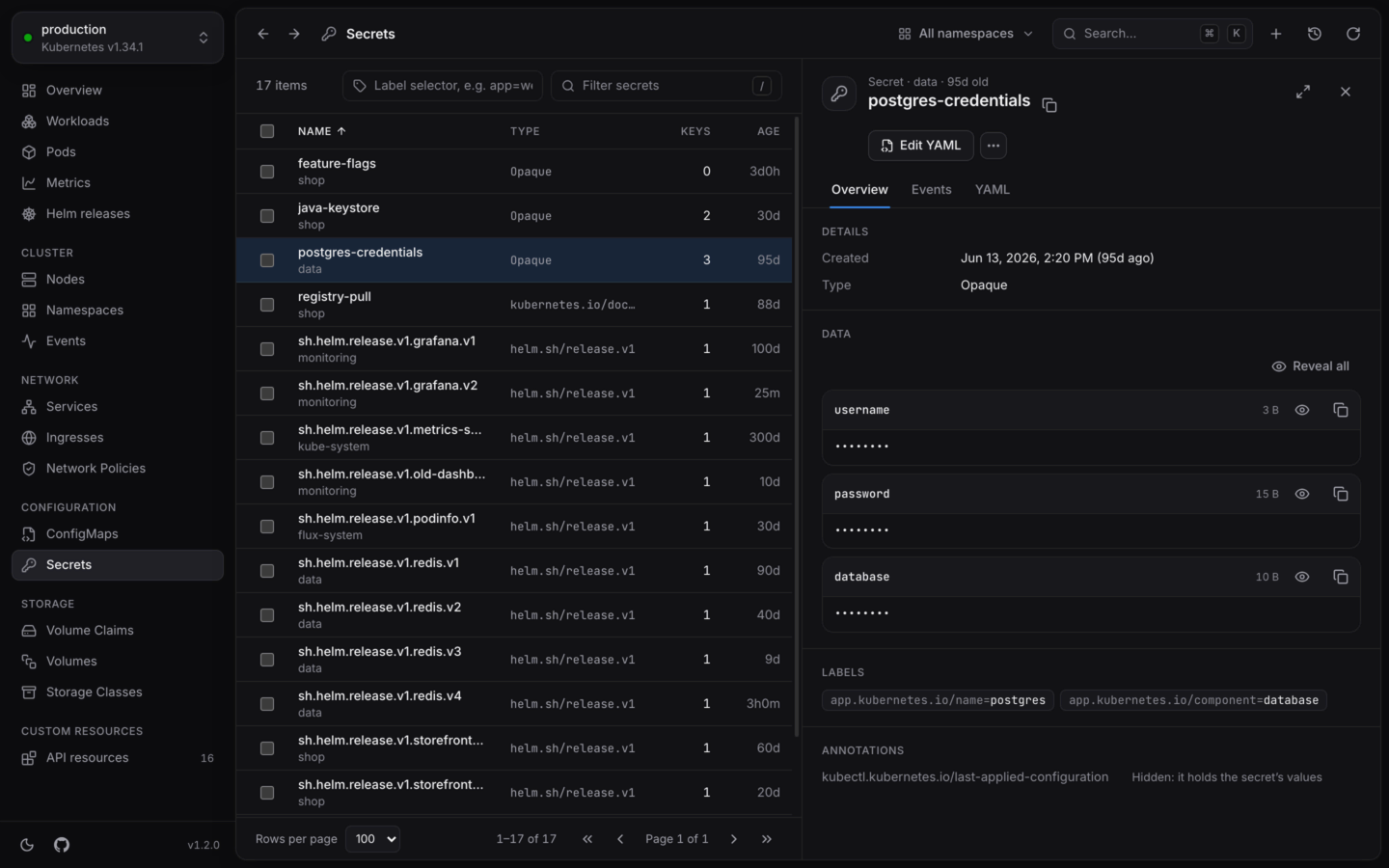
A secret's keys, hidden until asked for.
- The list shows each secret’s type and how many keys it has. KubeStacks drops the values before the list reaches the page.
- Data shows each key with its size, and its value as
••••••••. Reveal one key with its eye button, or all of them with Reveal all. Values are decoded from base64 for you. - Copy next to a key copies its value without revealing it, for pasting somewhere safe.
- YAML hides values too, until you choose Reveal values. The
kubectl.kubernetes.io/last-applied-configurationannotation holds a copy of the values, so it’s hidden as well: Hidden: it holds the secret’s values.
Editing a secret
When you edit a Secret’s YAML, its text values appear decoded, understringData, so you can read and change them as text. Values that aren’t text stay base64-encoded under data. On save, everything is encoded back into data. See Edit YAML.
Volume claims
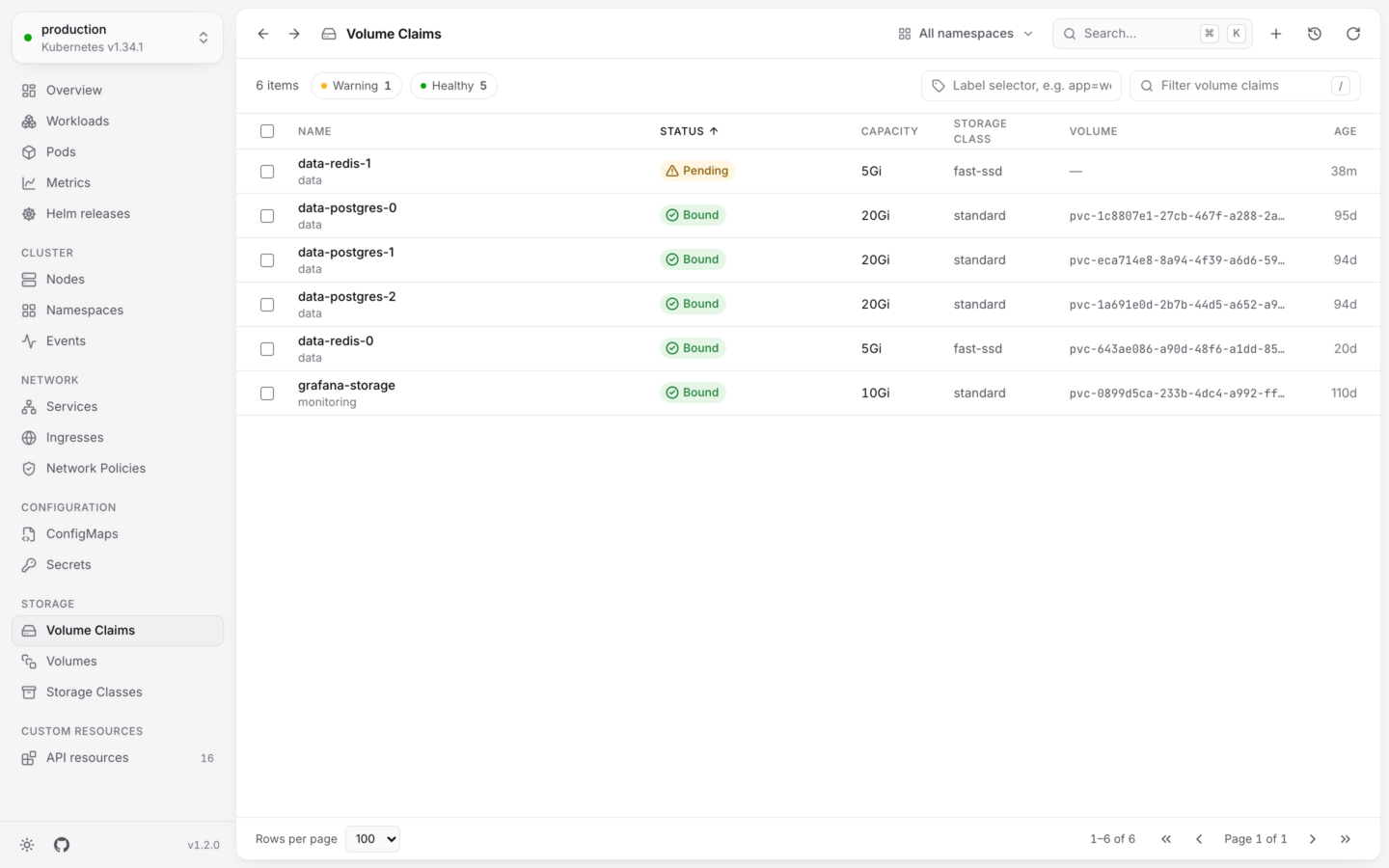
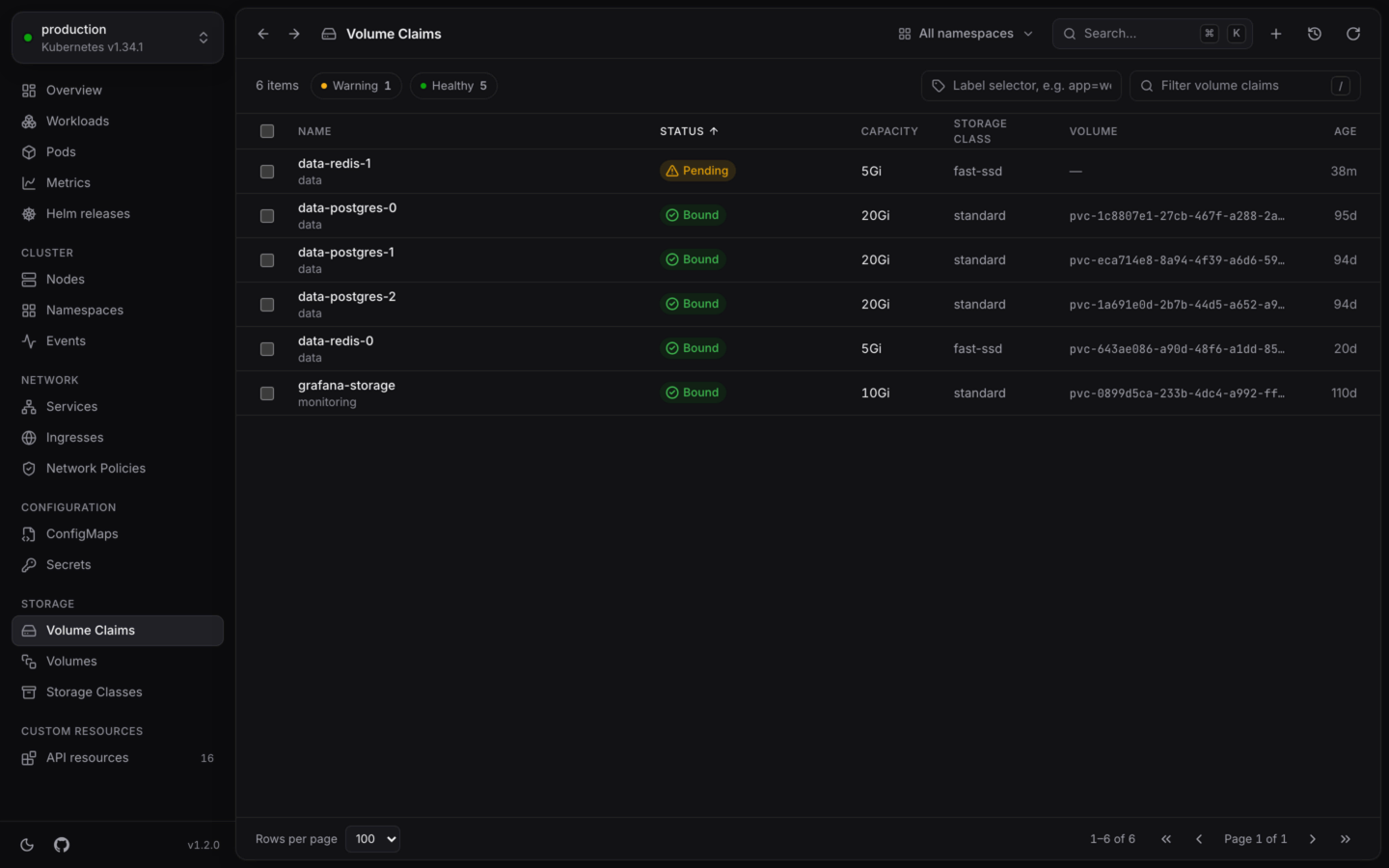
Volume claims, their capacity, storage class and volume.
Volumes
A volume is Bound or Available when all is well, and shows its phase otherwise, like Released. Open one for its capacity, access modes, reclaim policy, storage class, and a link to the claim that holds it.Storage classes
Open a storage class for whether it’s the Default, its provisioner, reclaim policy and binding mode, whether Volume expansion is allowed, and its parameters.Edit YAML
Change any object, checked by the cluster and shown as a diff first.
Object details
Everything the detail panel shows, tab by tab.