

Sign in
How you sign in depends on how your team set KubeStacks up. The sign-in page shows the right way.- Single sign-on
- Token
- Company login
Choose Sign in with … (your company’s provider, like Okta or Google), and sign in there as you usually do. You come back to KubeStacks, signed in.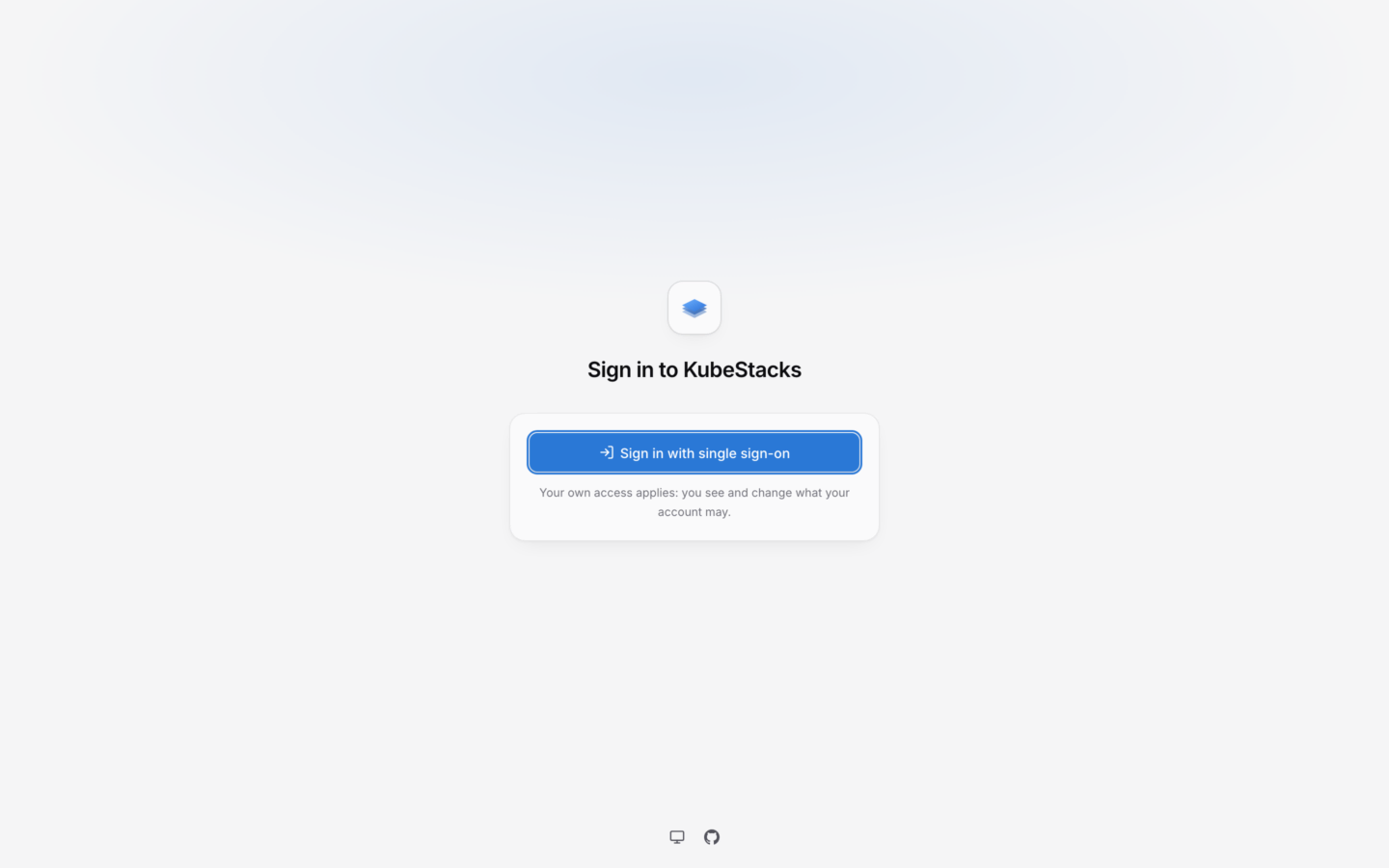
Who you are, and what you can do
Your initials, at the bottom of the sidebar, open a menu that shows who you’re signed in as, and the groups the cluster knows you by. Your access comes from the roles bound to that name and those groups.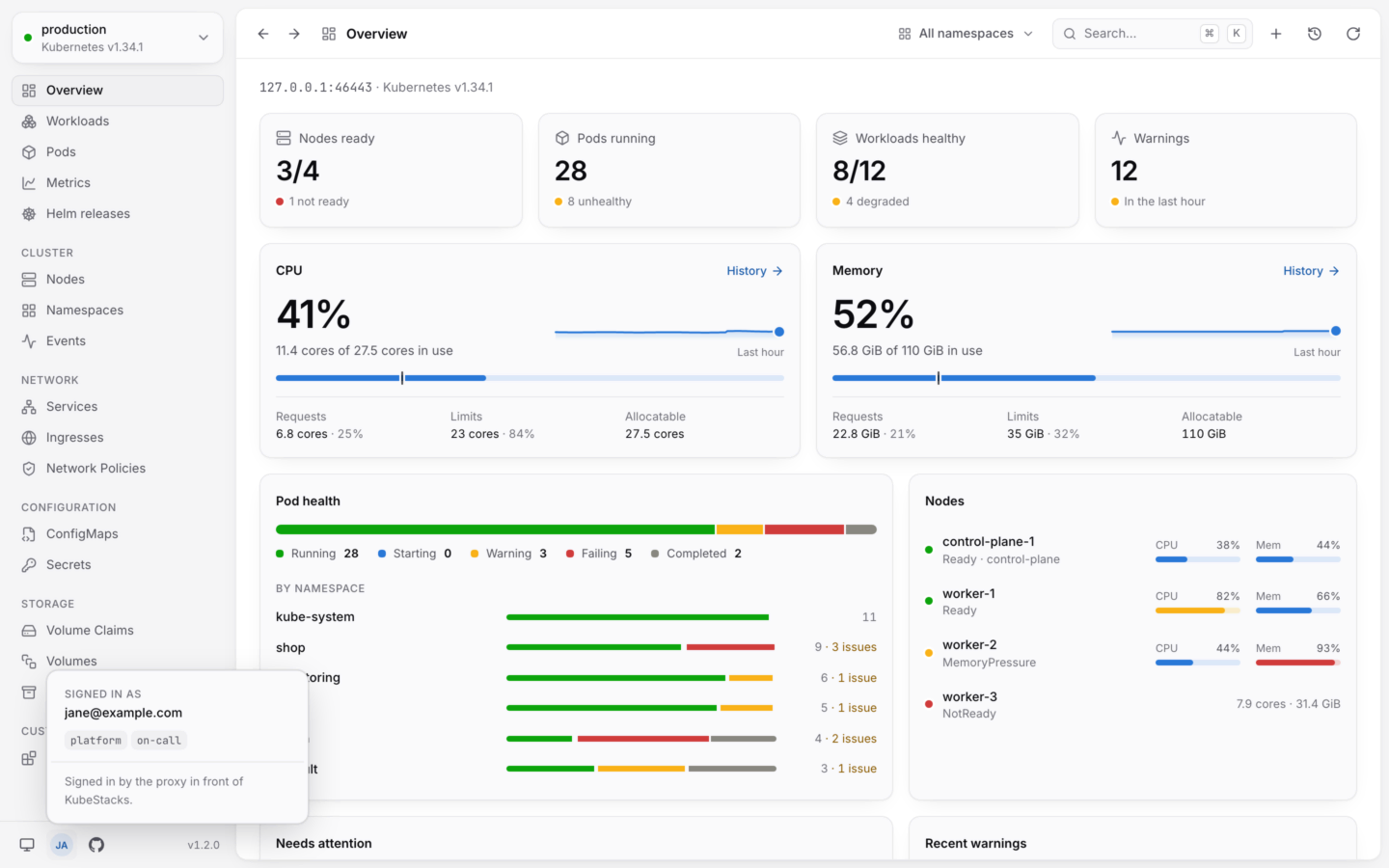
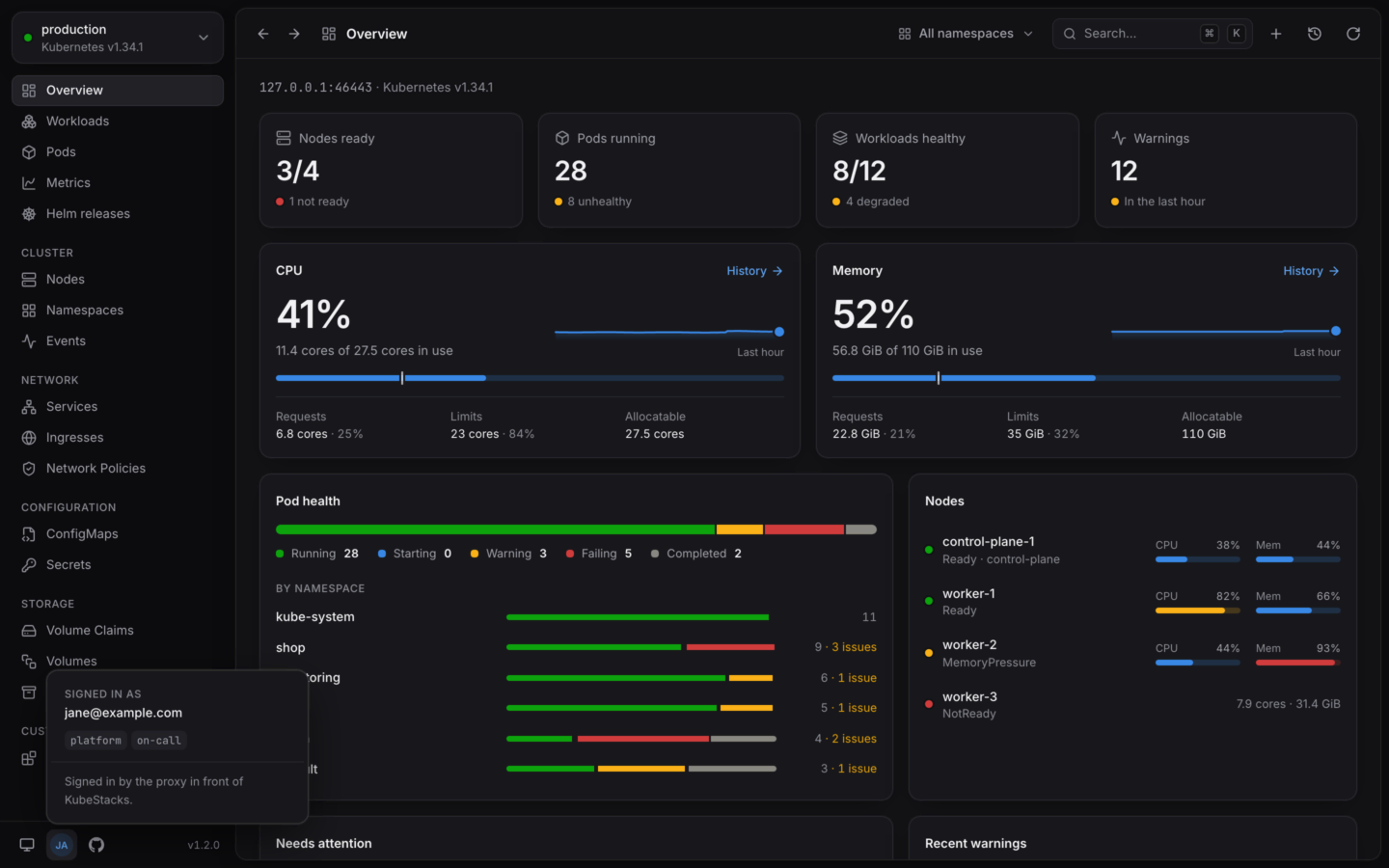
Who's signed in, and their groups.
- Actions you aren’t allowed to take are turned off, with the reason, like “Your account can’t delete pods in shop.”
- If you can only see some namespaces, pick one from the namespace menu, or type its name.
- Sign out is in the same menu. Behind a company login, it signs you out of the proxy, if your team set that up.
Good to know
Sessions end
Sessions end
A session lasts 12 hours unless your team changed that. It also ends when KubeStacks restarts, after an upgrade say. You come back to the sign-in page, and land where you were.
If the connection drops
If the connection drops
A banner says Reconnecting to KubeStacks…, and the page keeps what it showed. It picks up again as soon as the server answers. If it goes on, the server may be down, or a proxy in front of it may not pass WebSockets.
Your preferences stay in your browser
Your preferences stay in your browser
The theme, which clusters you’ve made read-only for yourself, and where usage history comes from are kept per browser. Nobody else’s change.
A few shortcuts belong to the browser
A few shortcuts belong to the browser
Browsers keep ⌘N and ⌘1…6 for themselves. The command palette (⌘K, or CtrlK on Windows and Linux) has those commands. Everything else is the same as in the desktop app.
Take the tour
Five minutes through the app’s main ideas.
Changing things safely
What KubeStacks checks before it changes anything.